Conversational Forms
In this section
Conversational forms are an essential Algho tool for profiling a specific user request in detail.
For the company, they serve as a lead generation tool useful for collecting information about the person or company interacting with the assistant. For the user, they are a necessary tool for submitting a request and obtaining a specific service.
When designing a form, you write a series of questions that the assistant will ask the user. Depending on the answers provided, the conversation will unfold along vertical communication flows dedicated to a specific topic.
To successfully complete the form, the user must answer all the questions asked.
In summary, it involves creating and filling out a digital form by conversing with an assistant that can explain to the user why that data is needed, what it is used for, and how it should be provided.
All options involving the use of Generative AI are only available for accounts with this feature enabled.
Accessing Forms
The forms section is located in the main menu on the left column:
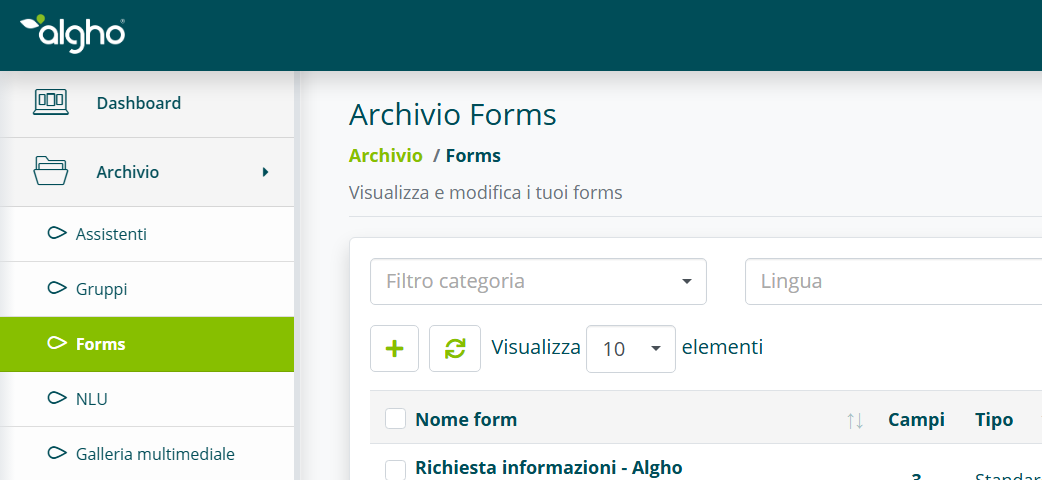
Once the Forms item is selected, to create a new form, click the Add button:
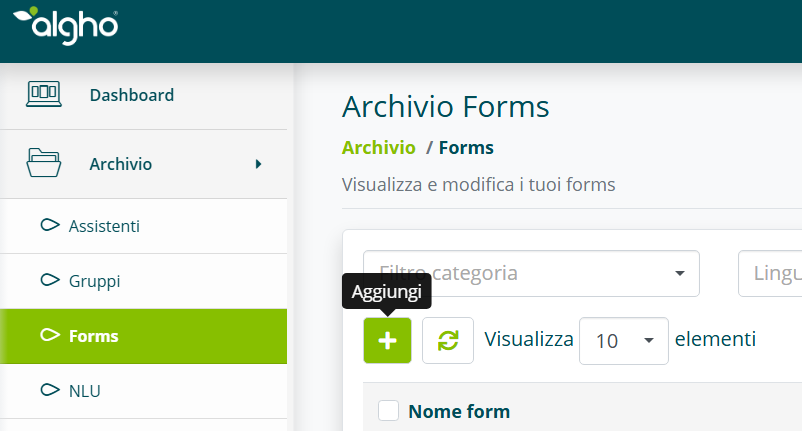
At this point, the first screen opens with all the settings to configure for the form's preliminary options.
General Form Settings
The form creation screen contains all the preliminary options to configure. Fields marked with an asterisk (*) are required.
Basic Settings
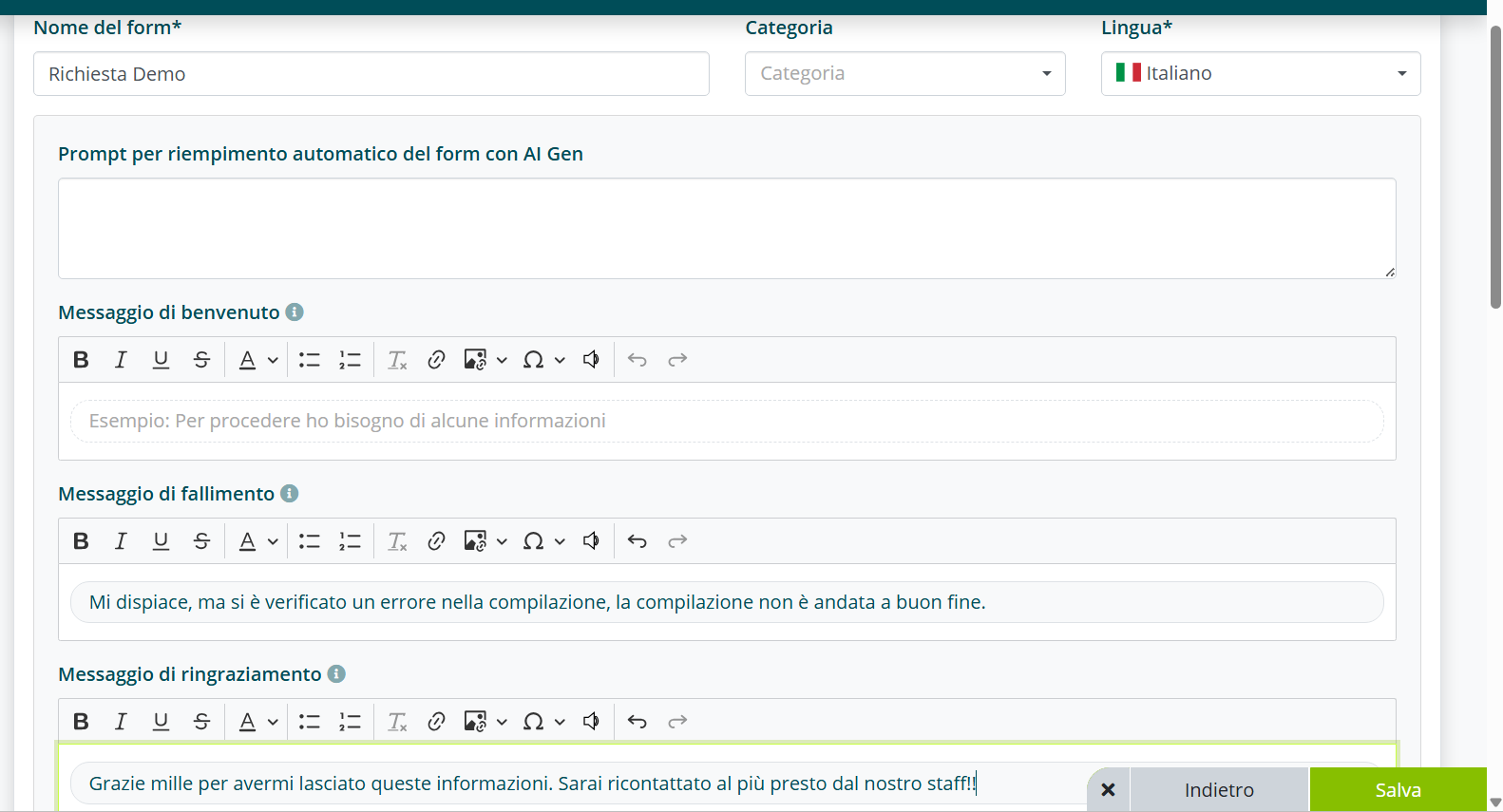
- Form Name: the name that identifies the functionality of the form being built. It is important that the name is descriptive so it can be recognized among all others.
- Category: assigning a category can be useful for creating additional filtering.
- Language: you can select from 8 different languages.
- Prompt for automatic form filling with AI GEN: to enable the use of GEN AI on the form, a preliminary prompt must be written in this section explaining what data will be asked of the user and the purpose of the entire form (see Generative AI in Forms).
- Welcome Message: a sentence the assistant will speak. Usually a short phrase is entered to explain to the user why answering the questions is required and what type of data is being requested. This message will trigger immediately after the response of the intent to which the form is attached.
- Failure Message: for each field, a number of attempts can be manually set beyond which the form automatically stops. The failure message, even if not customized, will still trigger with a preset sentence.
- Thank You Message: the final message that closes the form after the user has answered all questions. There is no default message.
Consent and Manual Interruption
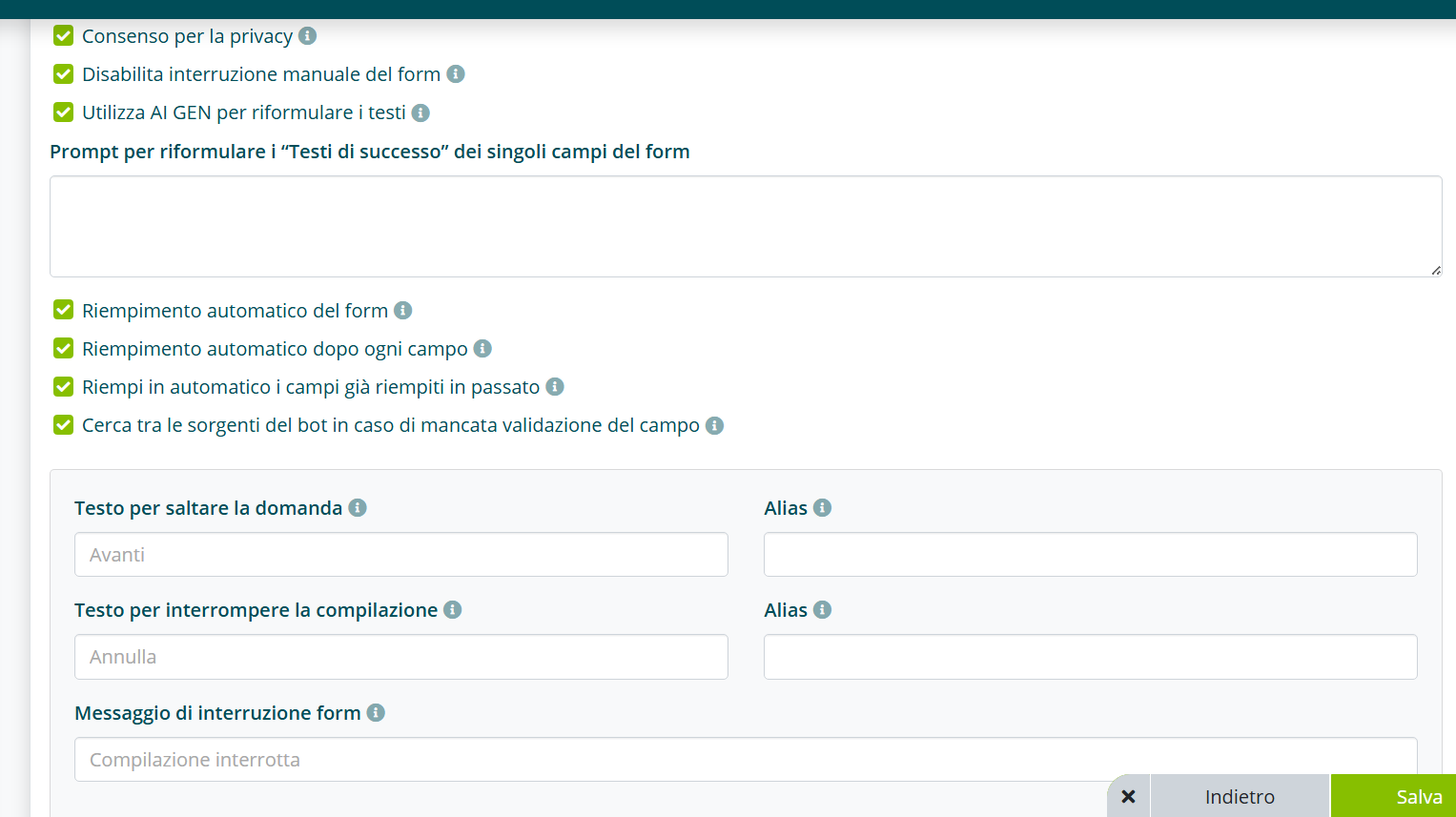
- Privacy Consent: when requesting sensitive data, activating this option allows you to choose which consents to enable (marketing, third-party data sharing, newsletter consent, events and webinars). The user will select them.
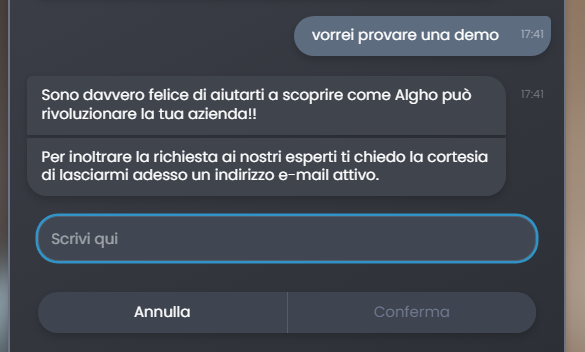
- Disable Manual Form Interruption: whenever inside a form, you can decide whether to show the Cancel option, which would allow the user to interrupt the form at any time.
AI GEN Options and Auto-Fill
- Use AI GEN to reformulate texts: the assistant uses AI GEN to reformulate all form texts. For example, if the question is “Tell me your first and last name”, the assistant with this option enabled might reformulate it as “I need your personal details”.
- Automatic form filling: the assistant extracts from the initial request the information needed to fill the form fields. If a user in their initial request says “I'm Mario Rossi, I live in Rome and I'd like to book a room” and the form has Full Name and City fields, the assistant will not ask for this information but will fill it automatically.
Enabling this option also enables the use of Global Variables.
- Automatic filling after each field: the assistant extracts from the response to each field information useful for filling subsequent fields as well. To enable this option, both Automatic form filling and Use AI Gen to reformulate texts must be activated.
- Automatically fill fields already filled in the past: this option allows the user not to provide the same data multiple times when in different forms but with some common questions. If the user has already provided their tax code in the Room Booking form, when they encounter the Car Rental form, the tax code will not be requested again.
Knowledge Base Search
- Search bot sources in case of field validation failure: forms are rigid structures that require the user to provide the requested information. Enabling this option makes conversational forms more flexible. If the user answers a form question with another question, the assistant searches the knowledge base for the corresponding intent, answers the user, but then re-asks the form question.
Here is an example to make it easier to understand:
- ASSISTANT: Tell me the address where we need to deliver the product.
- USER: But do you deliver to the floor?.
- ASSISTANT: [searches the knowledge base (see Knowledge Base and Smart Document Access), provides an answer and then re-asks the form question].
An essential condition for this option to work is having a knowledge base configured.
Skip and Interrupt Text
- Text to skip the question: when setting up fields, you can decide which questions to make mandatory. When a question is not mandatory, the Next option will appear, should the user not wish to provide the data.
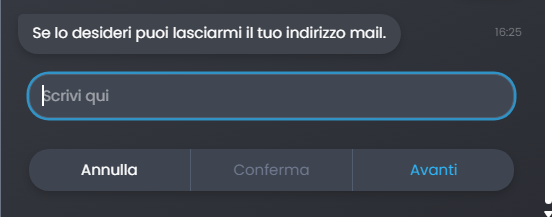
The copy for this option can be customized and aliases can be added to also catch any reformulations. If the user instead of typing Next uses the microphone and says “Skip”, the assistant still understands and moves to the next question.

- Text to stop filling: same functionality as the previous one. It concerns the customization of the button to stop filling the form. You can add synonyms for Cancel such as “stop”, “enough”, “exit”.
- Form interruption message: if the user interrupts the form, you can write a message that the assistant will speak, warning them that the service has not been completed.
Email and Web Service Settings
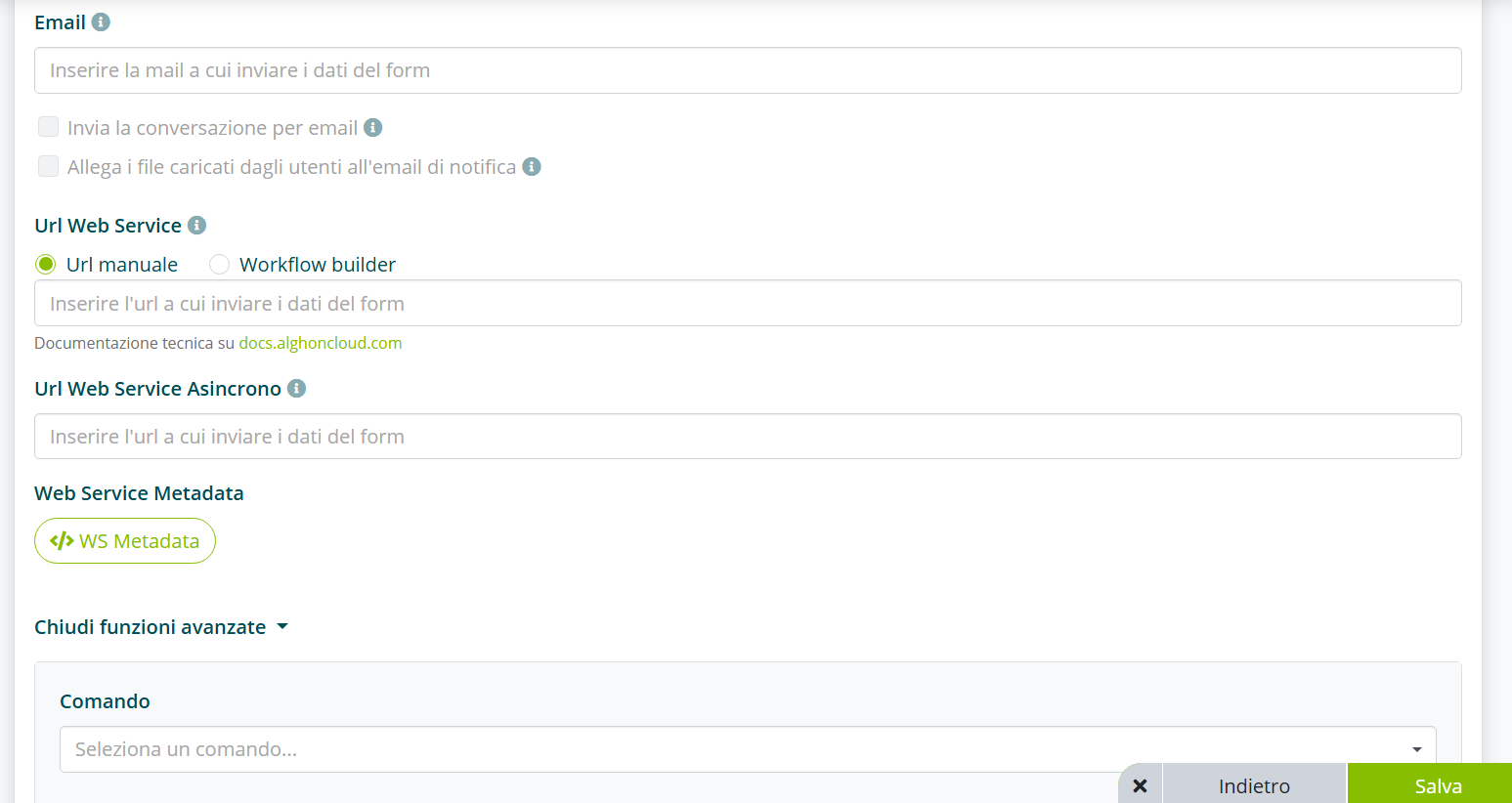
- Email: for the completed responses to reach their destination, an email address must be entered. It can also be a cumulative address containing multiple addresses. If this field is left empty, the user fills out the form but no one will receive it. It is not mandatory because in case of direct integration with a company DB, the data will be transmitted via a web service.
- Send the conversation by email: the entire conversation can also be sent by email, showing the full communication exchange between user and assistant.
- Attach files uploaded by users to the notification email: if enabled, files uploaded by users will be attached directly to the notification email (up to 20 MB total).
The following features are purely technical and used for more advanced integrations requiring IT knowledge.
- Web Service URL: indicates the address of the external service to which Algho sends the data collected during form filling. When the user answers the questions, the information is saved and transmitted to this URL in real time.
- Async Web Service URL: indicates the address of the external service to which Algho sends form data asynchronously. The submission does not require an immediate response from the external system.
- Web service metadata: JSON that is passed to the web services configured in the fields and in the form submission.
Command
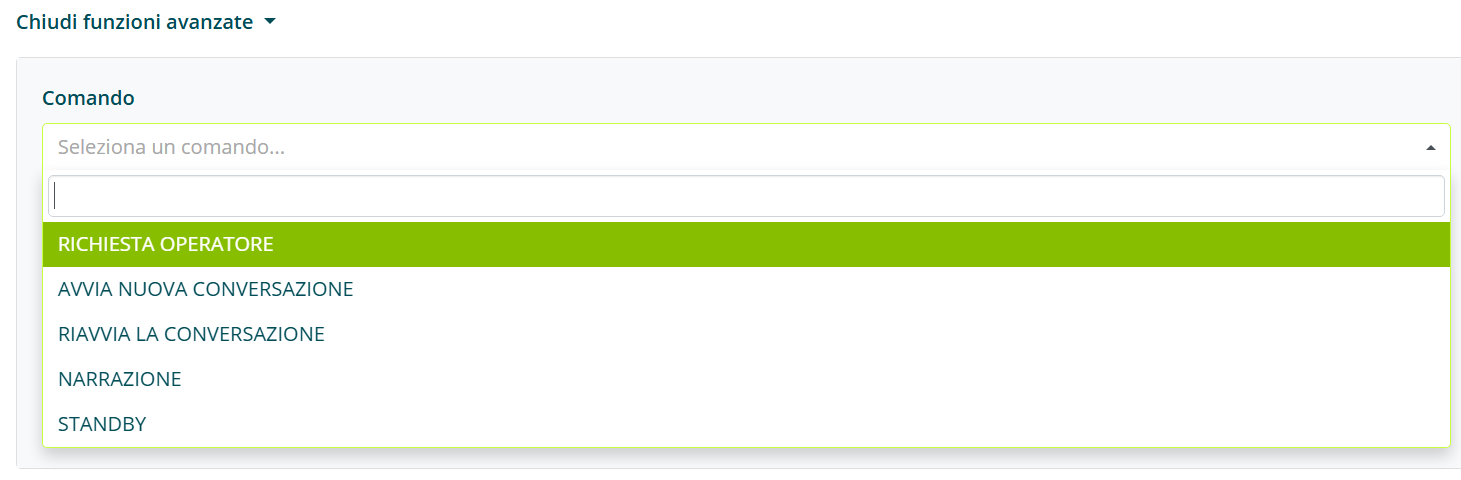
Clicking on the Command search bar opens a submenu with the following options:
- OPERATOR REQUEST: enabling this option, immediately after the form is completed, the user is offered to start a Live Chat (see Live Chat). An essential condition is that the user reaches the end of the form by answering all questions.
- START NEW CONVERSATION: the conversation restarts from the beginning. The assistant reloads and starts again from the welcome message. The user is considered as new. In the conversation history, there will be two separate conversations.
- RESTART NEW CONVERSATION: the conversation restarts from the beginning, but the user ID remains the same. There will still be two separate conversations tracked in the history, but with two identical IDs identifying the same user.
- STANDBY: after the form is completed, the conversation stops, not giving the user the opportunity to dialogue with the assistant. In the case of VoIP, the call is ended. Useful when the assistant is designed only to collect information and not to provide it.
Action
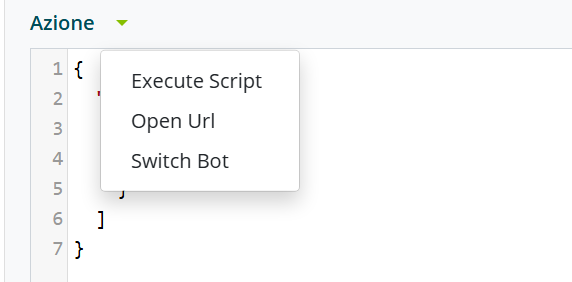
- EXECUTE SCRIPT: allows running a custom JavaScript at the end of the form (for browser automation).
- OPEN URL: allows opening a URL via JSON.
Form Field Building
Once the general settings are configured, you need to build the set of questions. To access this section, simply press the Edit fields button at the top right.
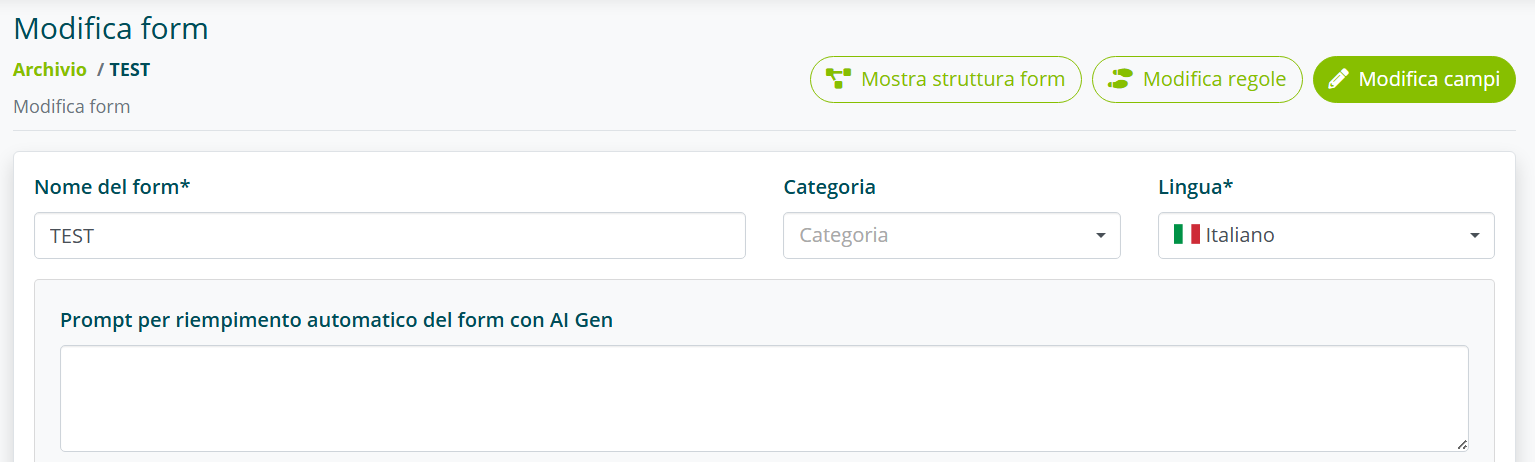
You are now inside the field editing screen.
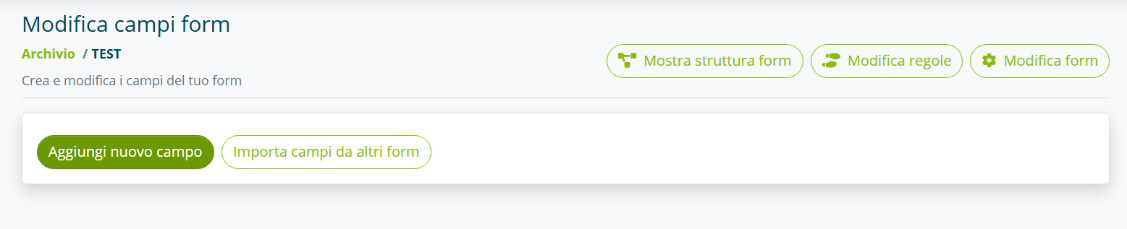
Press the Add new field button to start writing the conversational flow.
Field Configuration
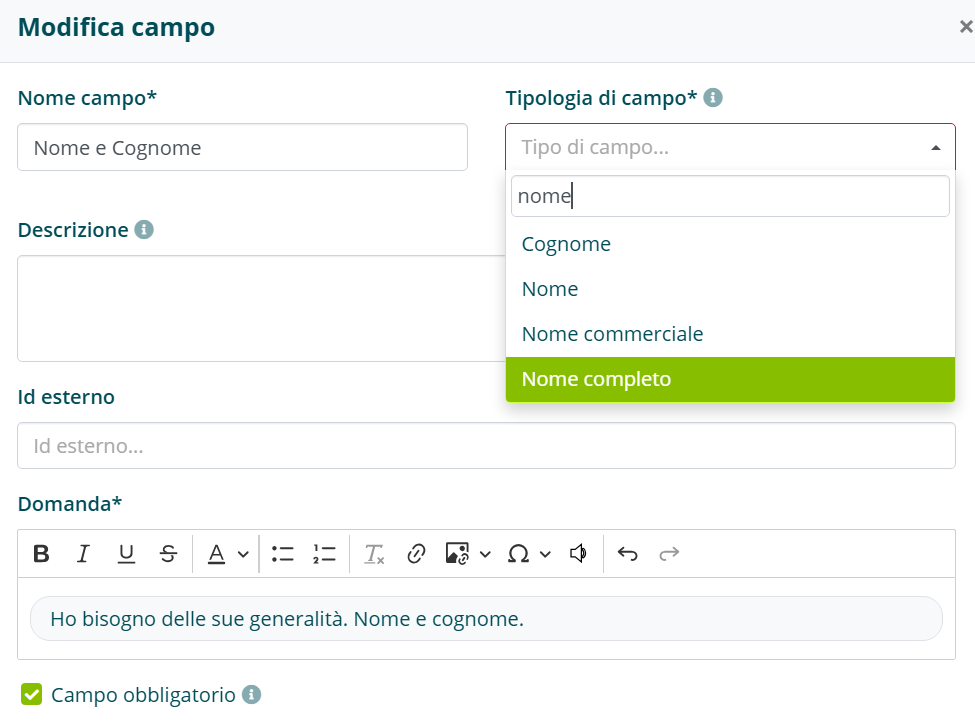
- Field Name: identifies the topic of the question. When the summary email arrives, the field names will represent the data items alongside which the user's responses will appear.
- Field Type: indicates the type of control the assistant will exercise over the response. The Full Name type expects at least two separate terms. Email requires a valid email format. Phone Number expects a certain number of digits.
- Description: field to enter the prompt in case GEN AI is active to validate the field (see Generative AI in Forms).
- External ID: optional identifier that allows linking the form field to an external system (CRM, management software, database). For example, if the field in the form is called First and Last Name, in the external system it might be identified as
full_name. - Question: the question that will be asked by the assistant.
- Mandatory field: you can decide whether to make this question mandatory. If it is not mandatory, the Skip option will appear, allowing the user not to answer.
Auto-Fill Options
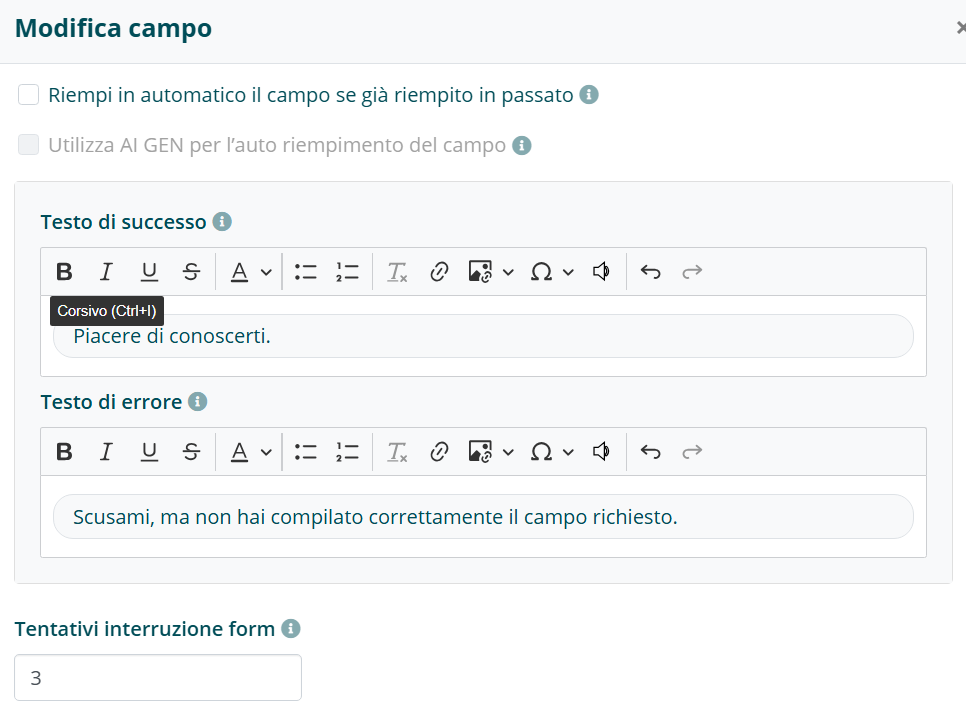
- Auto-fill the field if already filled in the past: prevents repeating this question if the field is already present in another form of the same assistant that the user has already answered.
- Use AI GEN for auto-filling the field: the assistant, thanks to GEN AI, extracts from the initial question the necessary information to fill this field (see Generative AI in Forms).
To activate Use AI GEN for auto-filling the field, you must enter the prompt in the Prompt for automatic form filling with AI GEN section in the general form settings.
Messages and Attempts
- Success Text: text the assistant will speak immediately after the user answers the question. It is not mandatory.
- Error Text: if the user's response is not validated, an error message will trigger. If not entered, a default one will be shown.
- Form Interruption Attempts: after a certain number of attempts, if the response is not correctly validated, the form will stop and the failure message will trigger. The default number of attempts is 3 (you can set a value from 0 to 99).
Advanced Field Functions
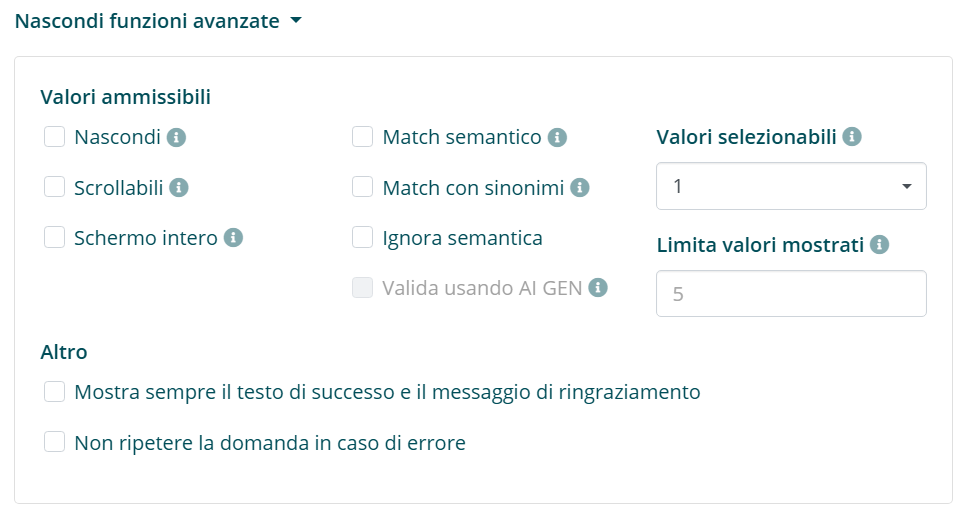
Advanced functions mainly concern the management of admissible values (see Admissible Values).
Admissible values display modes:
- HIDE: admissible values are present but not visible to the user. Useful when there are many and the user's answer must fall within one of them. Example: “Which Italian region are you calling from?”.
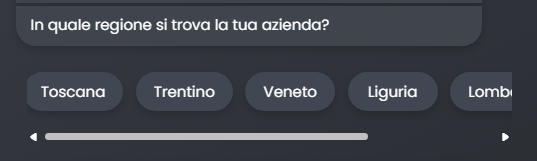
- SCROLLABLE: if there are many admissible values, instead of showing them full screen, you can make them visible one by one via scrolling.
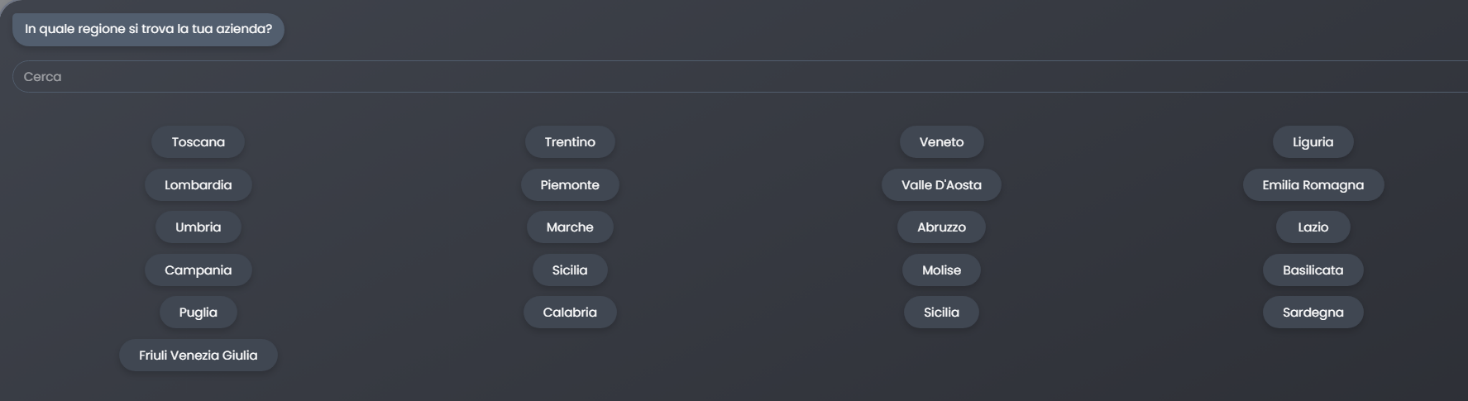
- FULL SCREEN: the assistant will show a default number of values. If there are many, you can decide to “explode” them by showing them all full screen.
Matching options:
- SEMANTIC MATCH: if the user uses the microphone or is on the VoIP channel, pronunciation may not be precise. Enabling this function, Algho associates the pronunciation with the actual written value.
- MATCH WITH SYNONYMS: if the user uses a different term, the assistant searches for a similar term among synonyms. Example: admissible value “CEO” and user says “Head”. If “Head” is entered as a synonym, the response is validated.
- IGNORE SEMANTICS: closely related to semantic match. It tells the assistant not to intercept pronunciation variations. The admissible value must be pronounced or written exactly as reported.
Other advanced options:
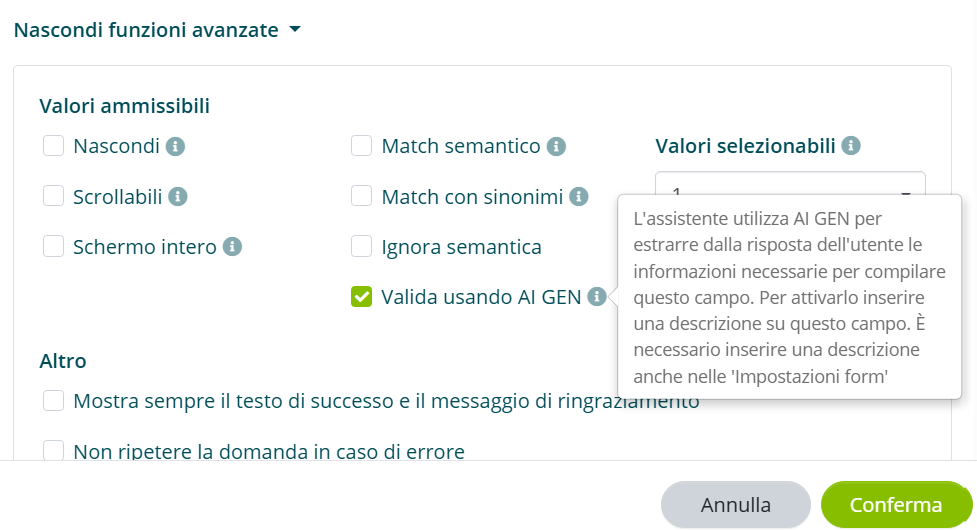
- VALIDATE USING AI GEN: allows extracting from the user's response the valid information to fill the field. It replaces the matching options described above (see Generative AI in Forms).
- SELECTABLE VALUES: determines how many admissible values the user can select (multi-response).
- LIMIT SHOWN VALUES: decides how many admissible values to show. If only a portion, the Show more button will appear.
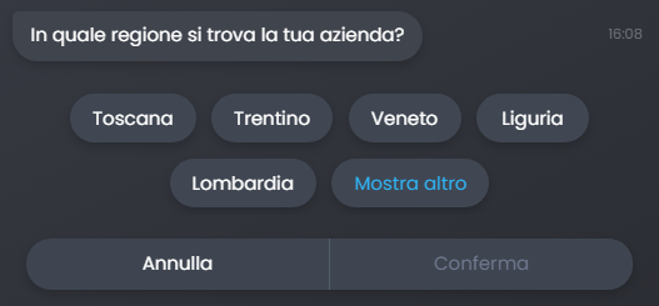
- ALWAYS SHOW SUCCESS TEXT AND THANK YOU MESSAGE: in the case of automatic filling of some fields, any thank you and success messages would not be spoken. With this option, they are always shown.
- DO NOT REPEAT THE QUESTION IN CASE OF ERROR: you can decide whether to have the assistant repeat the question after an error. The best case is to build an error message that explains to the user how to provide the data, without needing to repeat the question.
Summary Screen
Once the settings are confirmed, you get the summary screen:

This screen shows:
- Field name (e.g., “Region”)
- Associated question (e.g., “In which region is your company located?”) with the field type.
- Red asterisk: mandatory field.
- Number of admissible values entered (e.g., “21”)
The following options are listed in order:
- Edit: modify the field settings.
- Duplicate: duplicate the created field.
- Web Service: connect an external system of admissible values via API.
- Admissible Values: insert multiple options for the user to choose from.
- Regex: regular expression to check that the response follows a precise format.
- Delete: delete the field.
Admissible Values
Admissible values must be entered when a form question requires a multiple-choice response.
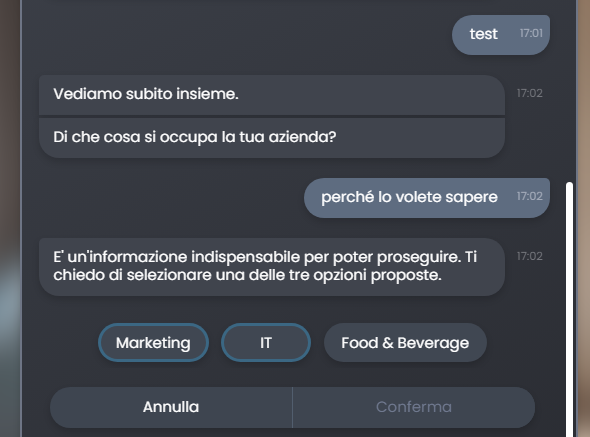
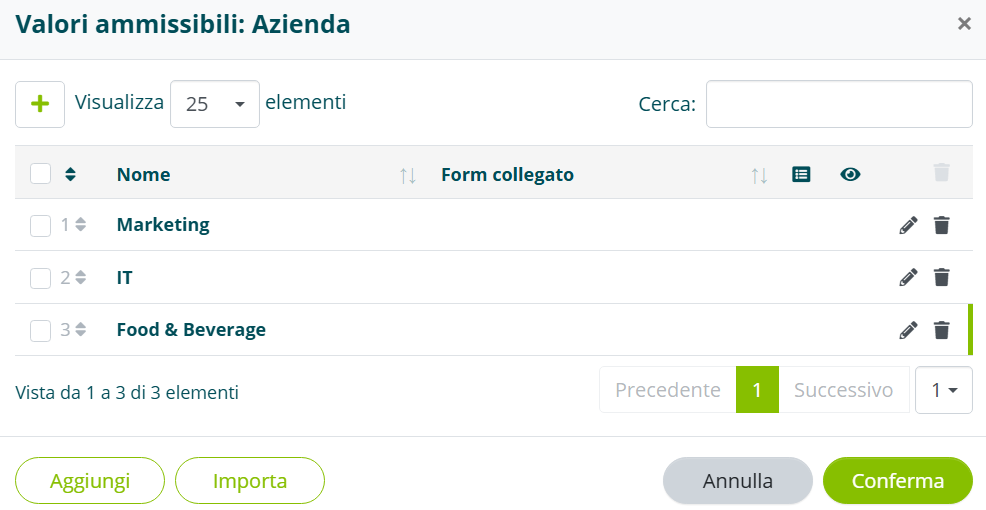
Here is an example: a question like “In which sector does your company operate?” with alternatives Marketing, IT, Food & Beverage for the user to choose from.
How to Enter Admissible Values
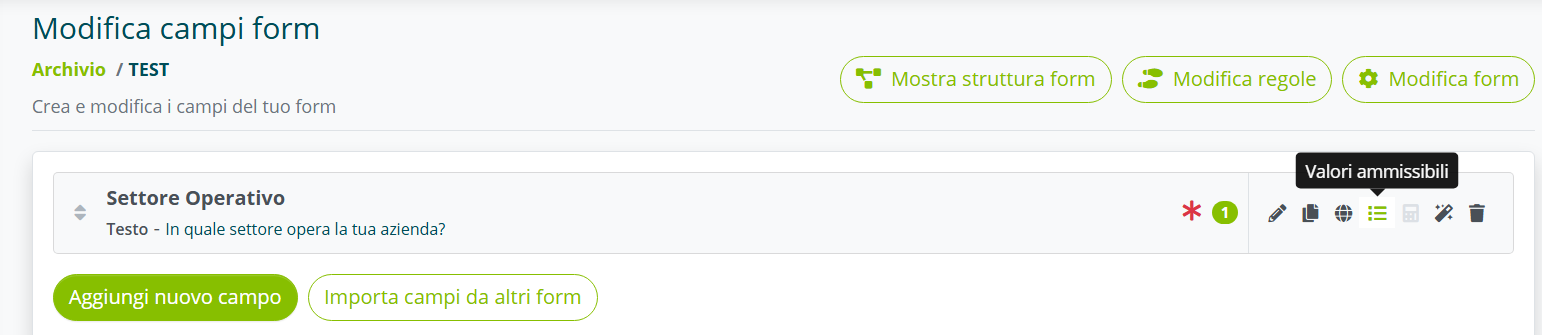
First, you need to build the field (see Form Field Building). Once the question is confirmed, you are on the summary screen:
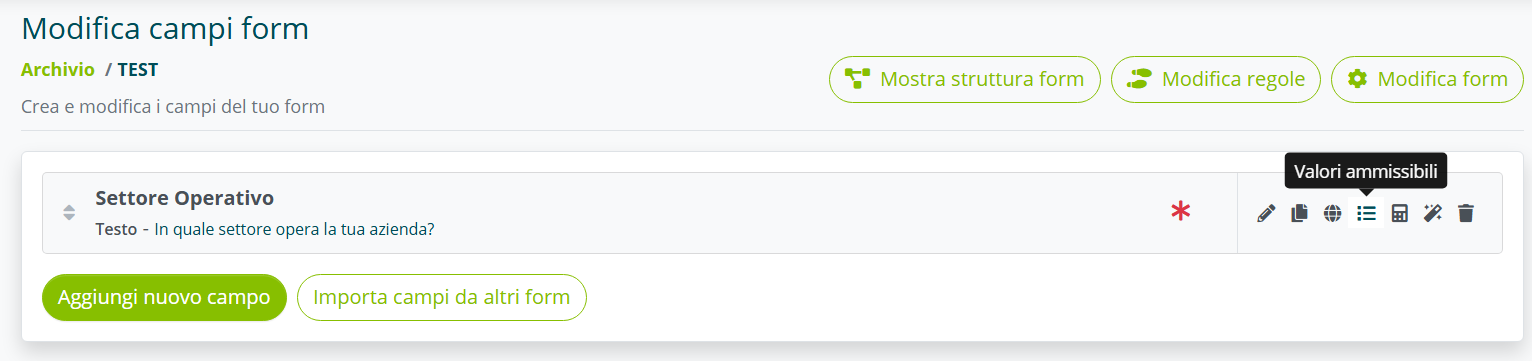
To enter admissible values, click on the Admissible Values icon.
The following screen opens:
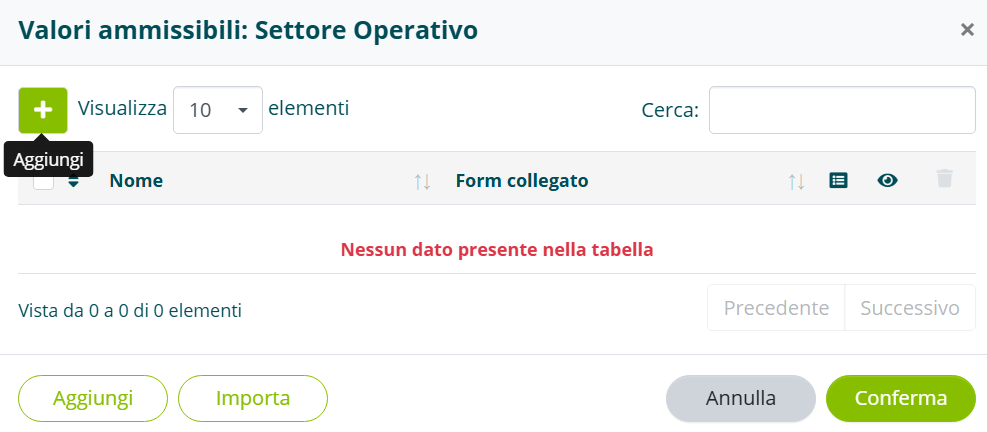
Press the Add button to add the admissible values.
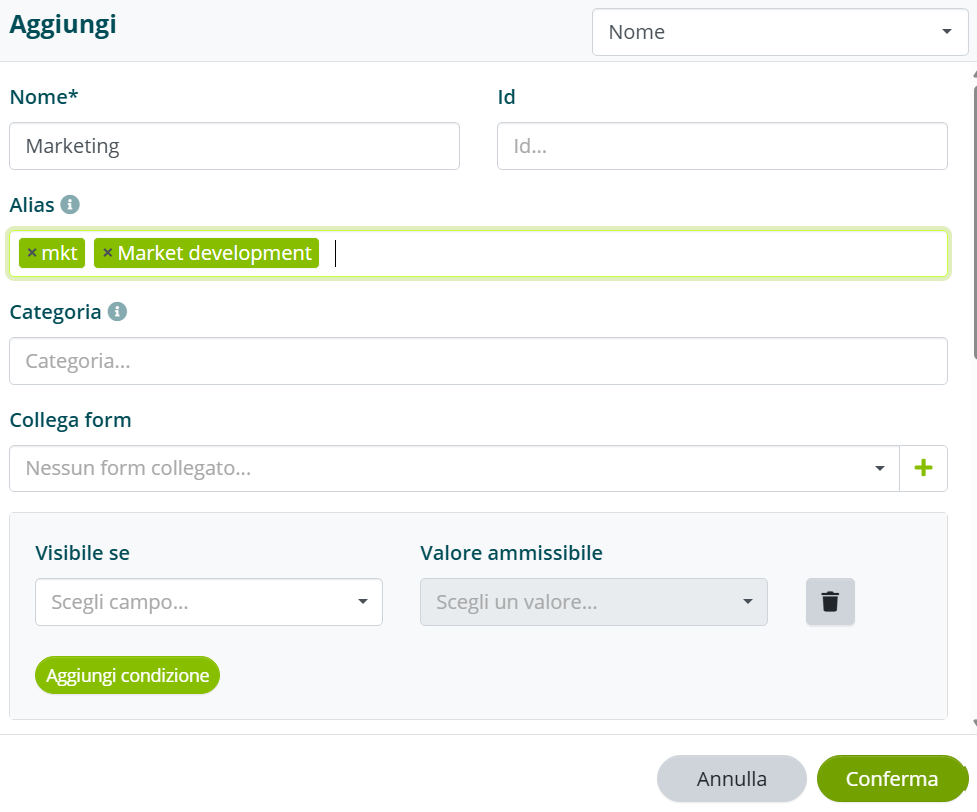
- Name: the admissible value, exactly as you want it to appear on screen.
- Alias: you can enter aliases so that if the user writes a different but related term, the assistant will still catch it.
Difference Between Semantic Match and Alias
- Semantic match allows intercepting semantic variations of the admissible value (e.g., pronunciation variations).
- Aliases allow intercepting synonyms of the admissible value (which semantic match would not be able to do).
The main difference is that with aliases, the algorithm validates the admissible value only if there is an exact and perfect match between what the user says or writes and the alias entered. If the user said “business development” and the alias is not present, the response would not be validated.
Once all admissible values are entered, save and you get the summary screen:
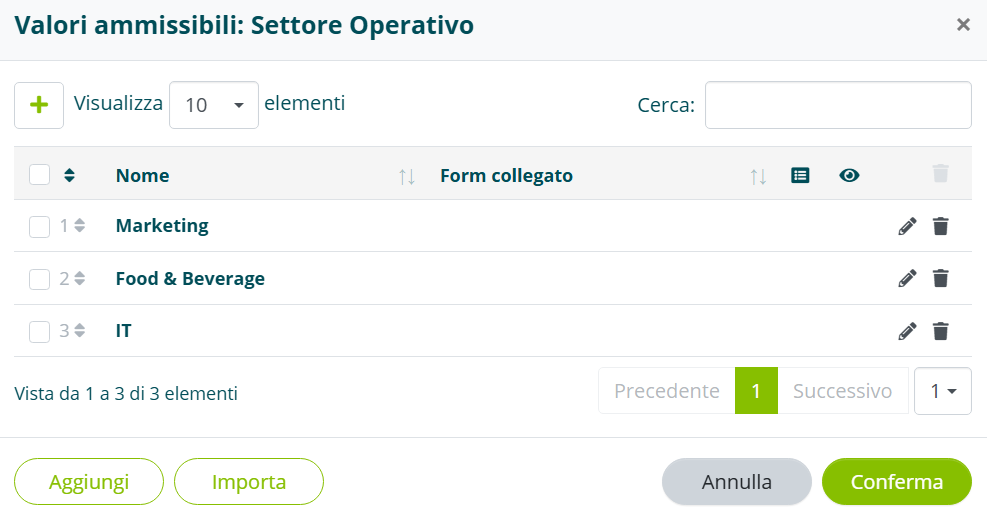
Press Confirm. The completed field will appear with the admissible values icon lit green, indicating that selection options are present.
Setting Triggers for a Form
Once created, the form does not activate automatically. It must be “linked” to the concept it is closely connected to.
There are two ways to create this link.
Via Knowledge Base
If the assistant uses a knowledge base, the form must be linked to the intent.
Enter the knowledge base and access the intent editing.

Once inside the intent, scroll to the bottom to the Select which form to link option:
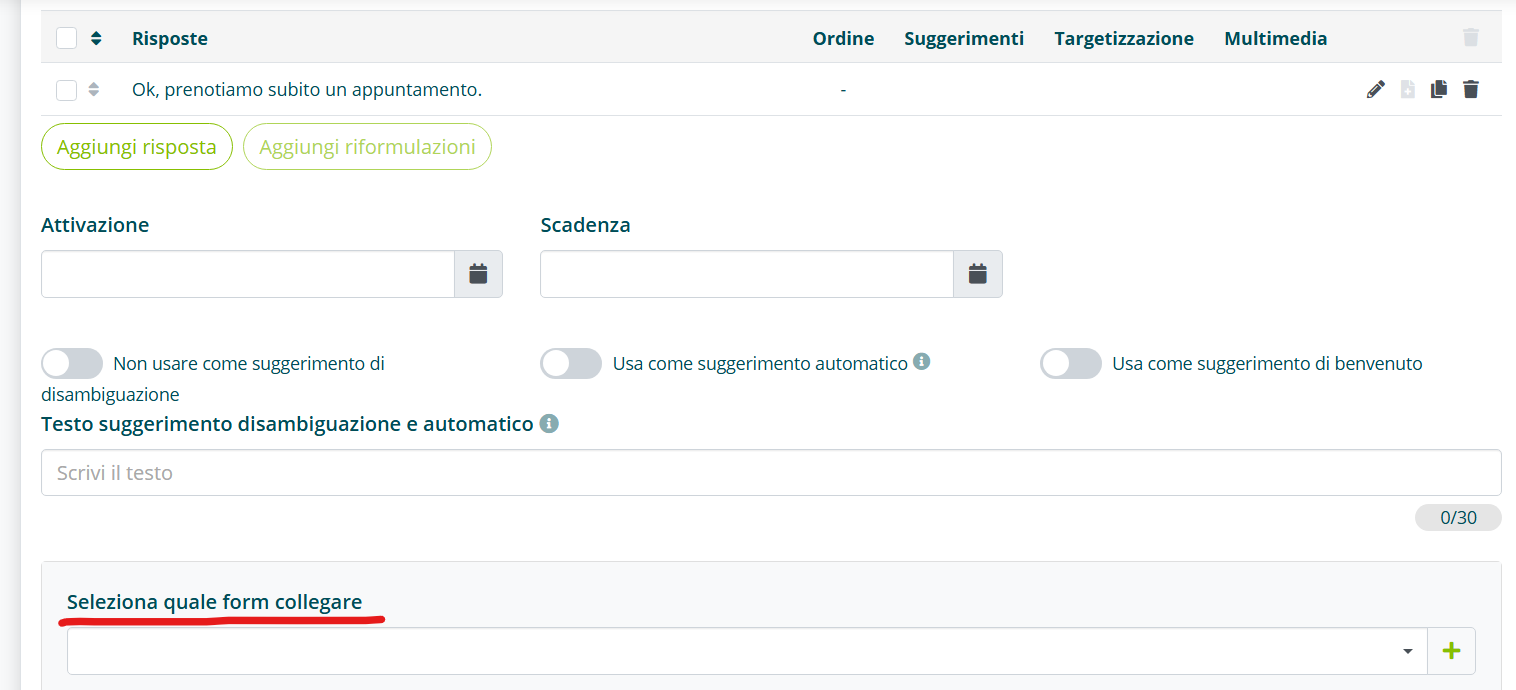
Click the arrow on the far right and select the form to attach:

Save. Next to the intent, a green speech bubble will appear, indicating that the form has been linked:
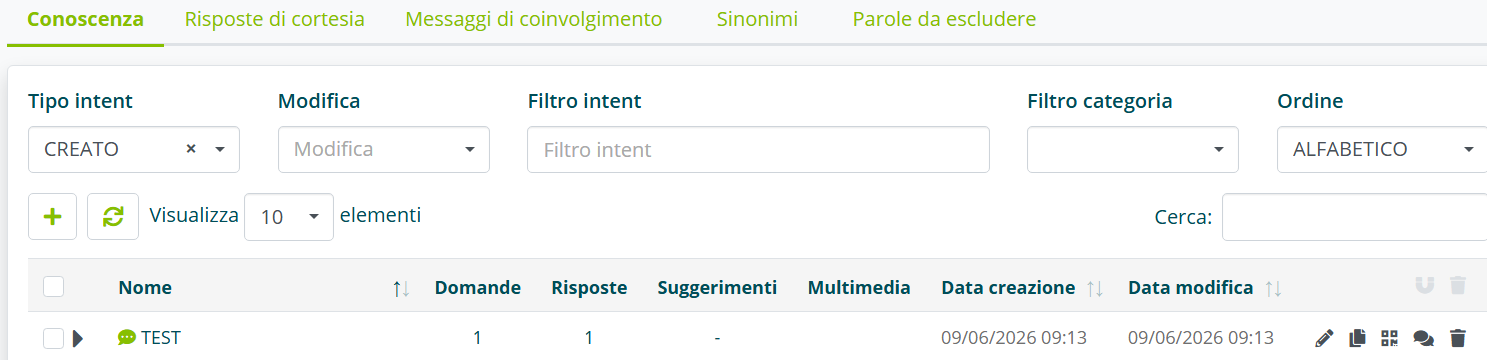
Clicking on the speech bubble allows you to enter directly into the form.
Via SDA or Gen AI
The second way to start a form is through a prompt, using Generative AI. In this case, the form is not linked to an intent, bypassing the intent logic and static KB.
See Connecting an Assistant to Documentation and Generative AI for the Knowledge Base for more information.
Generative AI in Forms
Activating GEN AI on forms works on two elements of communication, both written and verbal: the user's question and the user's answer. GEN AI integration serves to intercept complex grammatical and semantic structures and promote a smoother, more dynamic interaction.
Generative AI can be used for two levels of analysis:
- First-level AI GEN analyzes the user's question, extracting information to fill the form fields.
- Second-level AI GEN analyzes only the answers the user provides to individual form questions.
Both levels can be active simultaneously.
First Level: Analysis of the User's Question
GEN AI acts on the user's question. The algorithm extracts information from the initial question to automatically fill the form fields, avoiding asking for information the user has already provided.
Let's take as an example a form for a preliminary interview.
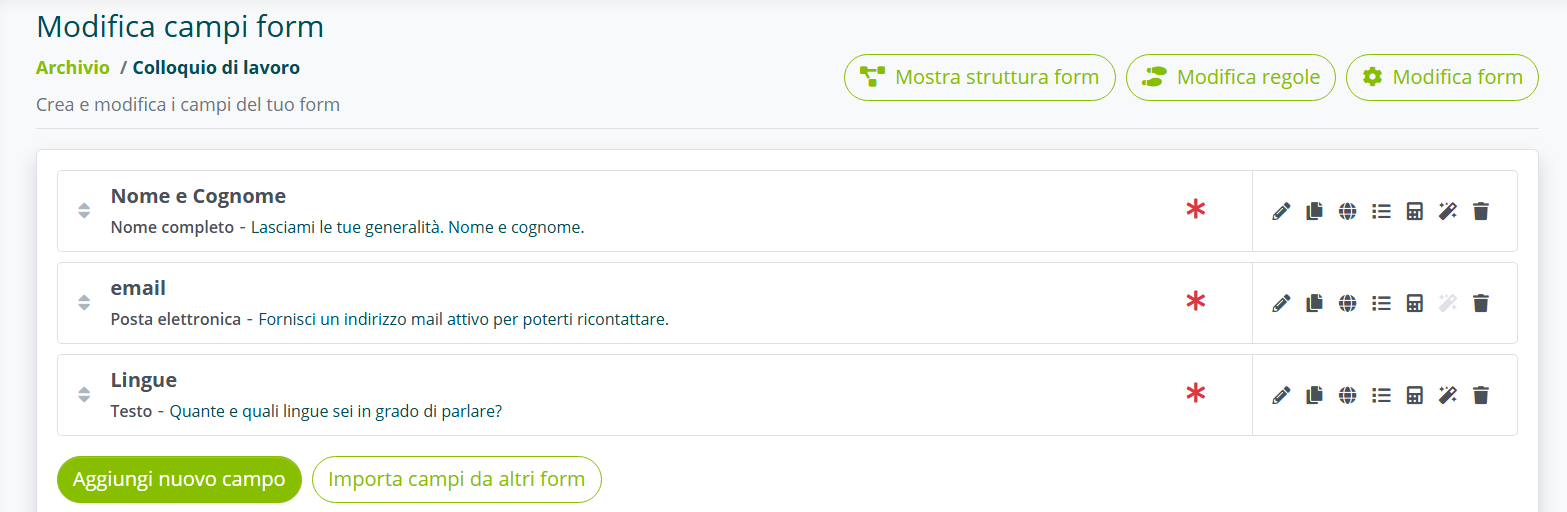
The form has the following fields:
Field 1. Leave me your details. First and last name.
Field 2. Give me a valid email address so I can contact you again.
Field 3. How many languages can you speak?
If the user in their initial question expresses a structured request like:
USER: Hello, I'm Mario Rossi, I'd like to have a job interview with you. I speak two languages fluently: Italian and English.
Algho extracts the information related to fields 1 and 3 and only asks:
ASSISTANT: Give me a valid email address so I can contact you again.
Second Level: Analysis of the User's Response
GEN AI acts on the user's response, helping the assistant better understand the information received and validate it.
Assuming an interaction like this:
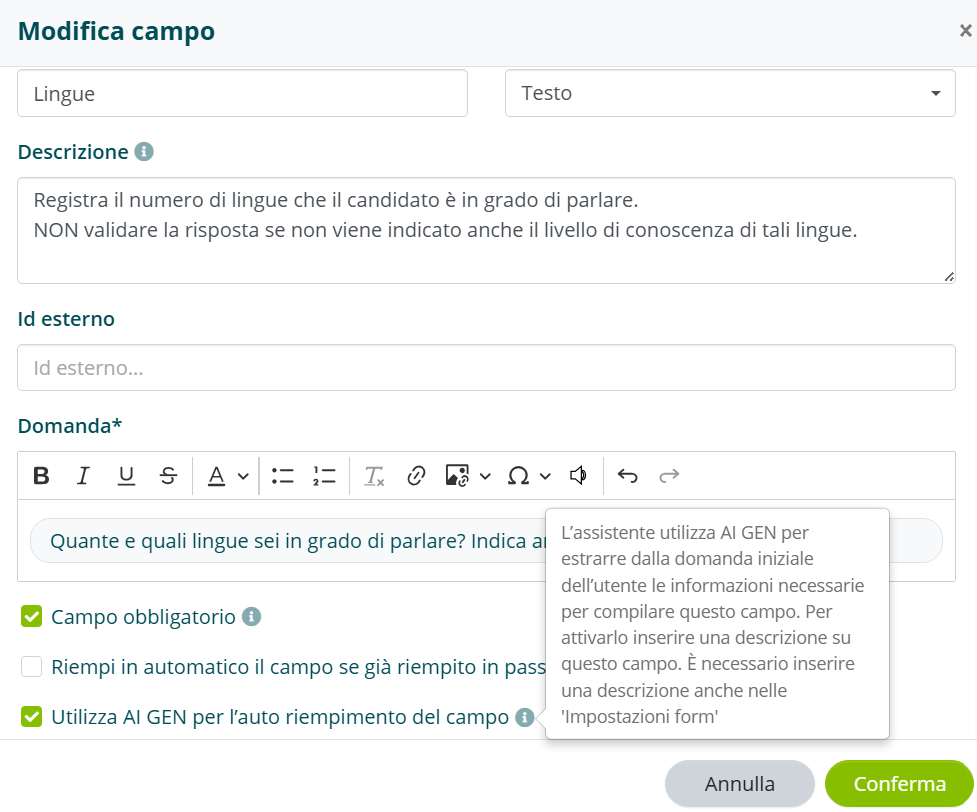
ASSISTANT: How many languages can you speak? Also indicate your level of knowledge for each one.
USER: I speak English and French
The prompt entered and the Validate using AI GEN option help the assistant understand that the response should not be validated since the candidate did not specify their level of knowledge.
How to Activate GEN AI on Forms
First, create the form and define title and language, then enter the first prompt:
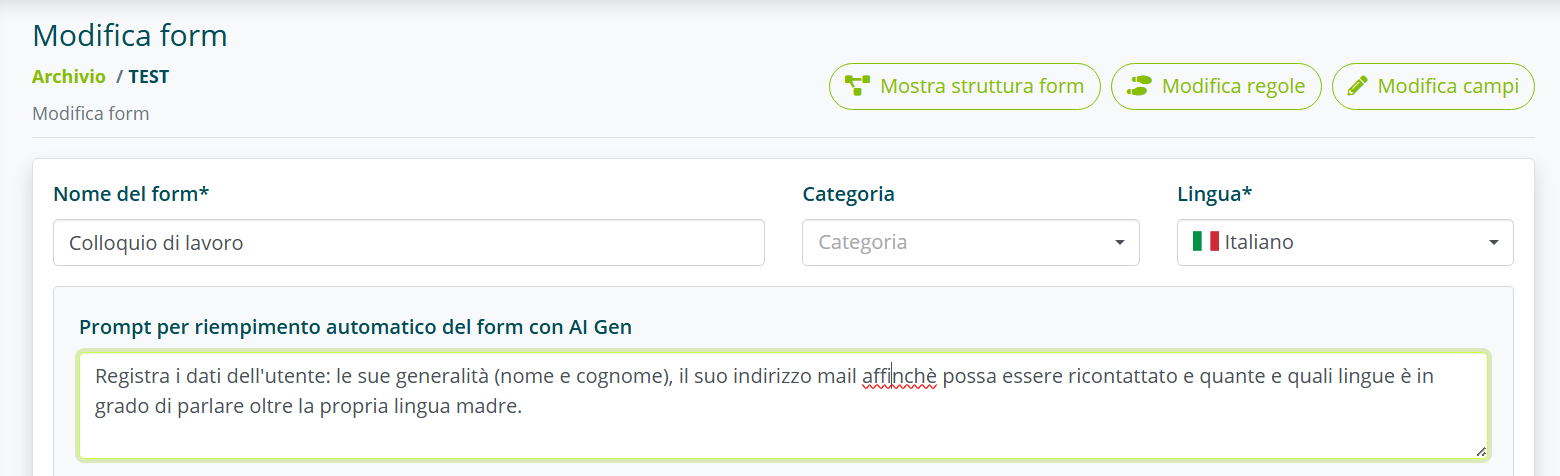
This prompt should be very generic. It serves to give preliminary instructions to the assistant.
This prompt is required for both levels of analysis.
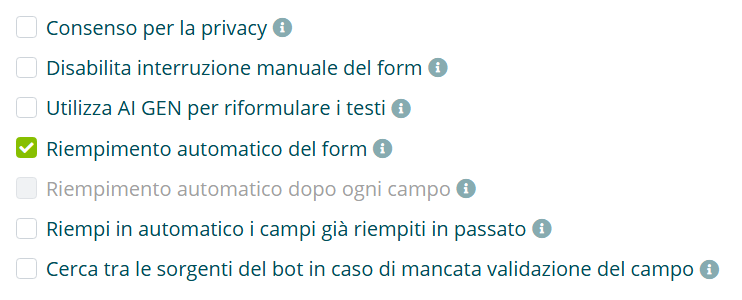
For 1st level analysis, enable the Automatic form filling option.
This option is not required if you only want to activate 2nd level analysis.
Build the form fields with the following structure:
In the Description field, enter a second prompt, specific to the created question. Explain to the GEN AI when to validate the response and when not to. Depending on the active analysis level, in case of failed validation:
- 1st level: the question will be asked.
- 2nd level: the error message will trigger and the question will be asked again.
Enable the Use AI GEN for auto-filling the field option for 1st level analysis.
Enable Validate using AI Gen under Advanced Functions for 2nd level analysis.
Nested Forms
Forms should be thought of as flow diagrams where, depending on the answers provided by the user, the communication can vary and take different paths.
Let's take an example: a form to profile a company's identity. The first question is the sector in which the company operates, and depending on the sector, you want to ask dedicated questions creating a specific flow. This is possible through nested forms.
Parent Form
This is the starting form (called the “parent”):
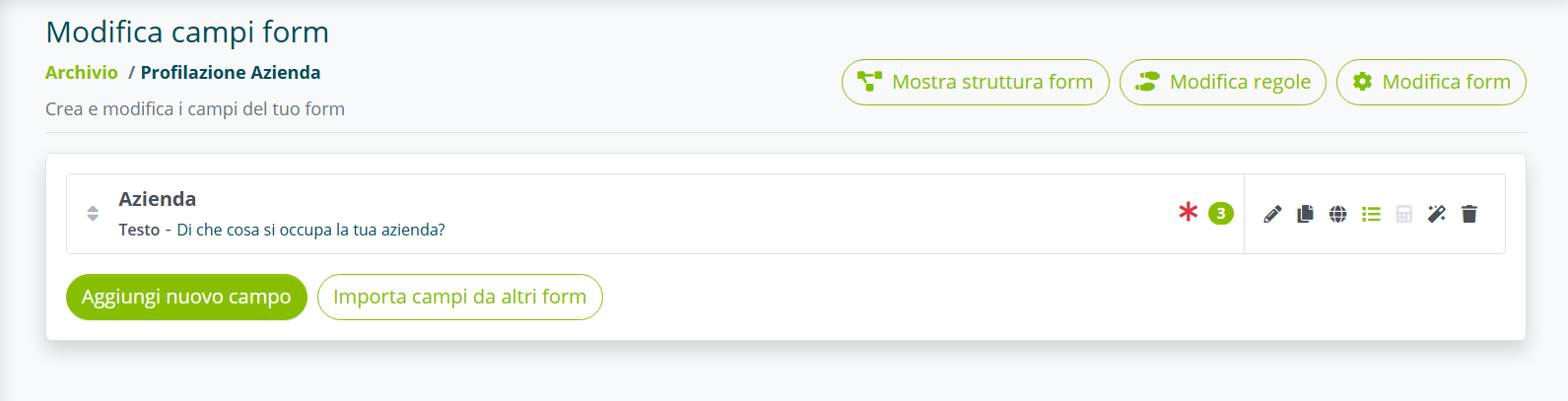
With the following admissible values:
Creating a Nested Form
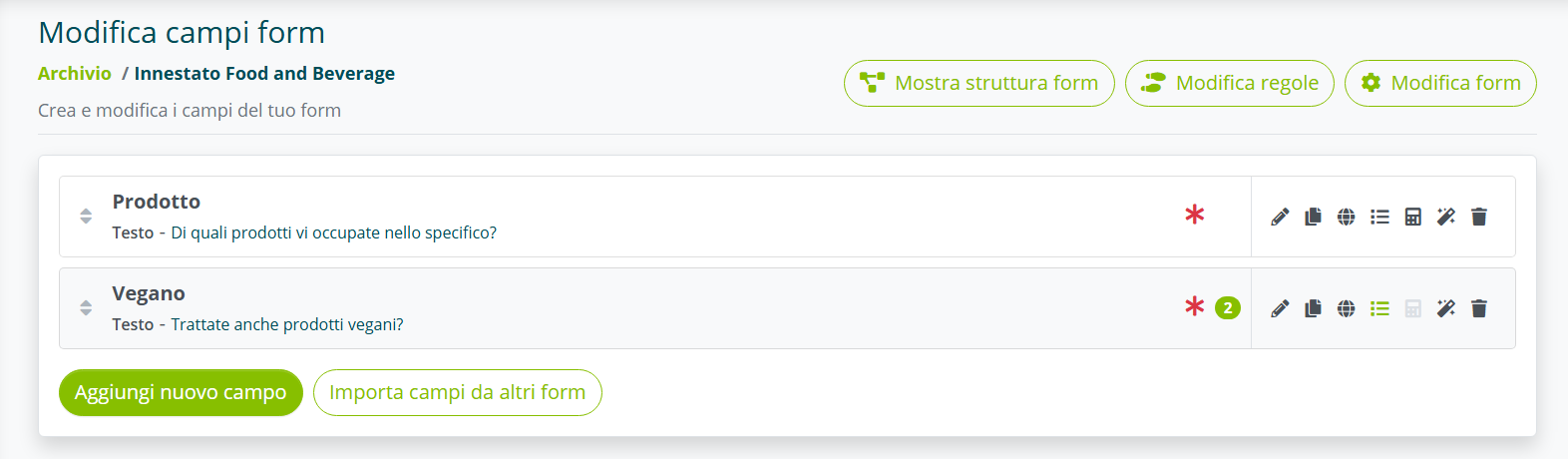
Create another form from scratch, for example Food and Beverage Nested, with the specific questions for that sector:
Nesting the Form in the Admissible Value
Go back to the parent form, enter the Food & Beverage admissible value and nest the created form:
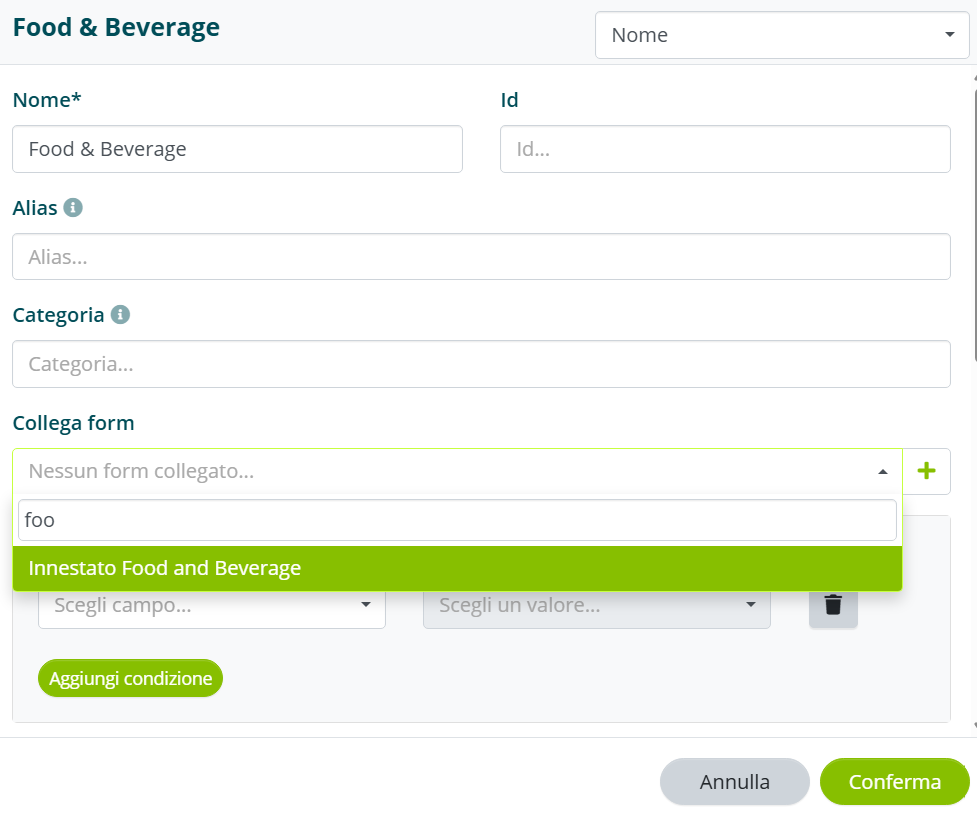
The same operation can be repeated for all other admissible values.
Viewing the Structure
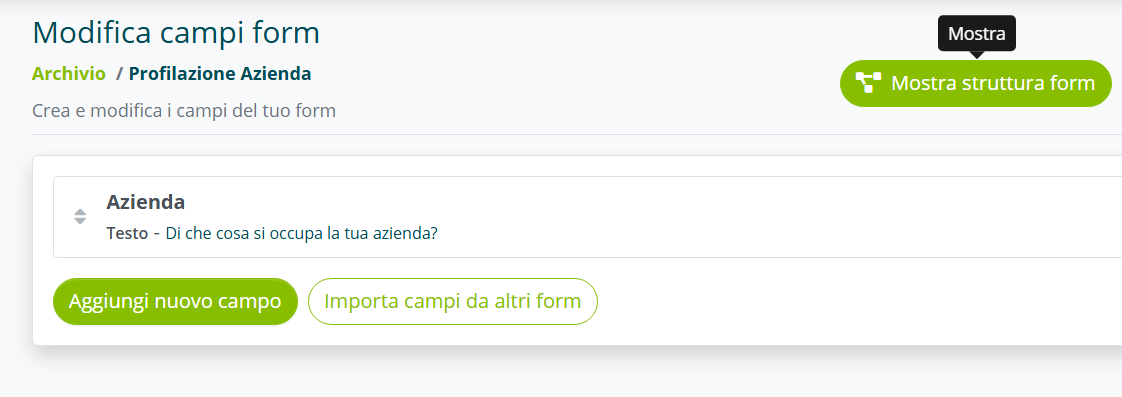
To view the final structure of the form, enter the parent form and click the Show form structure button:
A summary screen with the entire structure will open:
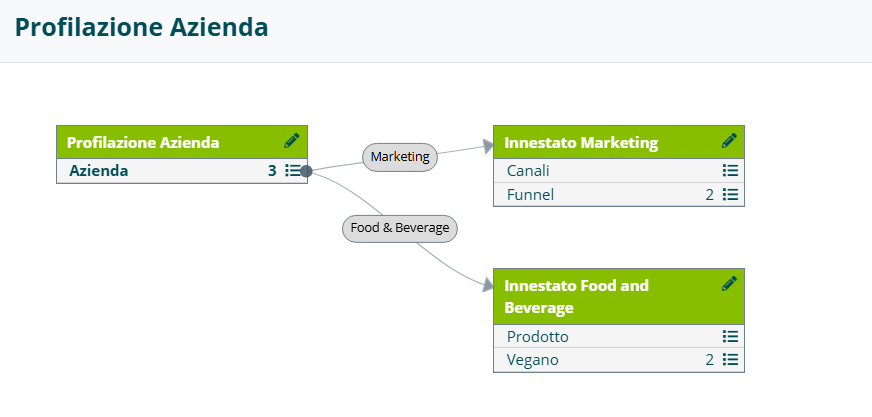
Clicking on the pencils allows you to access each form and make changes.
Flow Behavior
At the end of each form, regardless of the number of nested forms, the flow always returns to the parent form.
This means that if you insert a thank you message in the parent form and another thank you message in the nested form, the assistant will speak both. The same applies to fields: if you add fields in the parent form, after the nested forms, the flow returns to the initial form also asking the added questions.
Rules
The rules allow you to define what should happen when the form ends, for example whether to start another form or call an intent, based on how the form itself was completed (or not completed).
The rules are accessible from the form archive, by selecting the relevant option, or from the form editor, by selecting the relevant option at the top.


Creating a rule requires different parameters depending on the type of link.
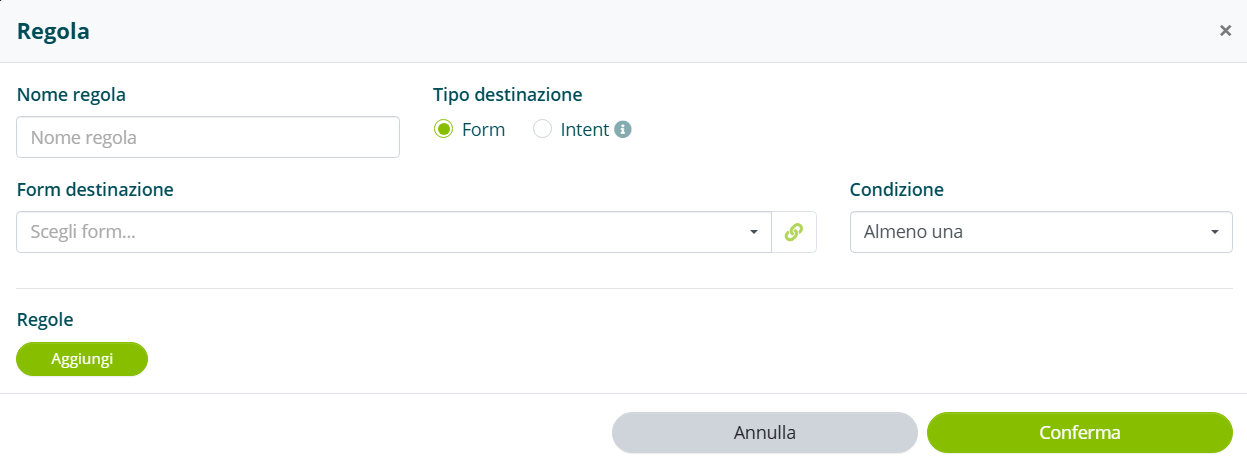
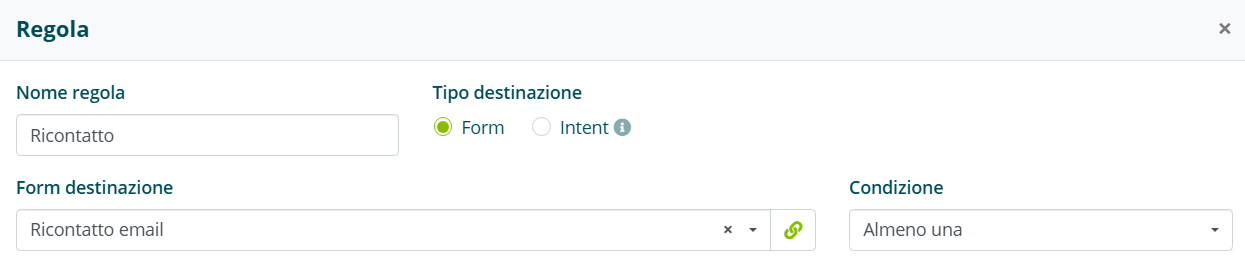
If the link is another form, you must indicate the form to start.
If the link is an intent, you must indicate the assistant where the intent is located and the intent itself.
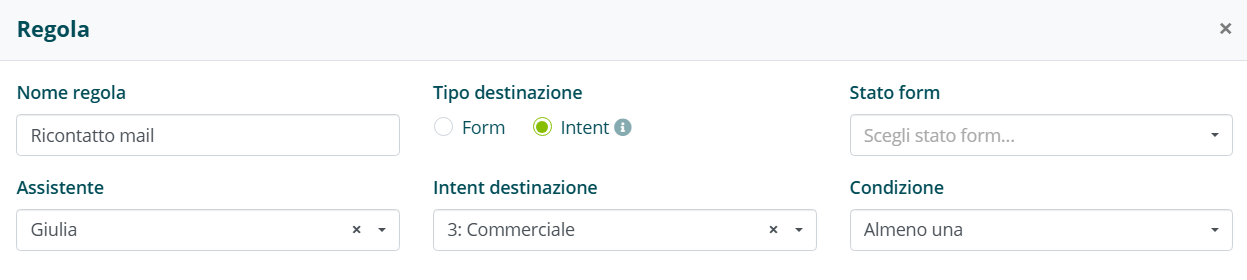
In the case of an intent link, it will be started only if:
- the form was started by the assistant indicated in the rule;.
- the assistant that owns this intent was indicated in the rule.
If you link via a rule an intent that in turn has a form linked to it, the form will not be started.
For both types of link, you can set the conditions under which the rule is valid.

A condition corresponds to how the user completed a given field of the form. If the field has admissible values, these will be selectable in the condition.
You can also set whether the conditions must be valid at the same time (All) or whether it is sufficient that a single condition is valid (At least one)

If no condition is set, the rule will be valid for every completion of the form.