Live Chat
In this section
The general Live Chat settings must be configured for each assistant that uses this feature (see Live Chat and Call to Action)
Operator management is accessible through the Operators section on the left.
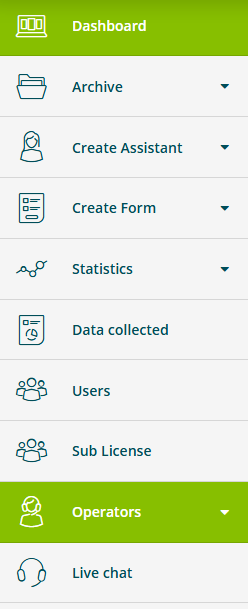
The settings consist of two sections:
- Operators contains the list of all operator accounts created.
- Groups contains the list of all operator groups created.
Operators
The Operators section allows you to create and manage operator accounts.
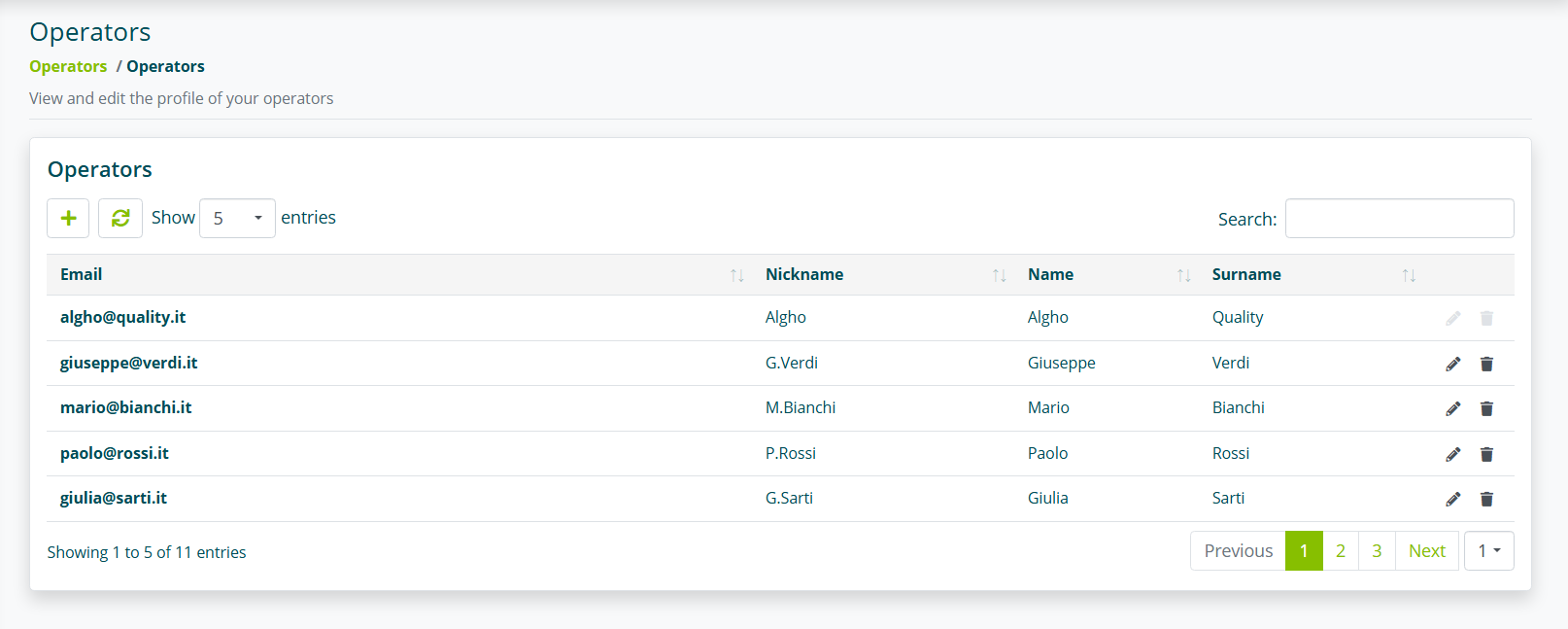
For each operator, you must specify:
- Email address
- Password
- Nickname
- First name
- Last name
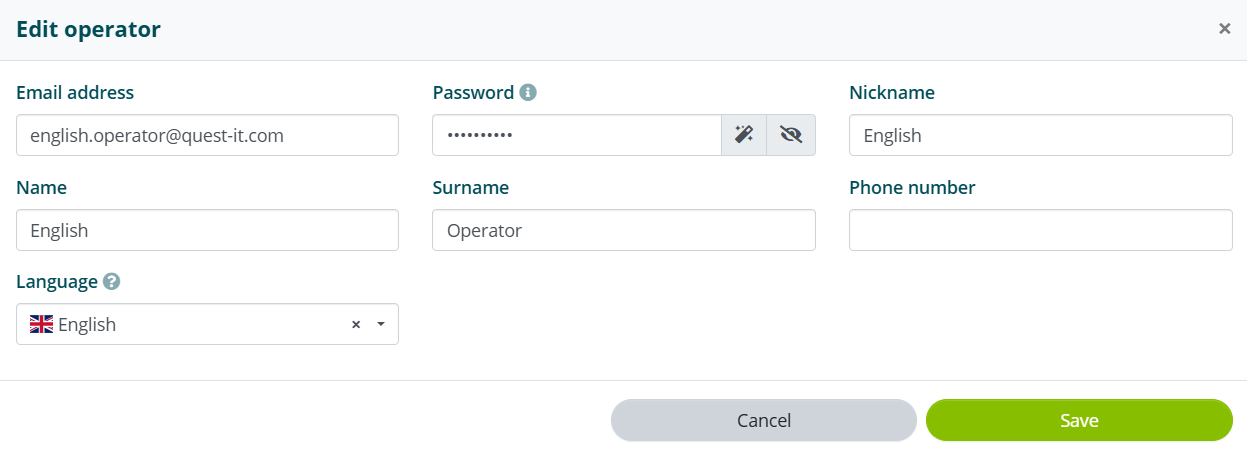
For each operator, you can also specify the language they want to use for Live Chat interactions.
If an operator has a language assigned that differs from the language in which the user is interacting, incoming and outgoing messages will be translated automatically.
Operator Groups
Operator Groups allow you to assign specific operators to specific virtual assistants. You can also define conversation management criteria.
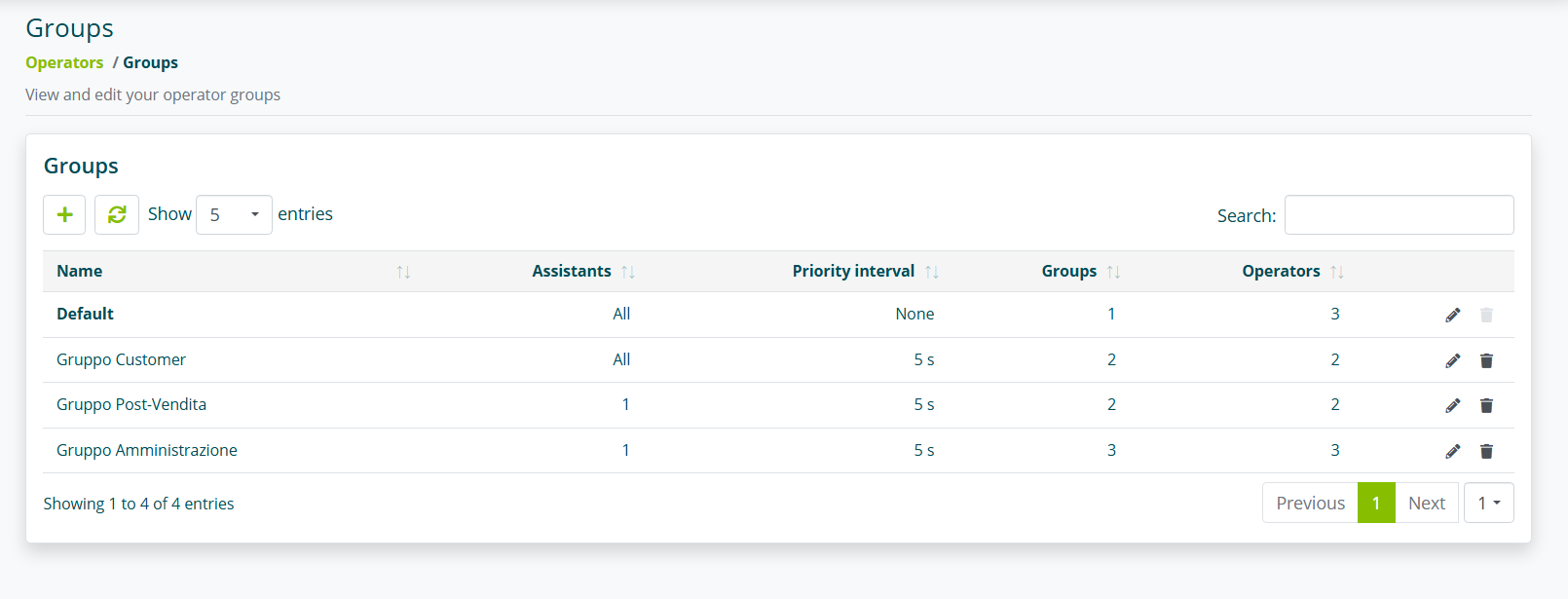
You can create a new group by selecting New Group at the bottom right.
First, you need to assign a name to the group you are creating.
A name that allows quick identification is recommended.
Selecting the Priority Management option will enable Live Chat management based on the priority assigned to operators.
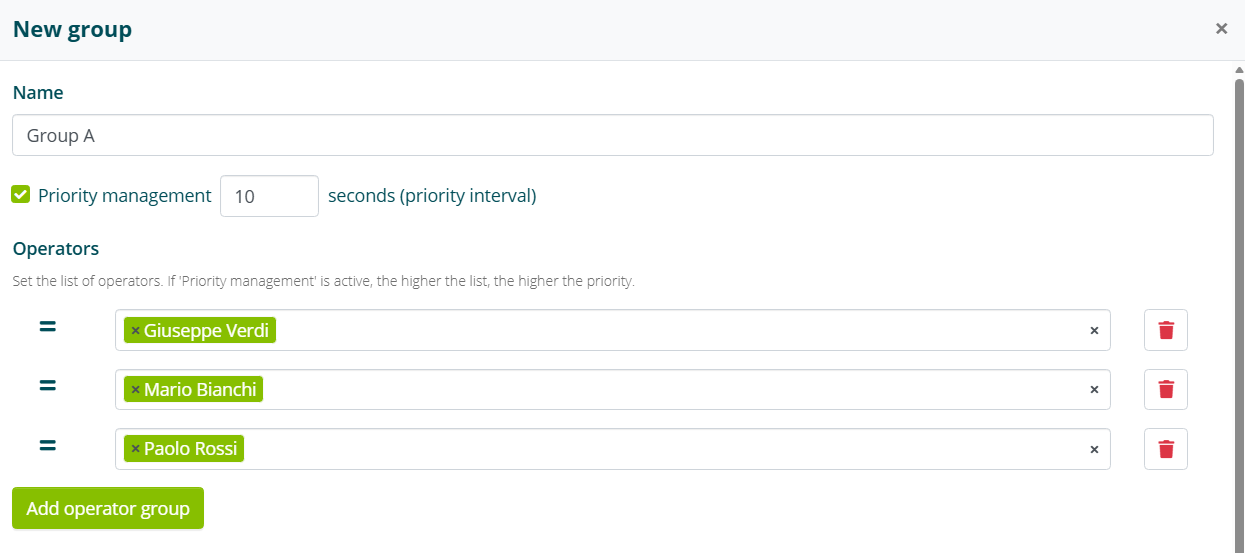
In the example above, the Live Chat will be notified first to operator Giuseppe Verdi; after 10s (customizable parameter), if Giuseppe Verdi has not responded, the Live Chat will also be notified to Mario Bianchi and subsequently to Paolo Rossi.
If you do not wish to enable “Priority Management”, all operators will be placed in a single list without priority.
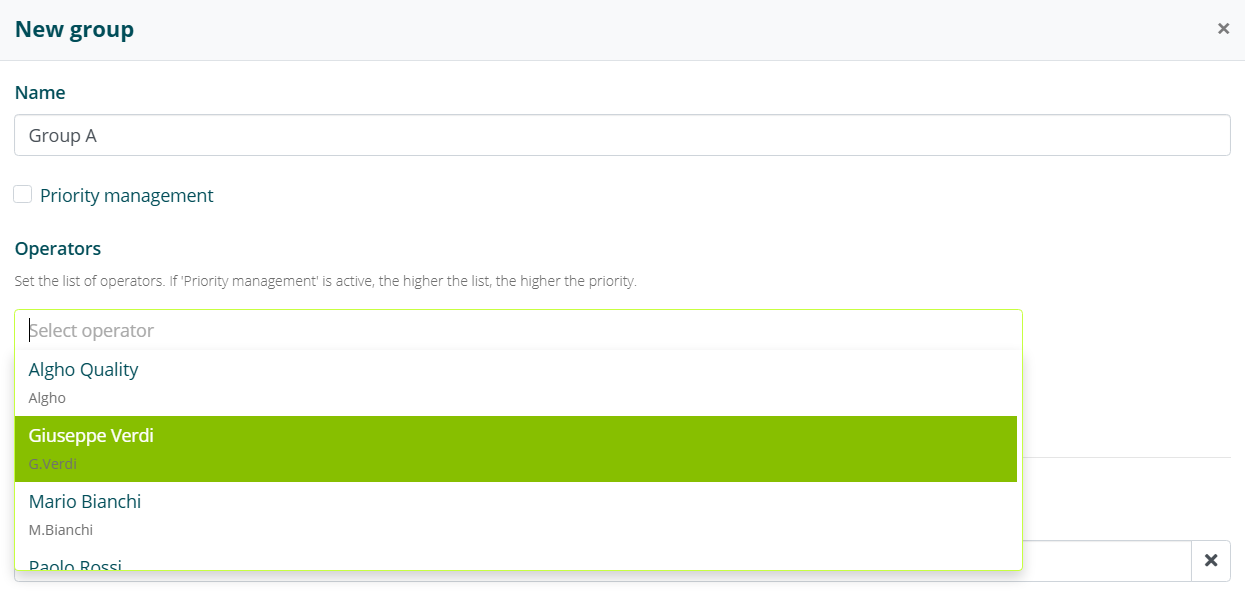
Clicking on Select operator will display the list of all operator accounts created.
- The first account in the list is always the administrator account.
In this field, you must add the operators that will be part of the group you are creating.
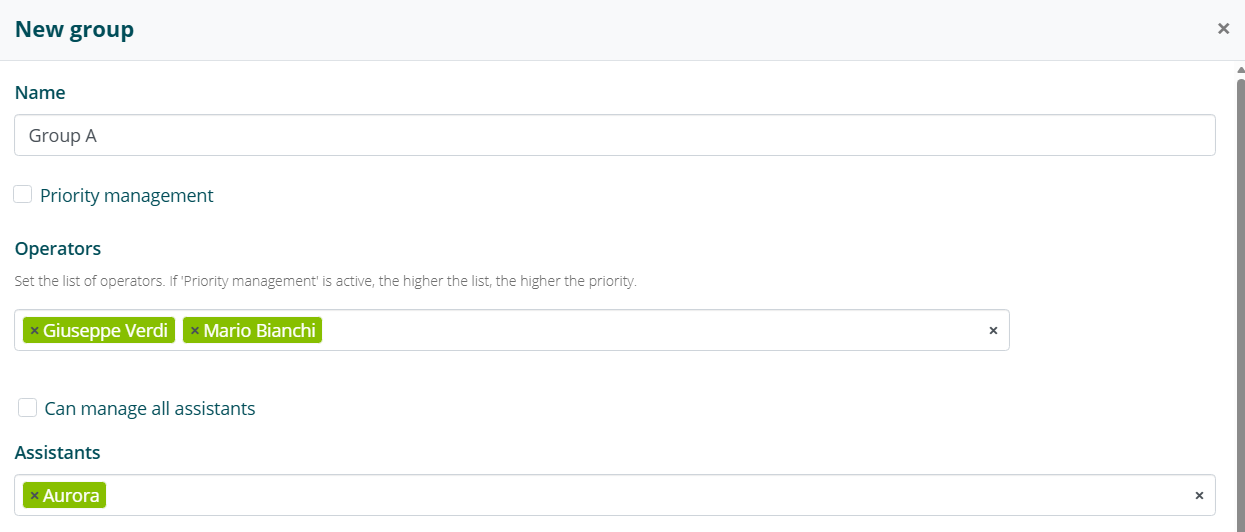
An Operator Group can manage all assistants, or only specific assistants.
The Can manage all assistants option is selected by default. Deselecting it allows you to view and select the assistants the group will manage.
The Conversation filter field allows you to filter which conversations operators will handle, based on the user's originating URL. The filter must be a regular expression.
In the example shown, the expression *.=ITA.* will allow this group to manage only conversations coming from a URL containing =ITA.
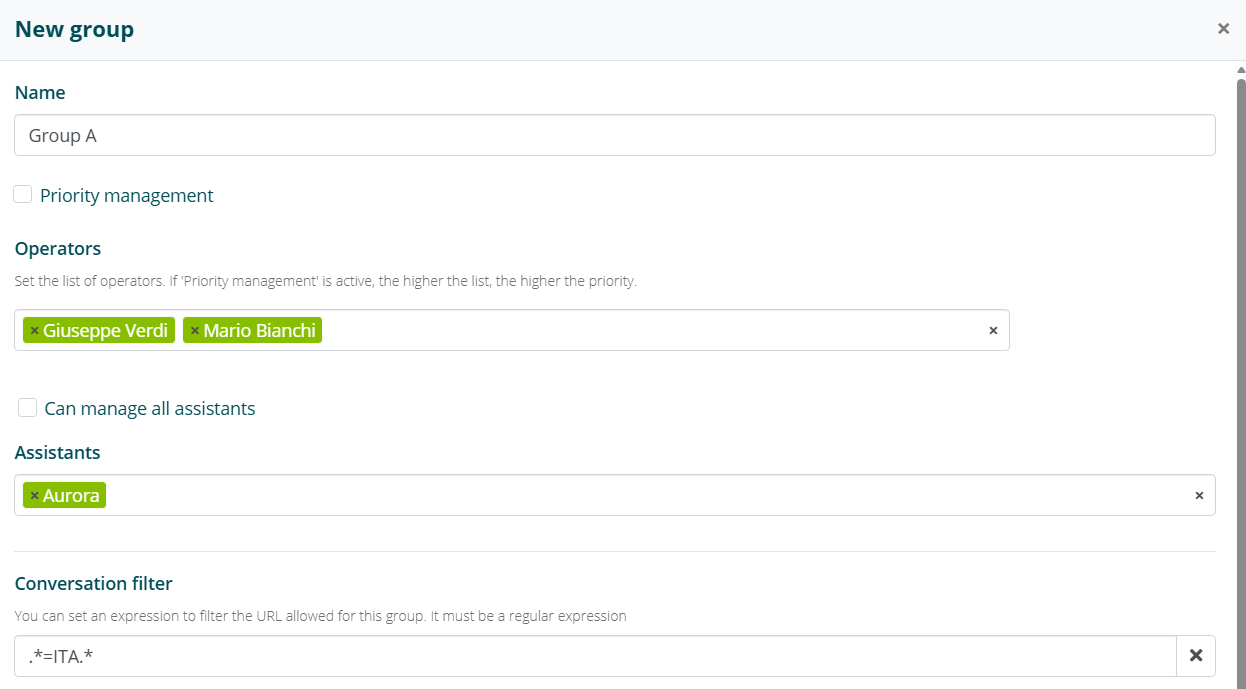
In our case, Group A consists of operators Mario Bianchi and Giuseppe Verdi.
This group will only manage conversations from the Aurora assistant, originating from a URL containing =ITA.
Operator Groups can be edited and deleted at any time.
- The Default group is the default group where all operators are placed.
When an operator is assigned to a group, they must be removed from the “Default” group, otherwise they would see conversations from all assistants.
Operator Interface
Each created Operator account can access the Algho interface in a reduced version, specific to Live Chat management.
Conversation Types
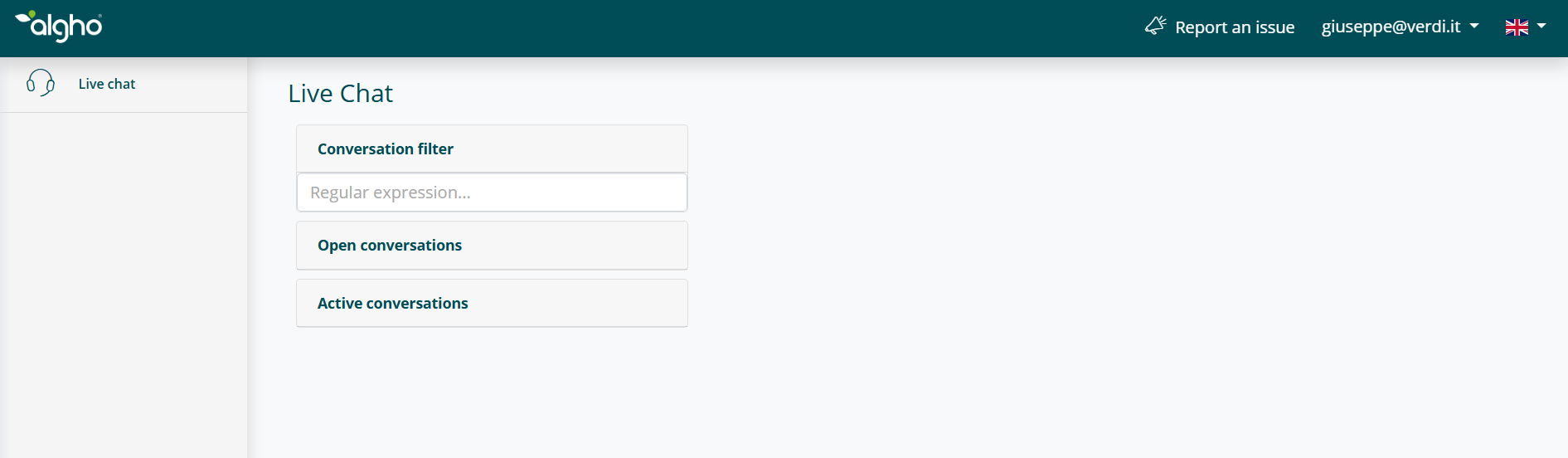
The conversations section allows the operator to filter conversations and view active conversations and open conversations.
- Active conversations indicate users currently connected to the assistant. An active conversation remains visible for up to 15 minutes after the user's last message.
- Open conversations indicate conversations taken over by the operator.
The conversation filter function allows you to filter the displayed conversations based on their origin. To do this, you need to use a regular expression. This feature is not necessary if you are already using Operator Groups.
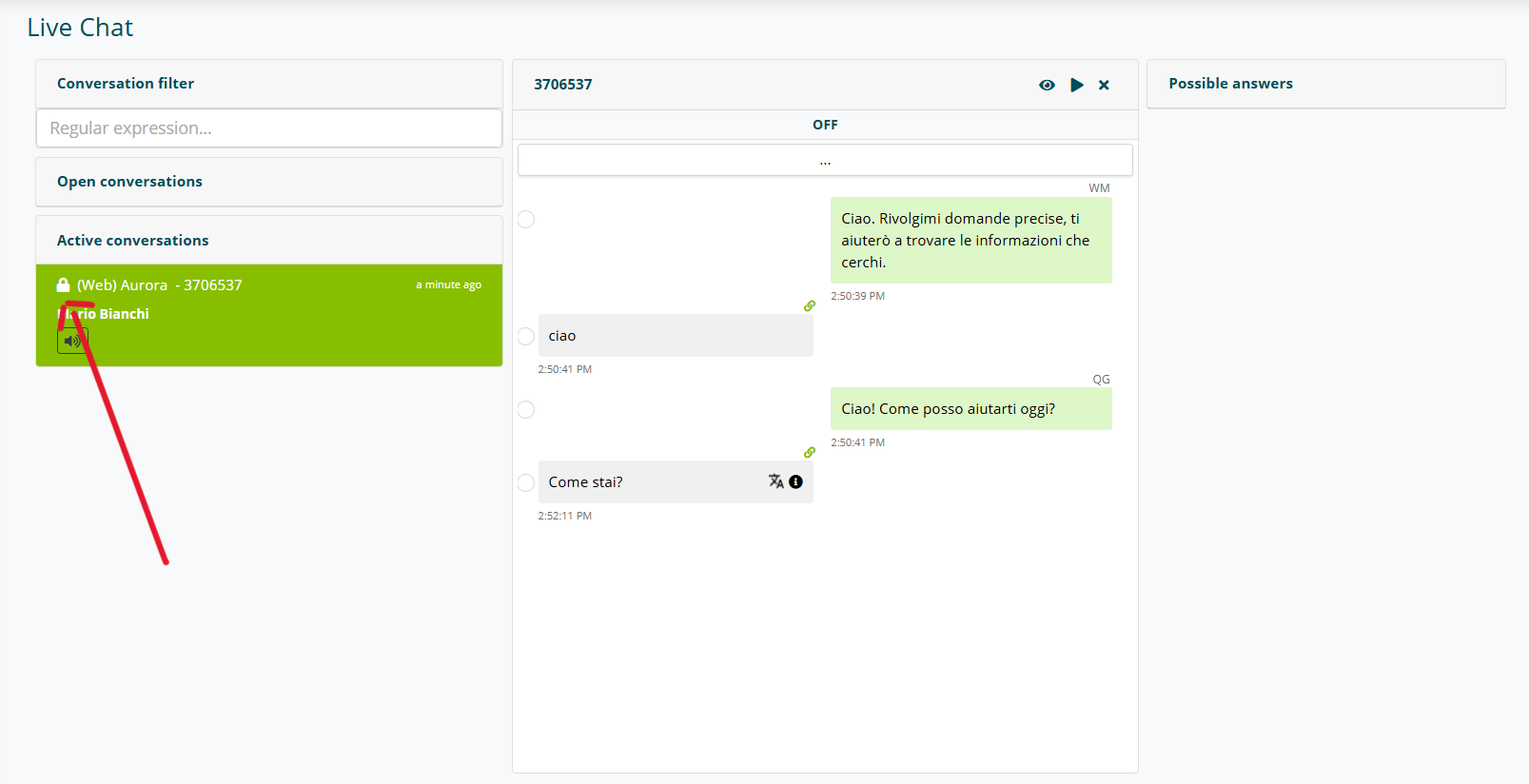
By clicking on individual conversations, the operator can view what the user is asking.
The lock icon next to the user identifier indicates that the conversation is locked, i.e., taken over by an operator. For each conversation taken over, the first name, last name, and nickname of the assigned operator will also be visible.
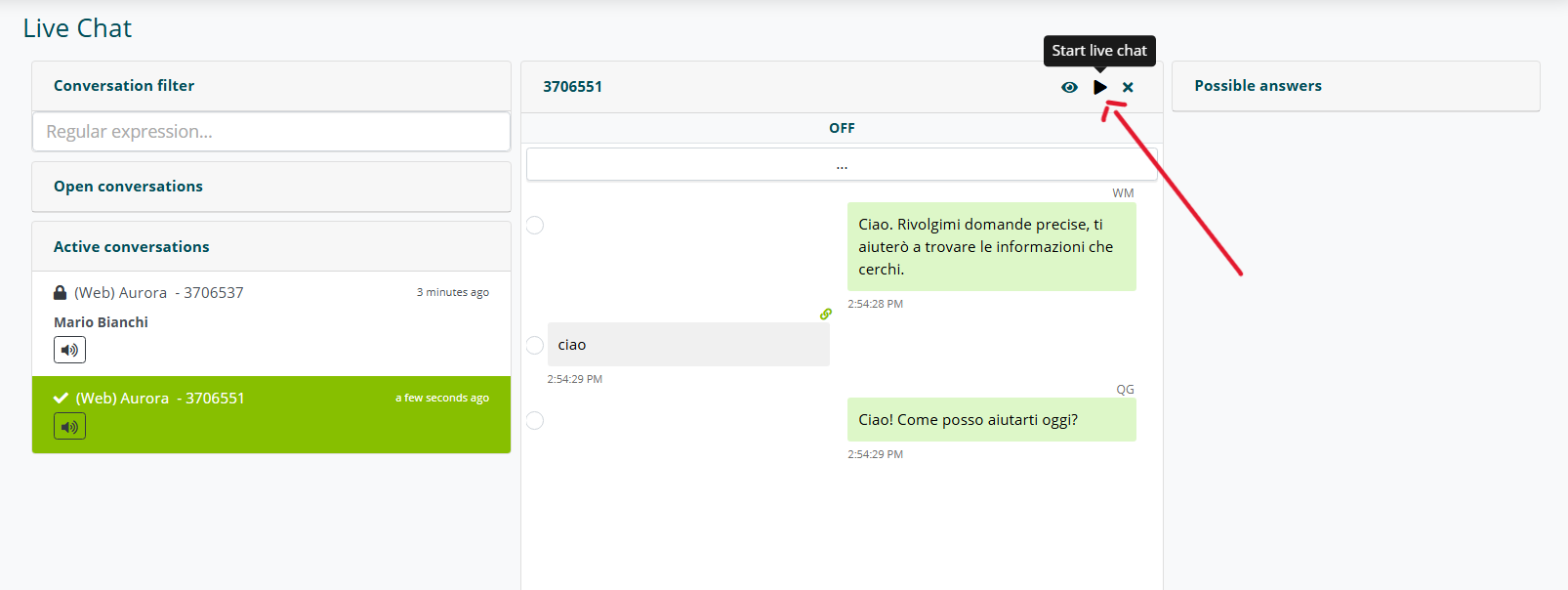
Once a conversation is selected, if it has not already been taken over, clicking the play icon allows the operator to enter the conversation with the user, even if not expressly requested. Clicking the X icon allows the operator to close the conversation view.
When a user requests to start a Live Chat, the operator receives a sound and visual notification indicating that the user has requested their intervention.
If the operator is not on their operator dashboard, they will receive a notification through the operating system.
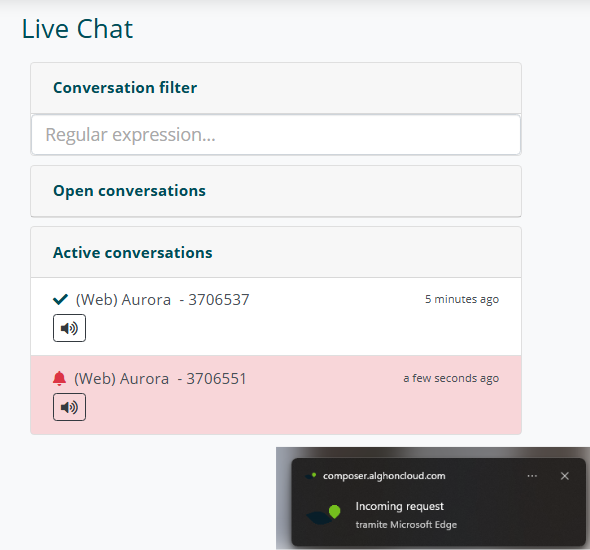
If the Automatic call to an operator is active in the assistant settings, the Live Chat request notification will take the form of a warning, with a specific sound and visual notification for this type of request. In this case, the user is asked whether they want to accept or decline the Live Chat with the operator.
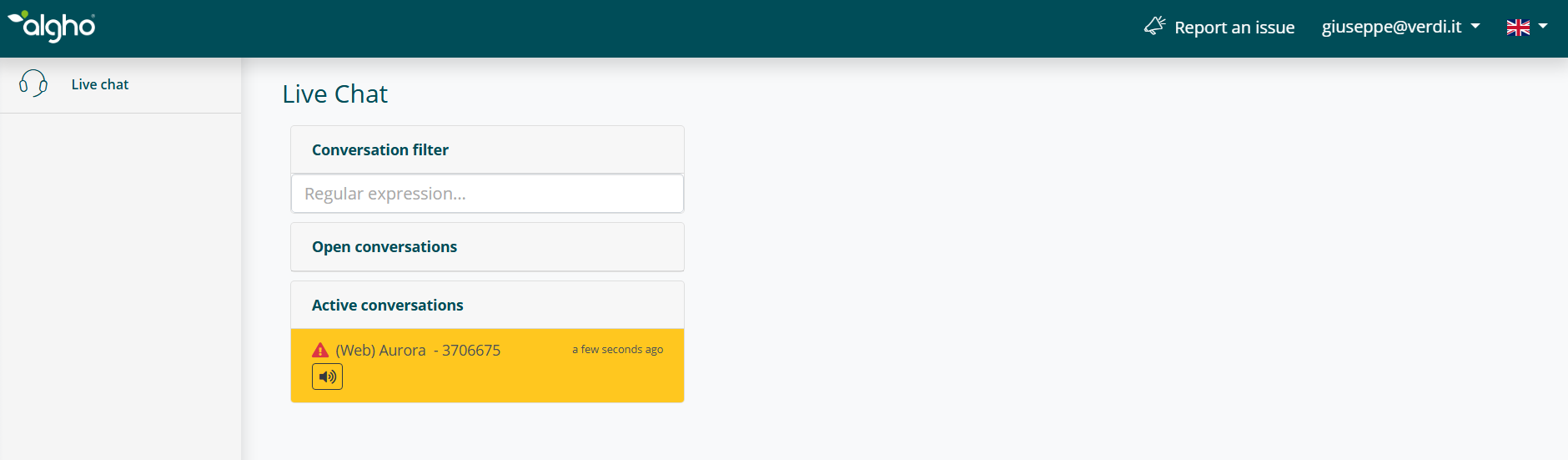
If the user accepts, the notification turns into the form shown earlier in this guide (image Live Chat requested by the user). At this point, the operator can start the Live Chat by clicking on the conversation.
If the user declines, the conversation is marked as Declined conversation. In this case, the operator can no longer request a Live Chat on their own; they can only respond if the user manually requests a Live Chat.
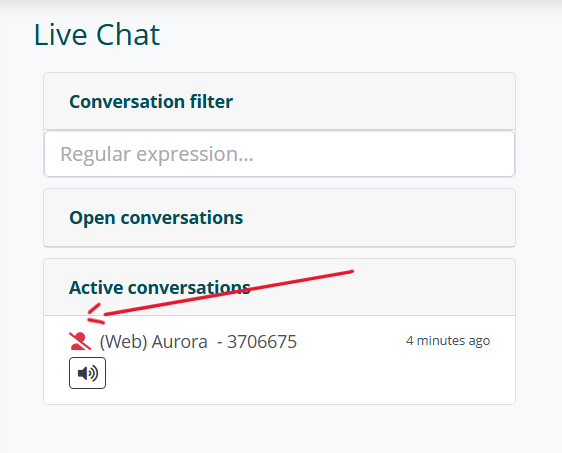
Managing a Conversation
When the operator accesses the chat, the conversation changes from active to open. In this case, the operator gets in touch with the user and can intervene in the conversation by typing their messages in the text bar.
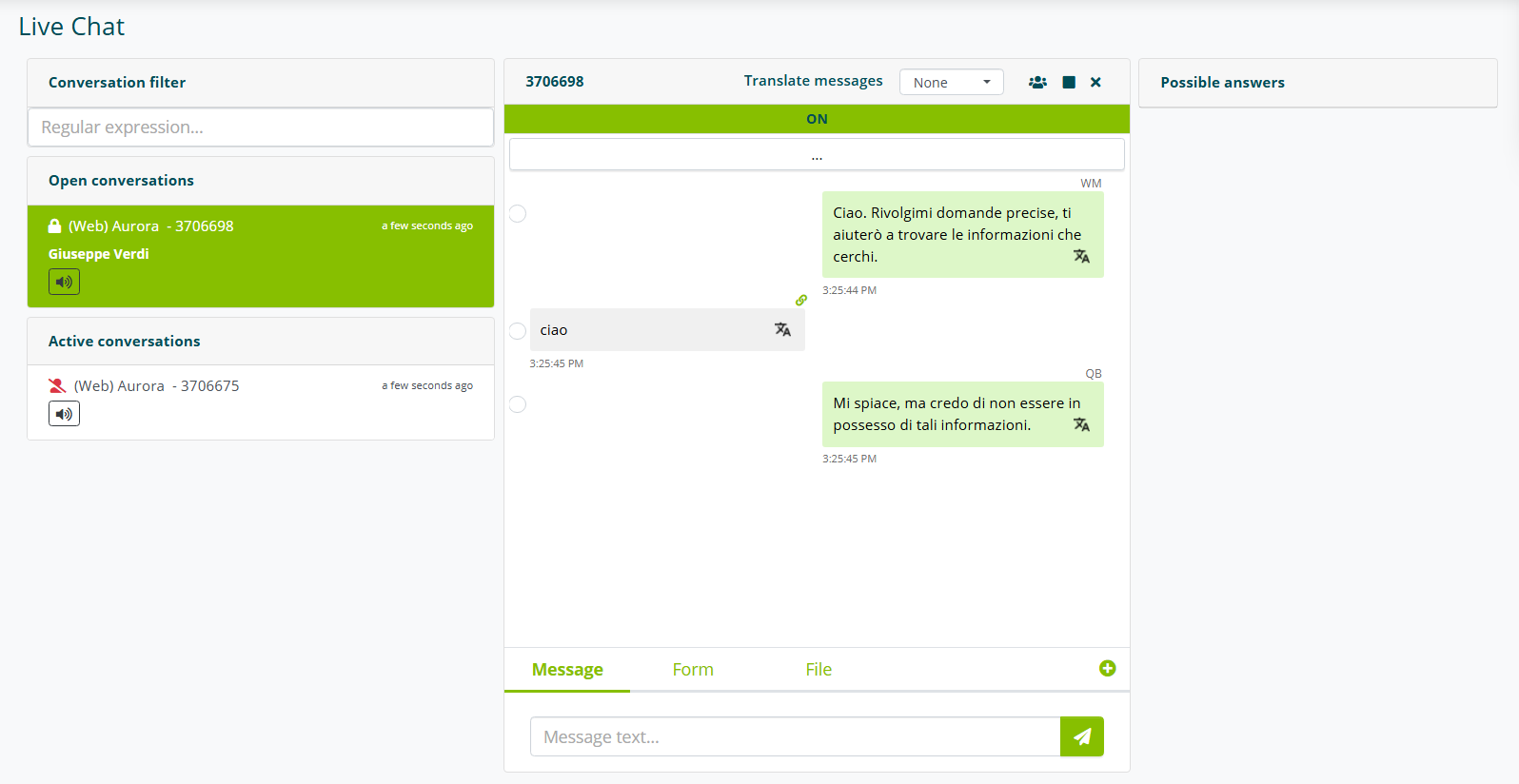
By clicking the highlighted button, it is possible to view the messages exchanged with the user in their previous conversations.
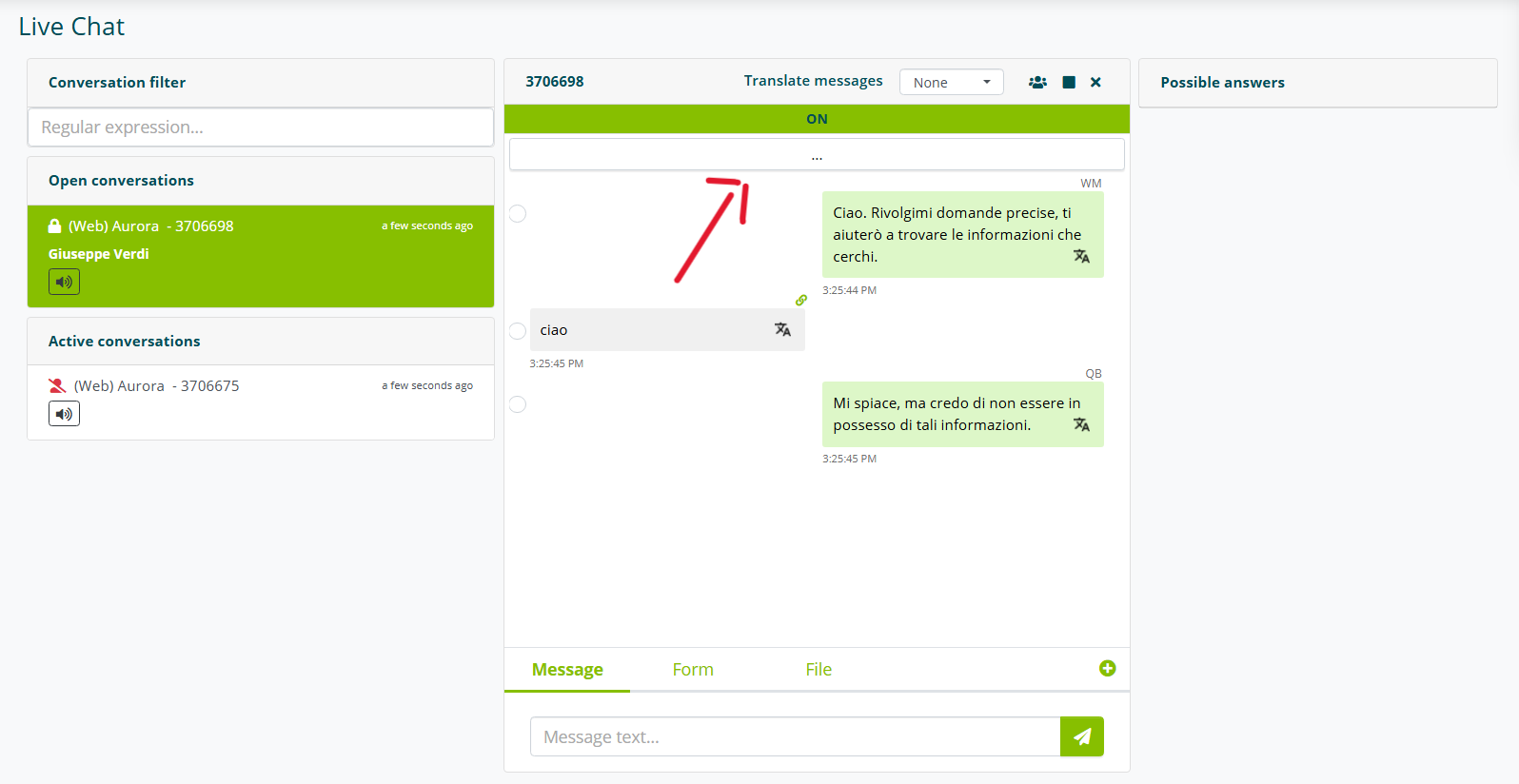
If the operator has a language assigned that differs from the language in which the user is interacting, incoming and outgoing messages will be translated automatically:
- For each message sent by the operator, the translated version received by the user can be viewed.
- For each message sent by the user, the original version can be viewed.

Automatic translation can be disabled for the current conversation by disabling the relevant option.

Operator Handover
If the operator who took over the request does not know the answer to give the user, they can choose to pass the request to a colleague.
Clicking the operator handover icon at the top opens a modal.
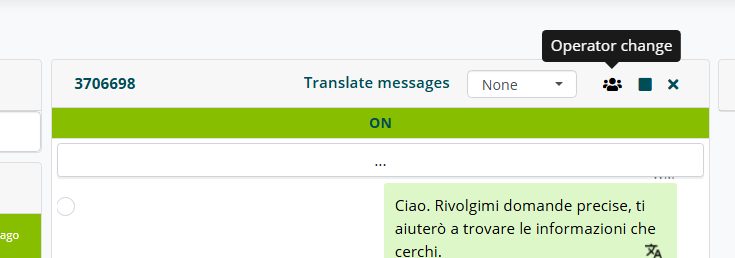
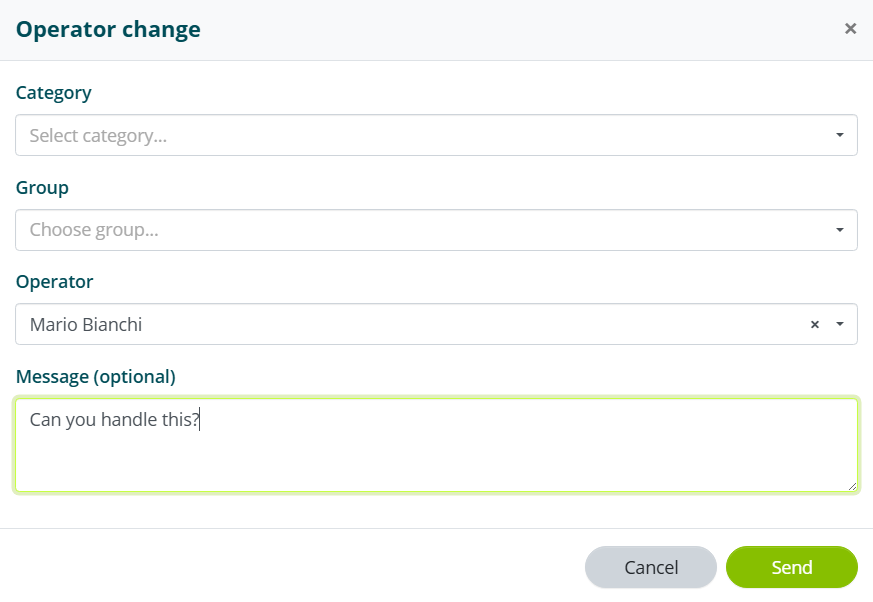
In this modal, the operator can select the colleague to whom they want to hand over the conversation and decide whether to send a message with the takeover request.
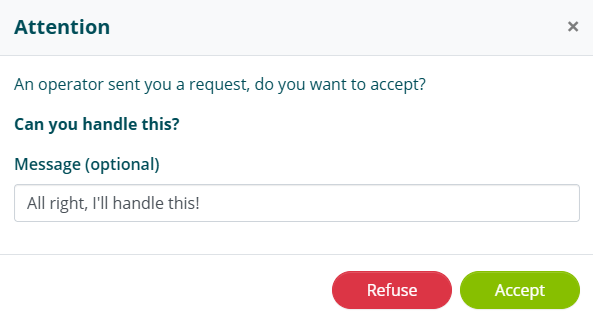
The operator called to intervene receives a notification with the message from the operator who contacted them.

By clicking on the conversation, identified by the red icon indicating the takeover request, a modal opens with an invitation to accept or decline the request.
The operator can send an optional message to the other operator who requested the handover.
The operator who requested the intervention from their colleague receives a notification with the message from the operator who accepted or declined the request.
