Assistant Monitoring
In this section
This section explains the various monitoring functions for assistant interactions.
Conversation History
The Conversation History of an assistant allows you to monitor all interactions that have taken place between end users and the assistant.
This section is accessible by opening the assistant's menu (the three dots at the top right of the card) and selecting Conversation History.
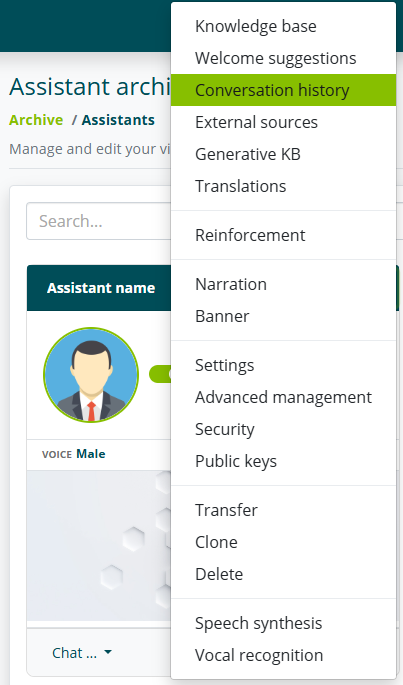
Conversation Archive
By accessing the section, you can view the complete list of conversations that occurred within the indicated time period.
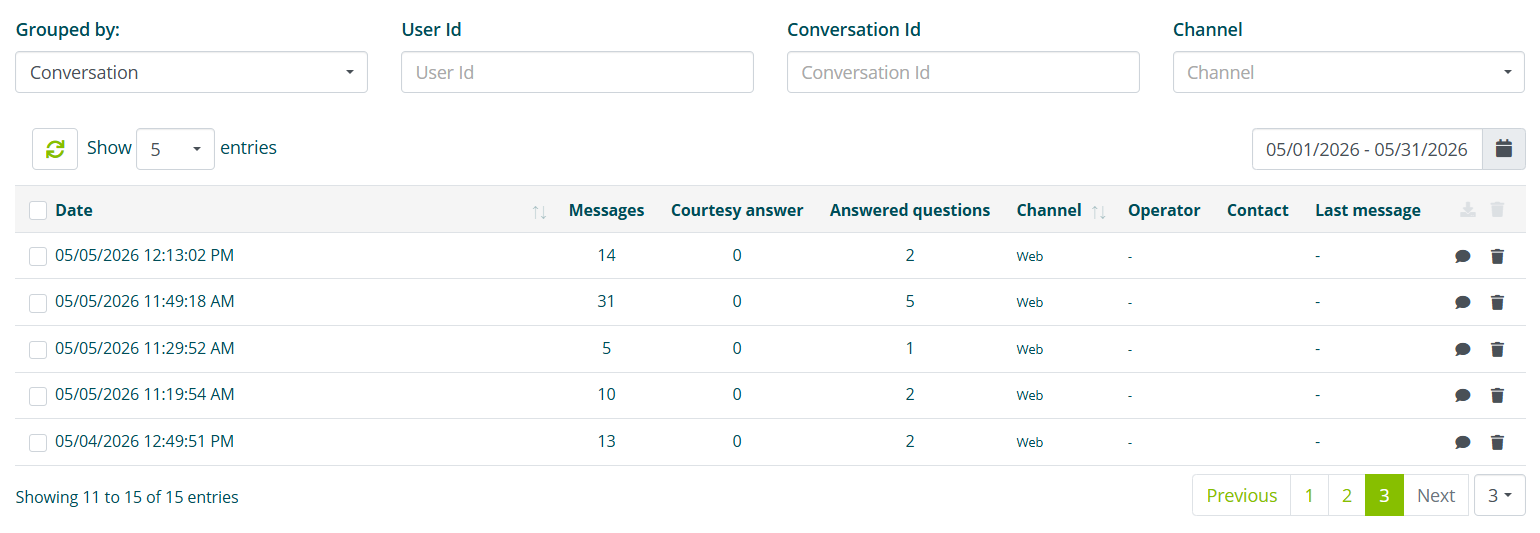
You can filter conversations by:
- User ID.
- Conversation ID.
- Interaction channel.
For each conversation, the following are shown:
- Conversation start date and time.
- Messages sent by the assistant to the user.
- Courtesy replies (see Courtesy replies and engagement) sent by the assistant to the user.
- Answered questions, i.e. the number of user questions that received an answer (excluding Courtesy replies)
- Interaction channel.
- Live Chat operator (see Live Chat) who intervened during the conversation.
- User contact, if provided during interaction via a form (see Conversational Forms)
Analyzing a single conversation
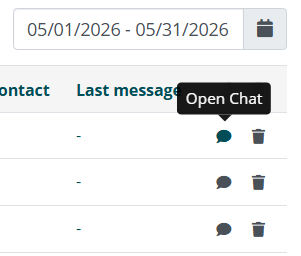
Selecting the Open Chat option allows you to view the conversation transcript.
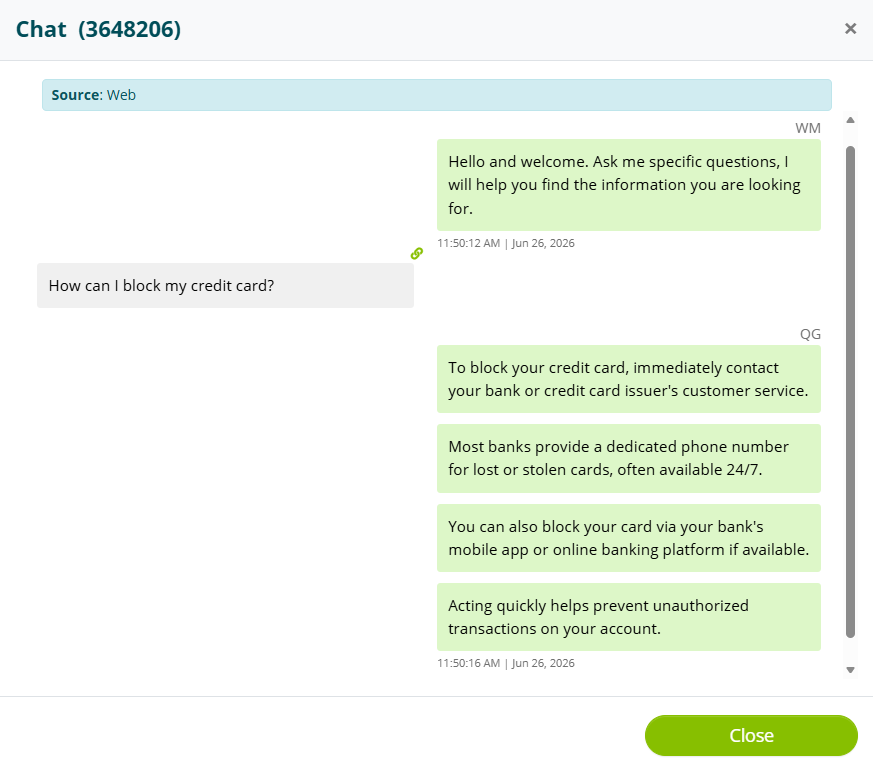
At the top you can view the conversation ID and the source, i.e. the channel.
Inside the transcript, on the left in gray are the user's questions; on the right in green are the assistant's answers.
User questions
Depending on the features used by the assistant, the user's question may indicate certain information.
Knowledge Base
If the assistant's answer comes from the Knowledge Base (see Knowledge Base), the info icon will show the name of the winning intent.

Rephrased question
If the Enable question rephrasing based on conversation context feature is active (see Generative AI for the Knowledge Base), the user's question will be replaced with its rephrased version, and the info icon will show the original question.
In this case, even if the answer comes from the Knowledge Base, the info icon will show the user's original question.

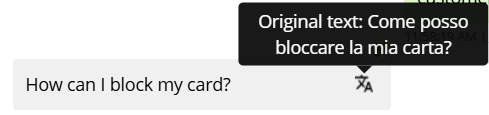
Translated question
If the Multilingual feature is active, the user's question will be replaced with its translated version in the assistant's base language (see Creating an assistant), and the translation icon will show the original question.
Assistant responses
Depending on the features used by the assistant, its responses may indicate certain information.
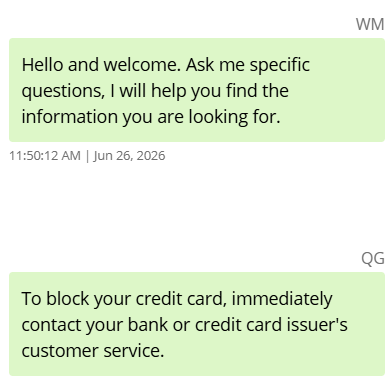
Response type
Depending on the response type, a code will be shown:
- WM corresponds to the welcome message (see General Assistant Settings)
- QA corresponds to an answer from the Knowledge Base.
- QB corresponds to a Courtesy reply.
- QG corresponds to a response generated via Generative AI (see Generative AI for the Knowledge Base)
If the generated response comes from the Knowledge Base, the QA code will be used.
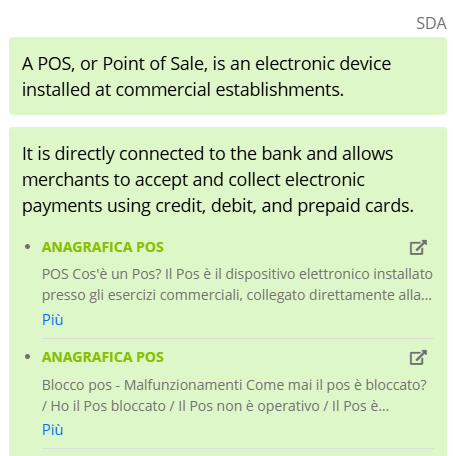
- SDA corresponds to a response from Smart Document Access (see Smart Document Access)
- FORM corresponds to a response or question from a form (see Conversational Forms)
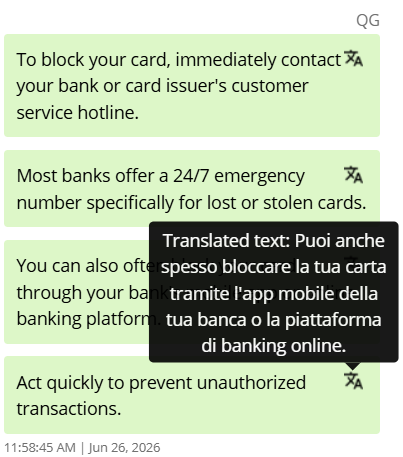
Translated response
If the Multilingual feature is active, the translation icon will show the actual response given to the user.
Smart Document Access
If the answer comes from Smart Document Access, the Show documents option will be available below it.

If selected, the documents used to generate the response will be shown.
If the Do not show the 'Show documents' option after the response feature is active, it will indicate that documents were hidden during the actual interaction.
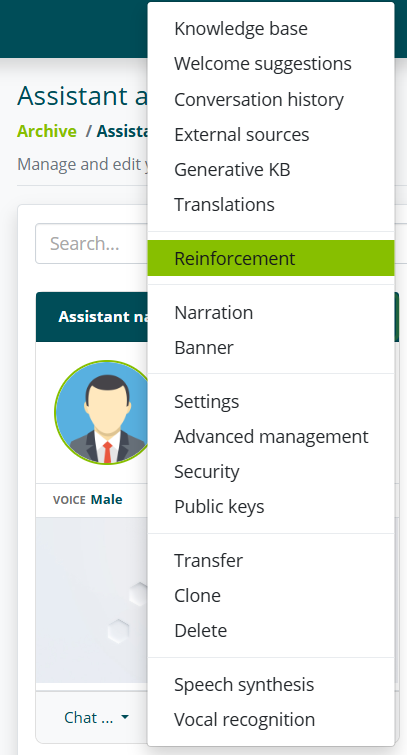
Reinforcement
The Reinforcement section allows you to view all questions and answers handled by the assistant.
The section is accessible by selecting the assistant's menu and then selecting Reinforcement.
Unanswered questions
In this section you can find the complete list of unanswered questions.

For each unanswered question you can view:
- User question.
- Date and time.
- Complete conversation.
For example, a user asked the assistant “Is it true that you can score?” but the assistant was unable to answer.
The assistant may not have responded for two reasons:
- There is no matching intent in the KB;
- The intent is in the KB, but the algorithm, based on the input received, was unable to detect it.
Disambiguations
In this section you can find the complete list of disambiguations.

For each disambiguation you can view:
- User question.
- Selected option.
- Response corresponding to the selected option.
- Date and time.
- Complete conversation.
Positively voted responses
In this section you can find the list of assistant responses that have been positively voted by users.

For each positive vote you can view:
- User question.
- Assistant response.
- Date and time.
- Complete conversation.
User votes are only available if the Enable voting option is active in Parameters and Reinforcement.
Negatively voted responses
In this section you can find the list of assistant responses that have been negatively voted by users.

For each negative vote you can view:
- User question.
- Assistant response.
- Selected option (requires Show suggestions function in Parameters and Reinforcement)
- Date and time.
- Complete conversation.
User votes are only available if the Enable voting option is active in Parameters and Reinforcement.
Operator learning
SDA
In this section you can find the list of all user questions that received a response from Smart Document Access documentation (see Connecting an assistant to documentation).
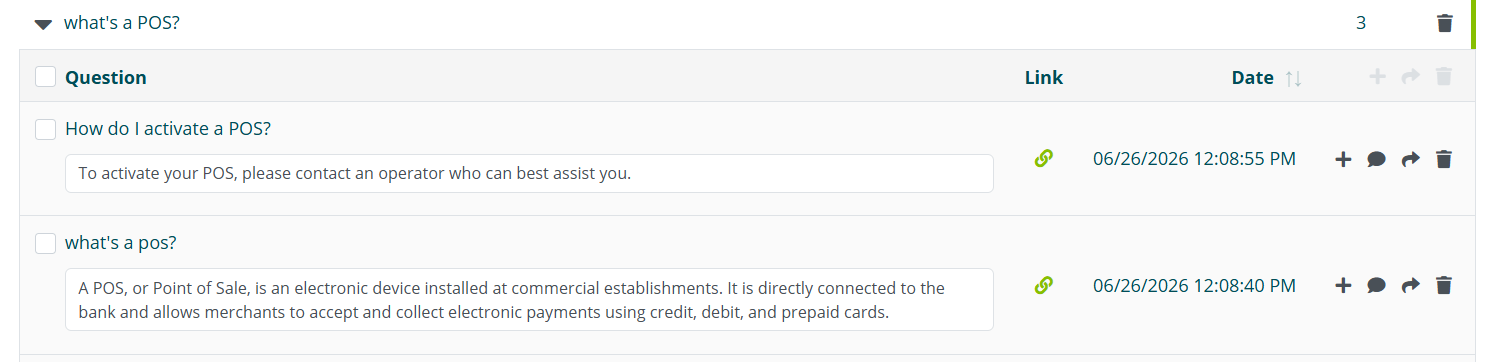
For each question you can view:
- User question.
- Assistant response.
- Link to the document.
- Date and time.
- Complete conversation.
Generative AI
In this section you can find the list of all user questions that received a response from the Generative AI (see Generative AI for the Knowledge Base).

For each question you can view:
- User question.
- Assistant response.
- Date and time.
- Complete conversation.
Adding an element to the knowledge base
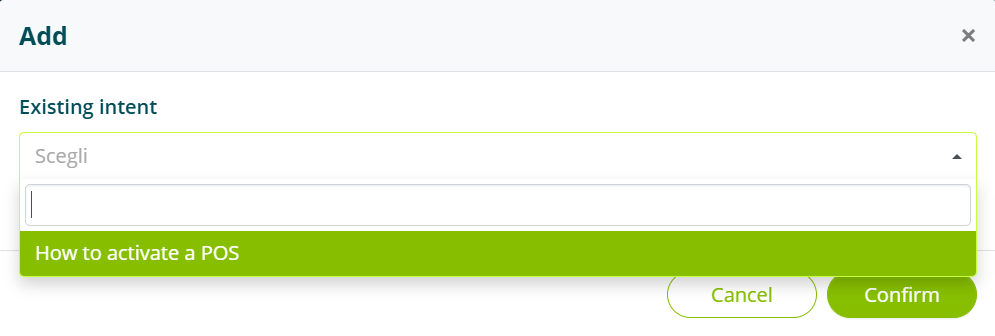
All Reinforcement sections allow you to add the user's question (and any generated response) to the assistant's knowledge base by selecting the Add option.

The user's question can be assigned to an existing intent, selectable from the list.
Alternatively, you can create a new intent with the user question already assigned.
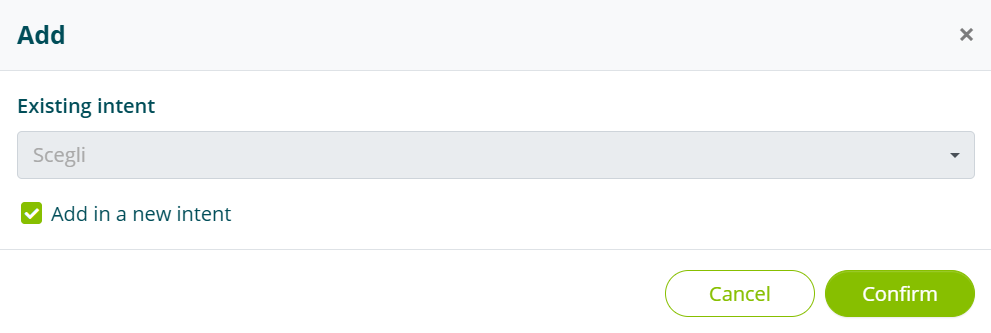
In both cases, the user's question can be modified and improved once added to the knowledge base (see Intent).
Statistics
The Statistics section, accessible from the left menu, allows you to view data useful for monitoring and analyzing the virtual assistant's performance.
In this section, you can view:
- the assistant's performance.
- The performance of web service calls made by the assistant(s).
Web Services Calls
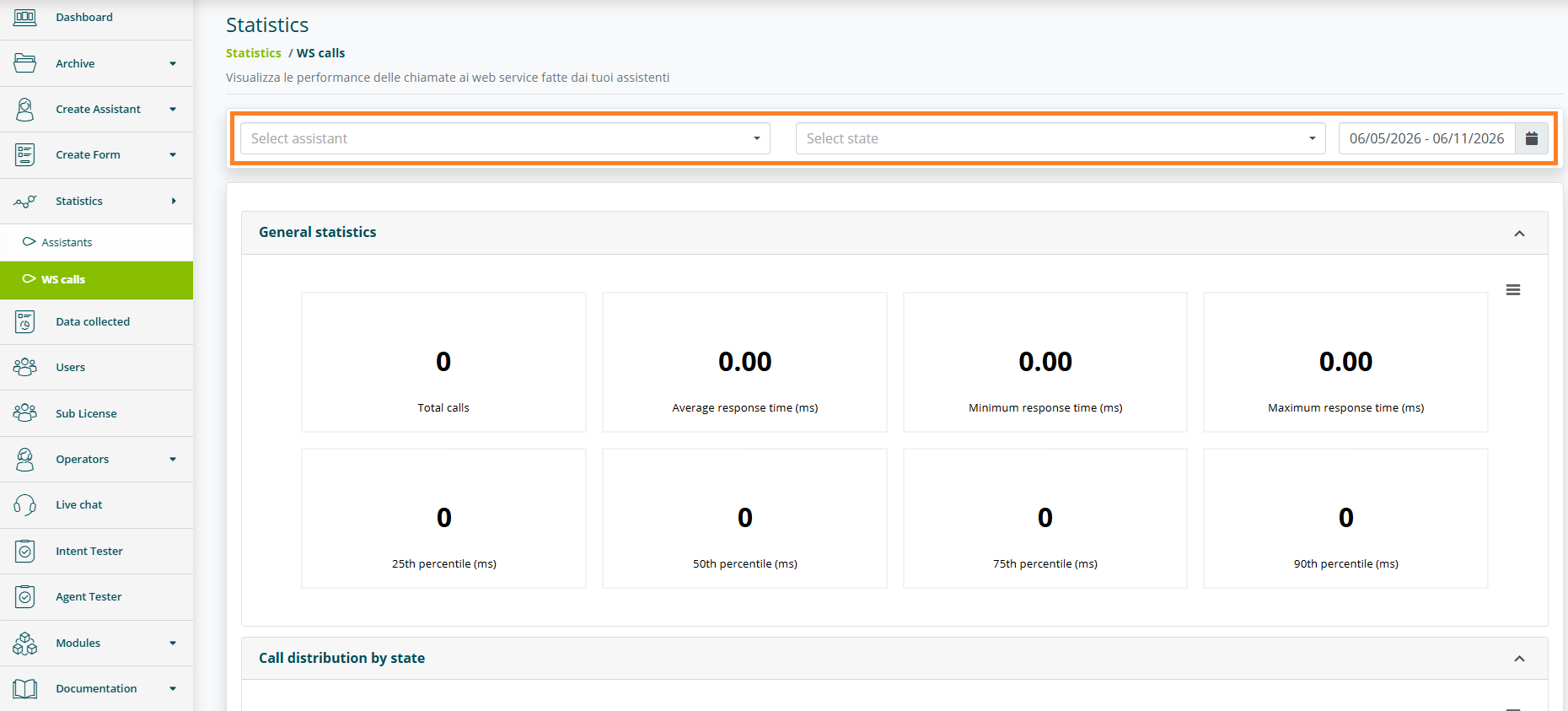
This section allows you to view statistical data related to web service calls made by the selected assistant, if present.
By selecting the calendar icon in the top right corner, you can define the time range for which you want to view statistics. The default range is one month from today's date.
You can refine the search using filters for:
- Assistant type.
- Status.
Assistants
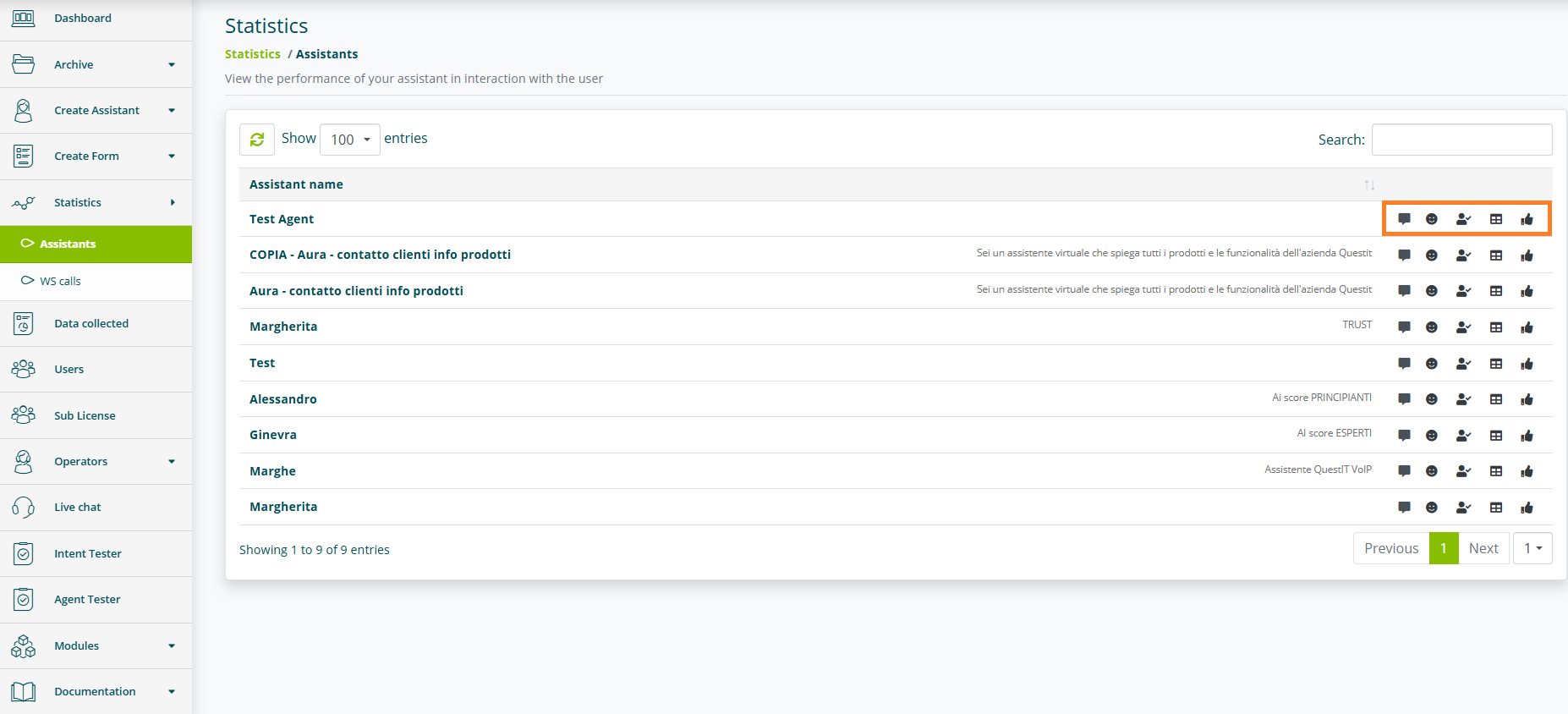
For each assistant, you can access, via the icons on the right, the following:
- Conversations: contains data on the assistant's performance when interacting with your users.
- Emotions: contains statistics on emotions recognized by the virtual assistant.
- Attention level: contains statistics on the attention level recognized by the virtual assistant.
- Questions: contains the ranking of the most frequent requests that received a response from the virtual assistant.
The Emotions and Attention sections are only available for enabled accounts.
Conversations
General statistics
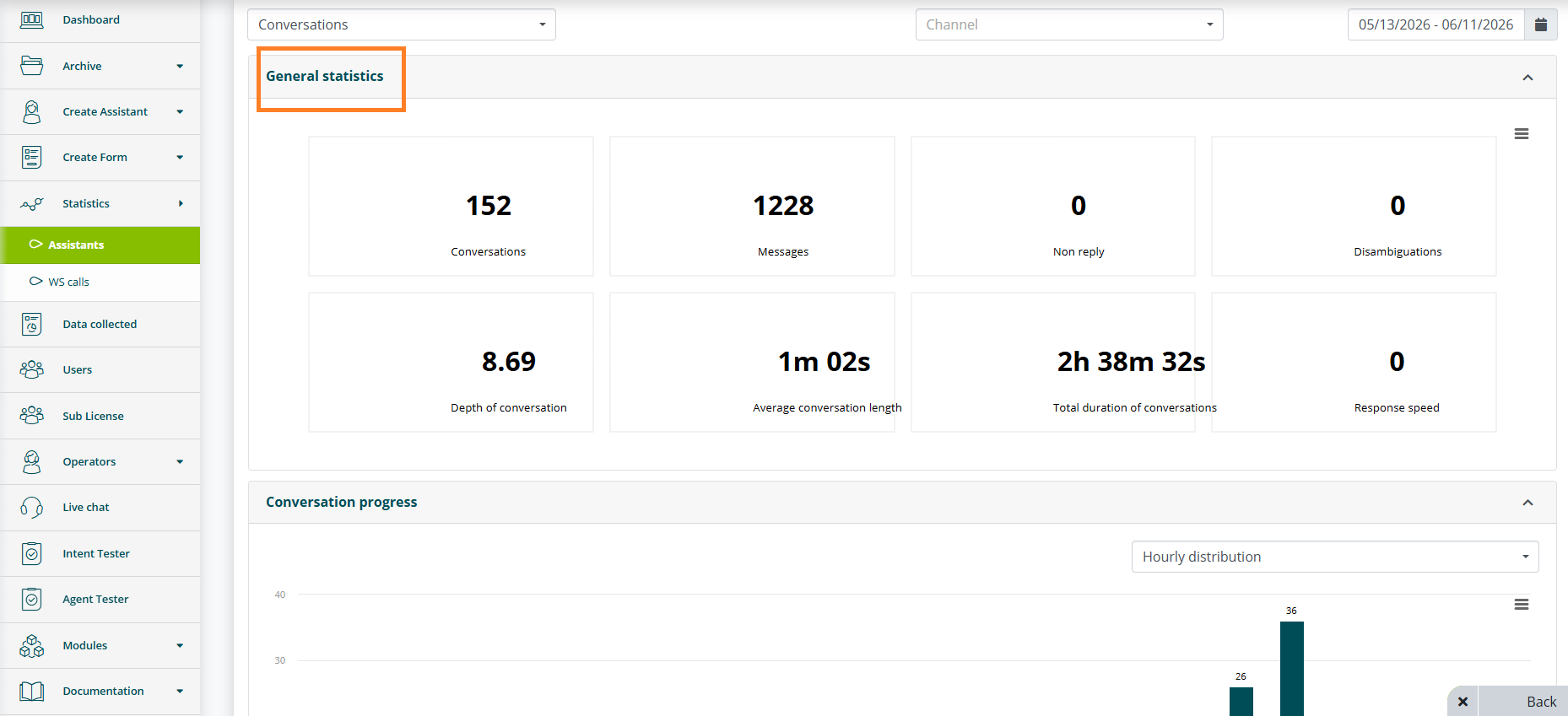
This section provides an overall summary of the virtual assistant's performance. The data displayed are:
- Conversations: number of conversations.
- Messages: number of messages exchanged.
- Unanswered: number of questions the assistant was unable to answer.
- Disambiguations: number of times the assistant went into disambiguation.
- Conversation depth: average number of messages exchanged per conversation.
- Average conversation duration.
- Total conversation duration.
- Response speed: average response speed.
Conversation Trend
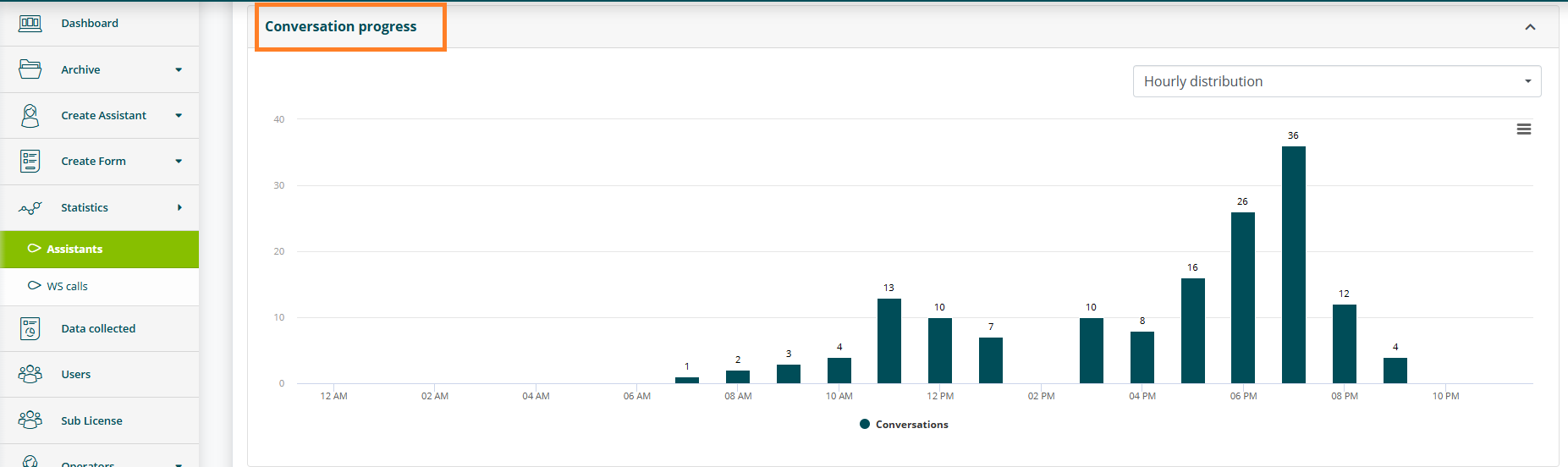
This section offers an overview of temporal trends related to conversations handled by the virtual assistant. You can filter the data distribution by time and by day.
Response type
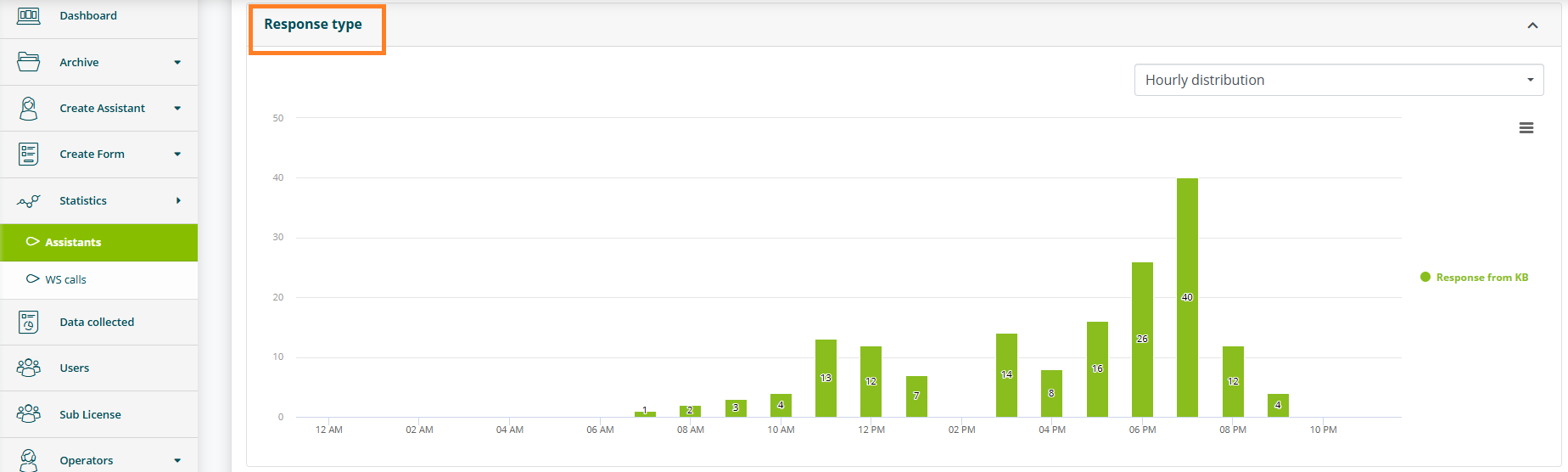
In this section, the assistant's responses are classified into various categories, such as correct answers, courtesy replies, and disambiguations. You can filter the distribution of these responses by time, by day, and also view aggregate totals.
Interaction type
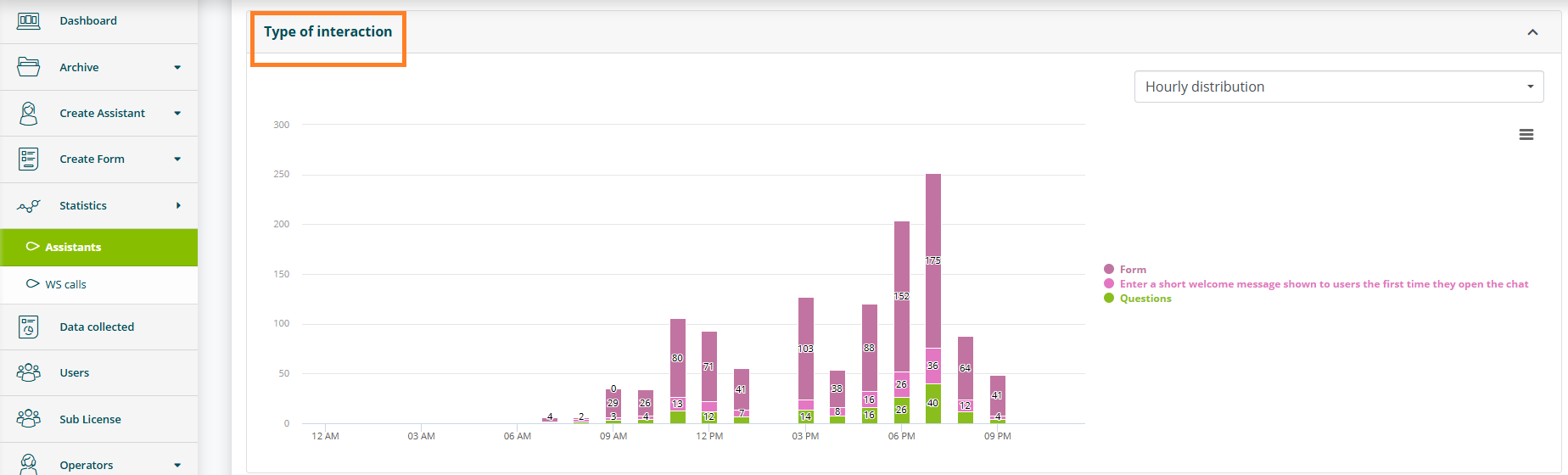
This section describes the different forms of interaction sustained by the assistant, including forms, engagement, and questions. The distribution of these interactions can be filtered by various parameters, such as time and day, and aggregate totals can also be viewed.
Unique users per channel
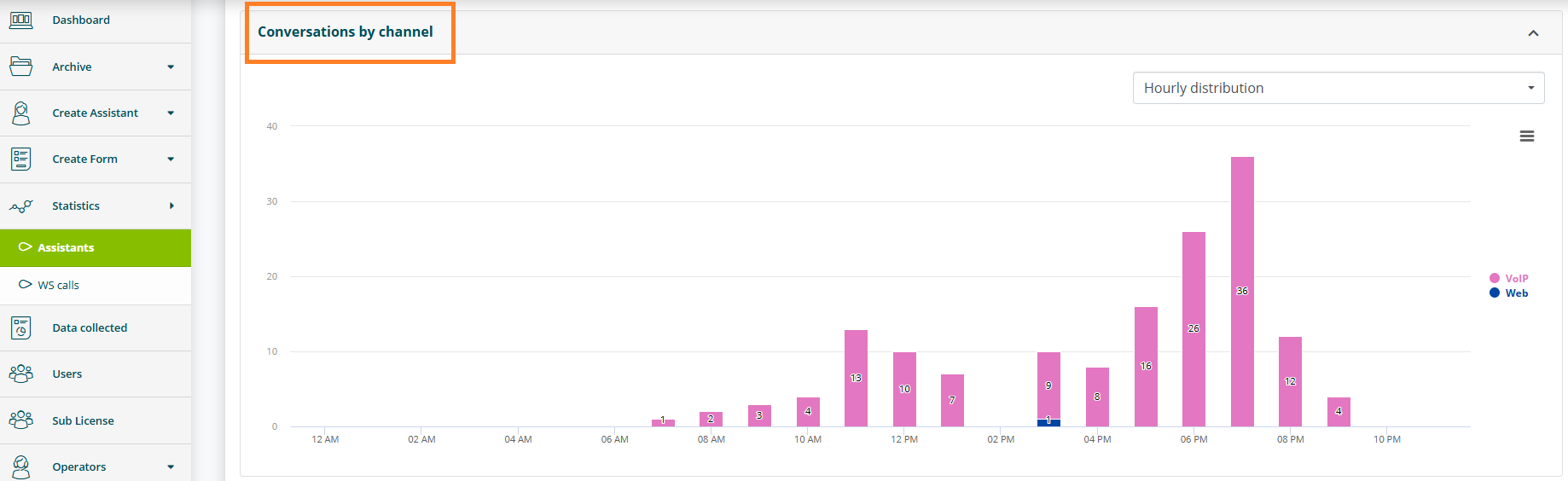
This section lists the number of distinct users who have interacted with the assistant, broken down by communication channel (e.g. web, social, etc.).
Forms
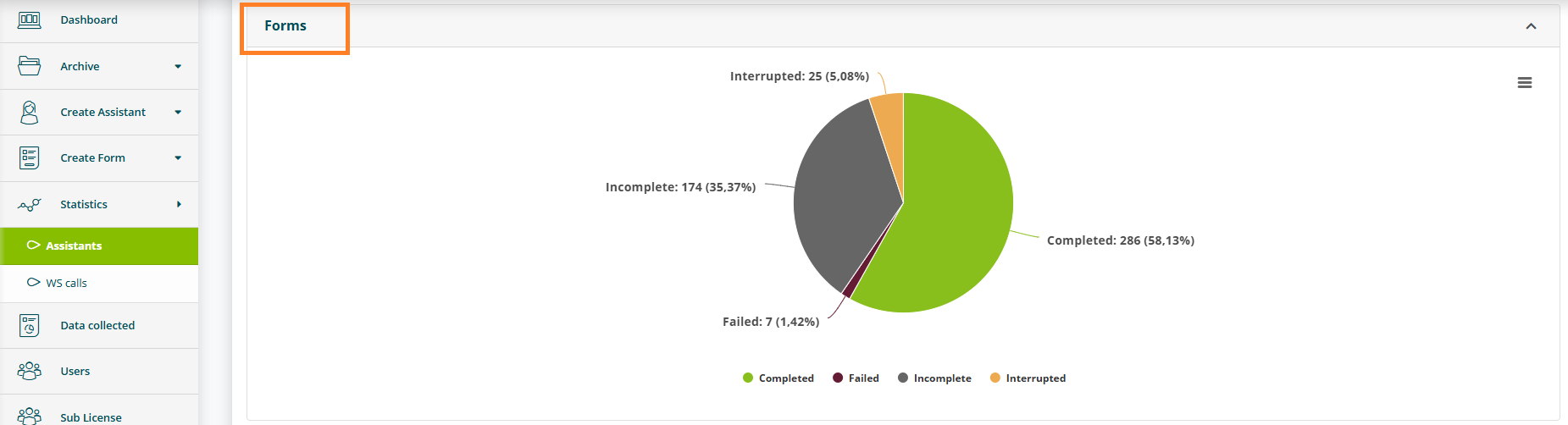
This section contains data relating to forms that have been filled out by users during interactions with the assistant. Forms are classified as completed, failed, incomplete, and interrupted.
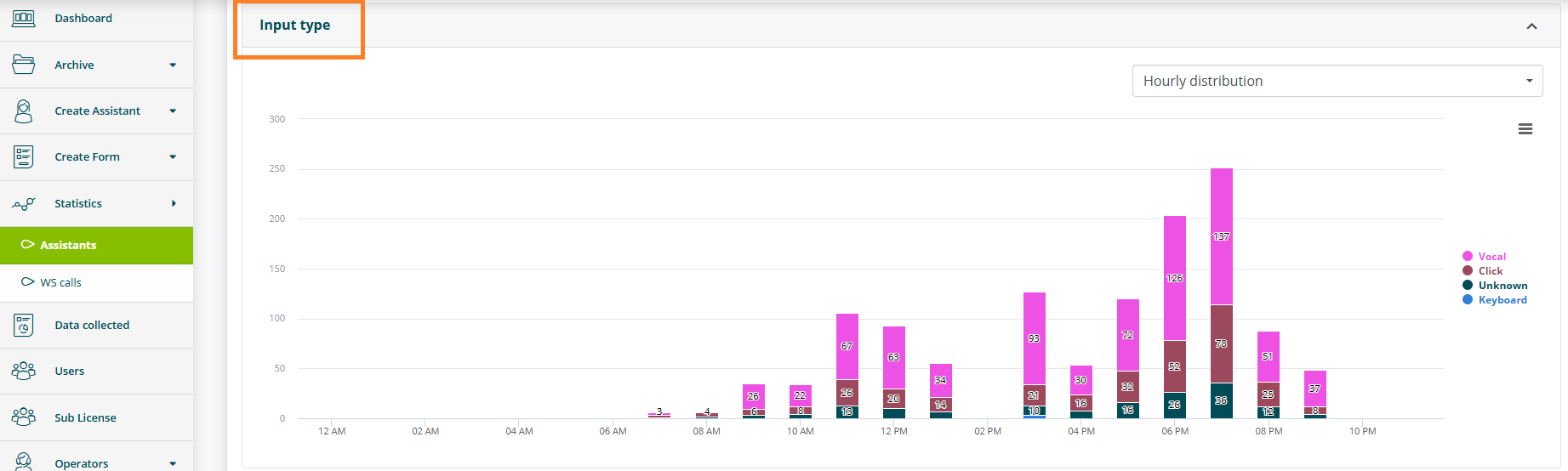
Input type
In this section, the different types of input received by the assistant are cataloged, including keyboard, click, engagement, and voice input.
Unknown input refers to Facebook, Whatsapp and Telegram channels.
The distribution of such inputs can be filtered by time and day, and there is also the option to view aggregate totals.
Openings by domain
In this section, new conversation openings are listed, categorized by source domain (e.g. company website, app, etc.).
If the assistant is integrated into a single domain, the chart will show only one slice.
Openings by type
Here you will find data on new conversation openings, broken down by opening type.
The opening types are:
- text conversation.
- voice and text conversation.
- digital human conversation.
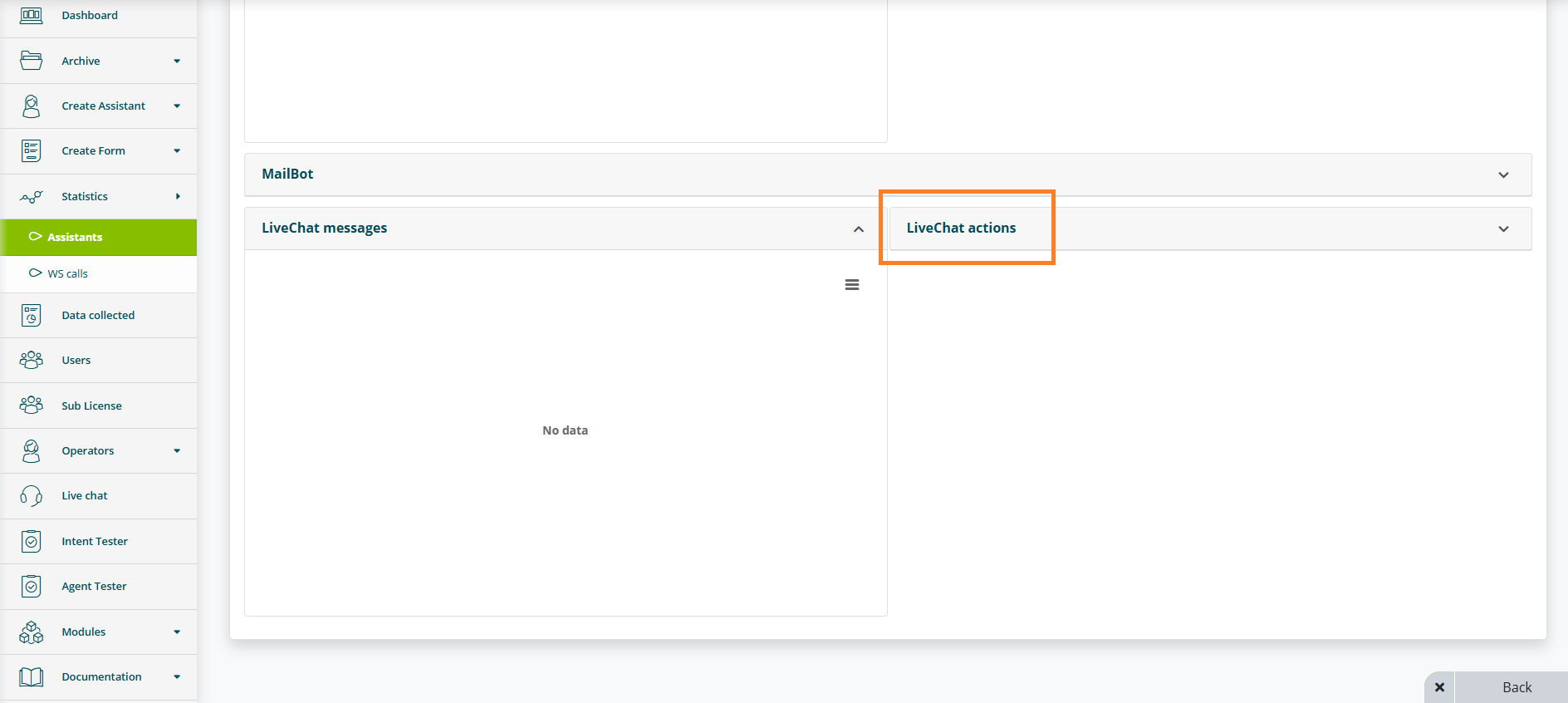
LiveChat Messages
This section contains statistics related to messages exchanged in LiveChat mode, including the number of messages sent and received.
LiveChat Actions
This section reports actions taken during LiveChat sessions.
Consumable Dashboard
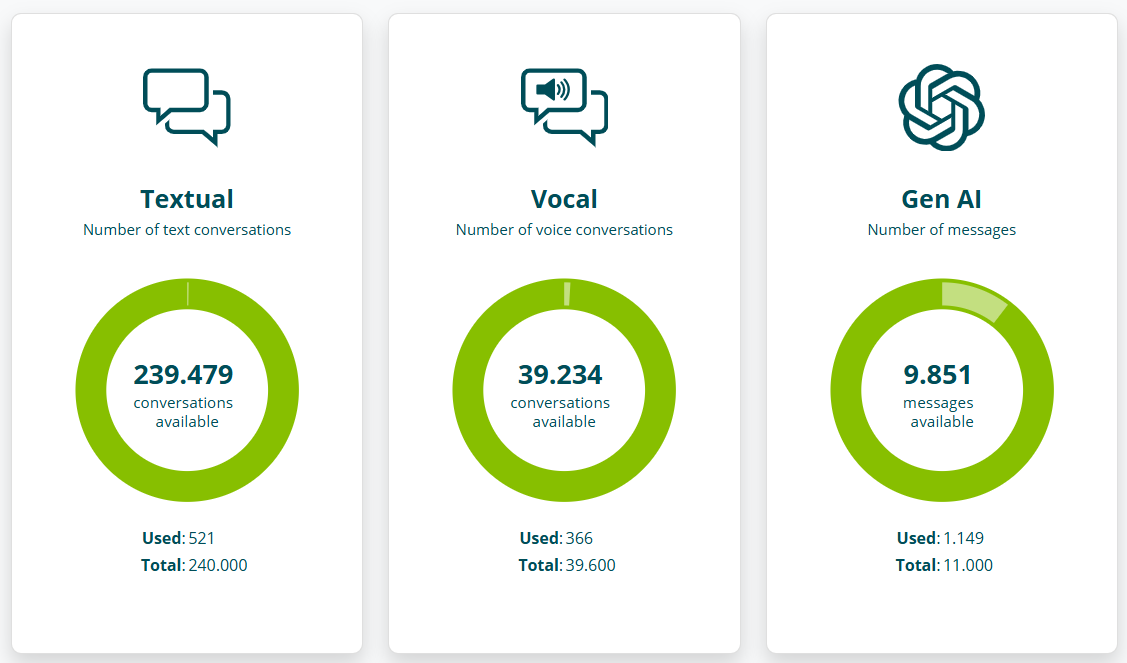
The Dashboard allows you to monitor the status of your account's consumables.
Textual
The textual conversations counter indicates the number of conversations in which text interaction (i.e. via keyboard) was used at least once.
Voice
The voice conversations counter indicates the number of conversations in which voice interaction (i.e. via microphone) was used at least once.
Gen AI
The Gen AI messages counter indicates the number of messages for which at least one Gen AI feature was used.
If more than one Gen AI feature was used for a message, the number of consumables used will correspond to the number of features used.
For example, if an assistant has both the Enable question rephrasing based on conversation context and Enable response rephrasing based on the question context features active (see Generative AI for the Knowledge Base), then one assistant response will consume two consumables.
For example, if an assistant has the response generated via Smart Document Access active (see Connecting an assistant to documentation) and has Launch form set by AI Gen active, then one assistant response will consume two consumables.