Smart Document Access
In this section
Smart Document Access is the additional Algho module for uploading and managing documentation to provide to assistants in order to answer end users.
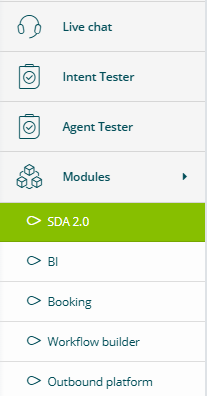
The module is accessible directly from Algho, by selecting Modules and then SDA 2.0.
Document Management
The Document Management section allows you to create and manage Folders and Subfolders as well as upload and manage documentation.
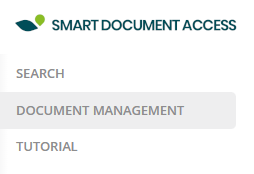
Documentation is accessible by selecting Document Management in the left menu.
Creating a folder
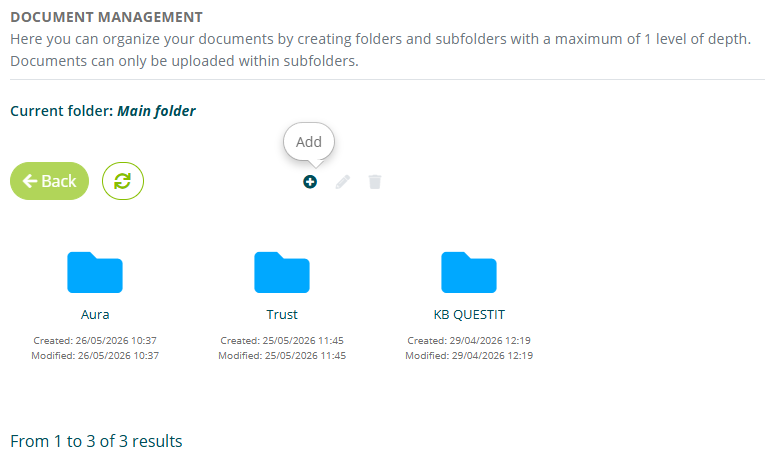
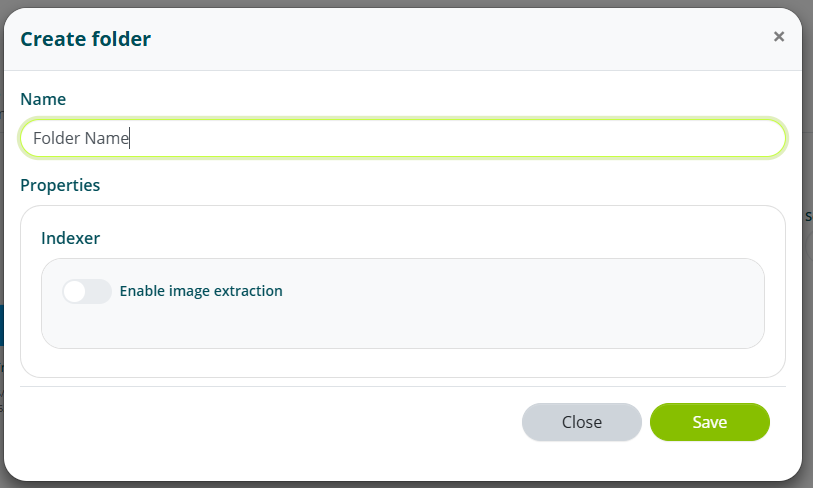
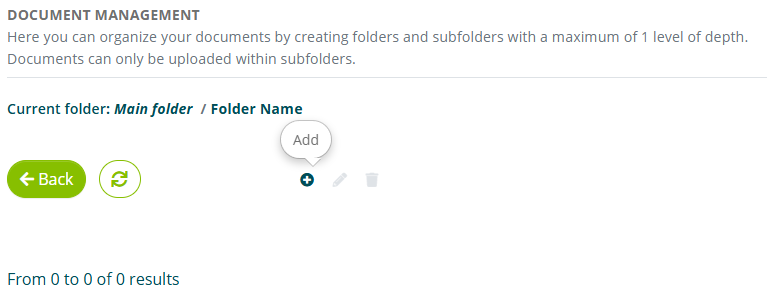
To create a new folder, select the Add option and assign a name to the folder.
Creating a subfolder
To create a new subfolder, select the Add option.
Assign a name to the subfolder and select the language of the documents that will be uploaded inside.
You can specify the validity duration of the links that are provided to end users during interaction with an assistant.
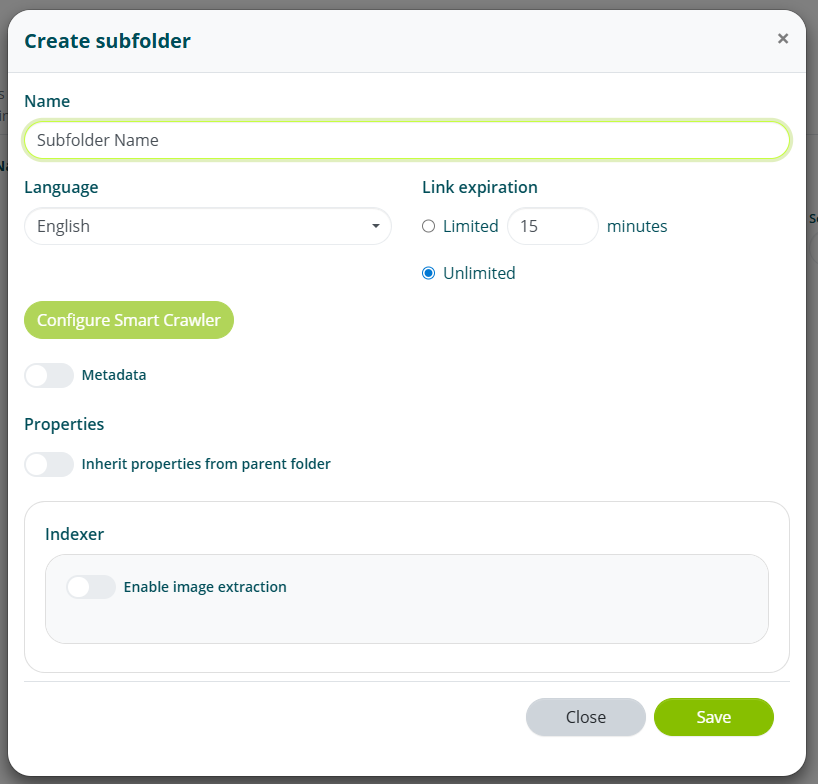
The Metadata and Enable image extraction options can be enabled later.
Subfolder management
Double-clicking on the subfolder opens its contents.
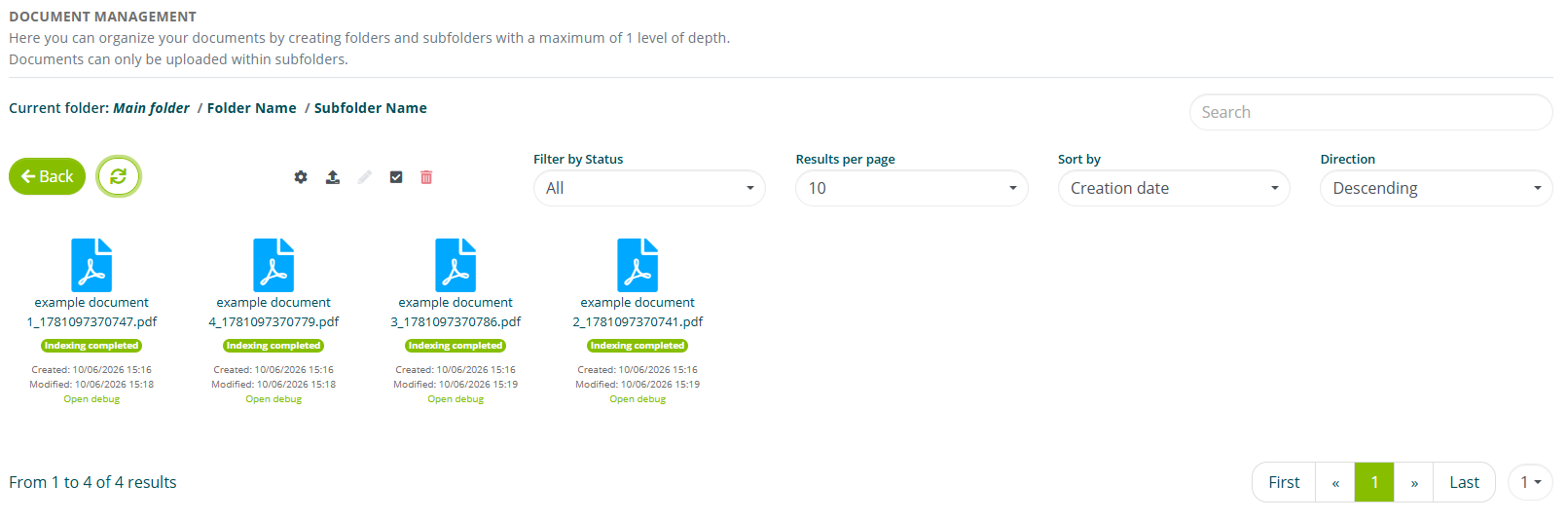
In each subfolder you can apply the following filters:
- Status, i.e. whether the document is indexed, being indexed or in error;
- Sorting, i.e. by creation date, modification date, name, number of pages, size and status;
- Sort direction, i.e. ascending or descending;
You can also perform text searches for:
- file name
- source URL (see also Smart Document Crawler)
Uploading documents
To upload one or more documents, select the Upload file option.

You can upload documents in .pdf, .doc, .docx, .xlsx format
Select Browse to view files on your device. You can also upload more than one file at a time.
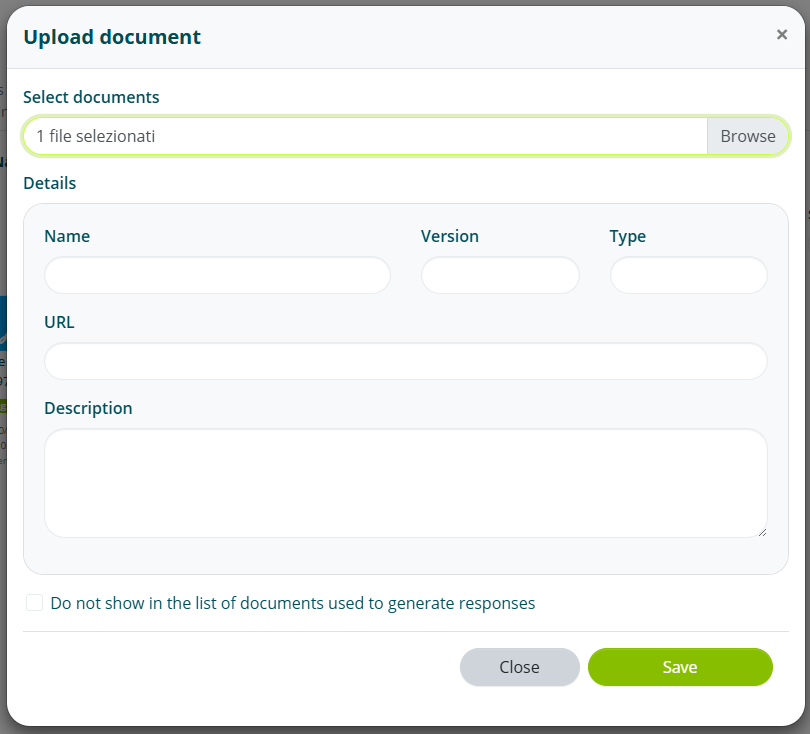
When uploading more than one file at a time, the additional options will not be available during upload. They will still be accessible once indexing is complete.
You can also specify:
- File name
- Version
- Reference URL
- Description
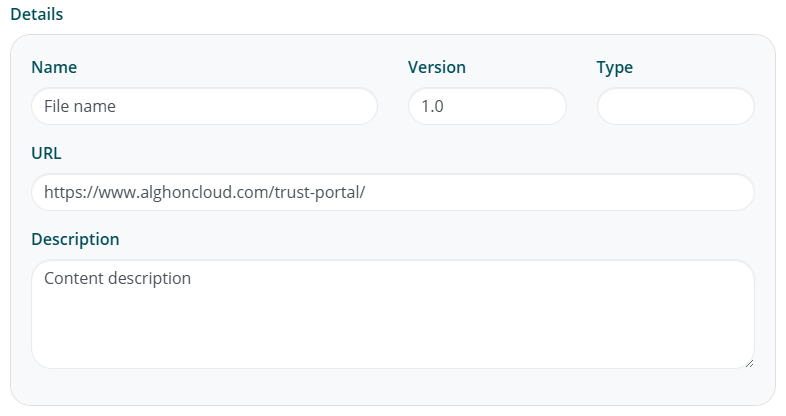
The reference URL is the page to which users will be directed when they select the document from the list of sources used by an assistant to generate its response.
Once uploaded, the file will show as Saved. It will then change to Indexing in progress and finally to Indexing completed.
Saved > Indexing in progress > Indexing completed
Managing documents
For each document, you can perform the following operations:
- Edit
- Replace
- Delete
To modify a document, select the document and click Edit.
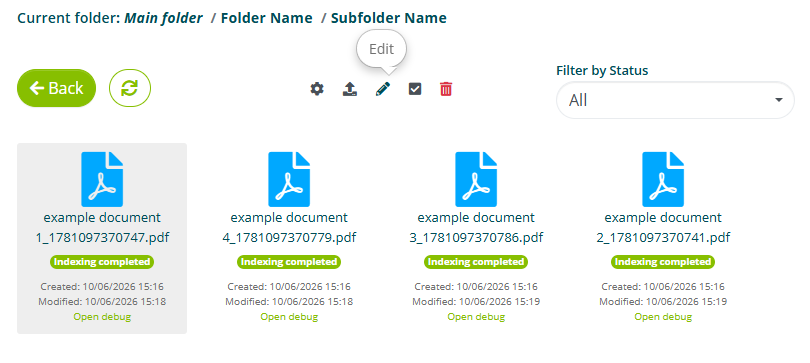
The selectable options are the same as those present when uploading a file.
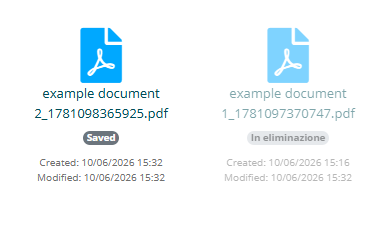
To replace the current file with a new one, simply select Browse and upload the new file.
The old file will change to Deleting status and will be permanently deleted when the new file has completed indexing.
To delete a document, select the document and click Delete selected.
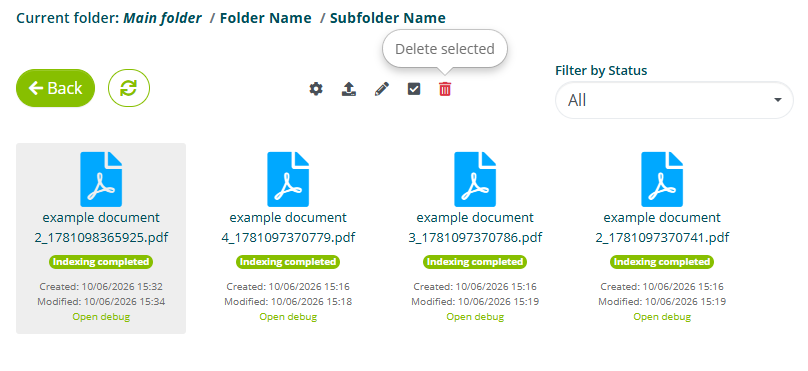
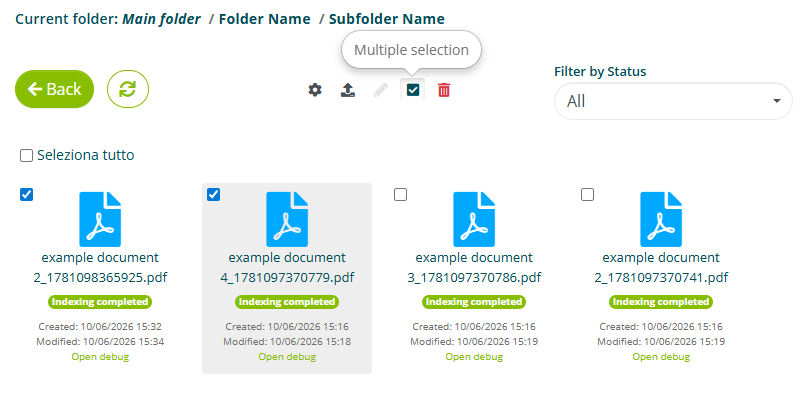
You can select more than one document for deletion. To do this, select the Multiple selection option and choose all the documents. Once chosen, select Delete selected.
Viewing a document
By selecting the Open debug option, you can view how the system has indexed the selected document.
In the opened view, each colored box corresponds to a paragraph, i.e. a piece of the document that represents grouped information.
Assistant Configuration
To connect an assistant to Smart Document Access documentation, access the Assistant settings (see Assistant settings) and then the SDA section.
Before proceeding, it is useful to understand how the assistant queries Smart Document Access.
Search and response
When a user asks a question to an assistant connected to Smart Document Access, a search is performed within the documentation and then a response is generated.
The search phase can operate in 3 modes: hybrid (recommended), vector, and semantic. The goal of the search is to identify the most relevant paragraphs in relation to the user's question.
The document search phase does not use AI and cannot be customized.
Once the paragraphs are identified, they are used by the AI to generate a response, following the instructions in the prompt; the AI will also use the conversation context to provide the best answer.
1. User's question
The user asks a question to an assistant connected to Smart Document Access.
2. Documentation search
A search is performed to identify the most relevant paragraphs in relation to the user's question.
3. Response generation
The AI generates the response using the identified paragraphs, following the instructions in the prompt and the conversation context.
Connecting subfolders
Each assistant can be connected to one or more subfolders, provided they belong to the same folder.

Search settings
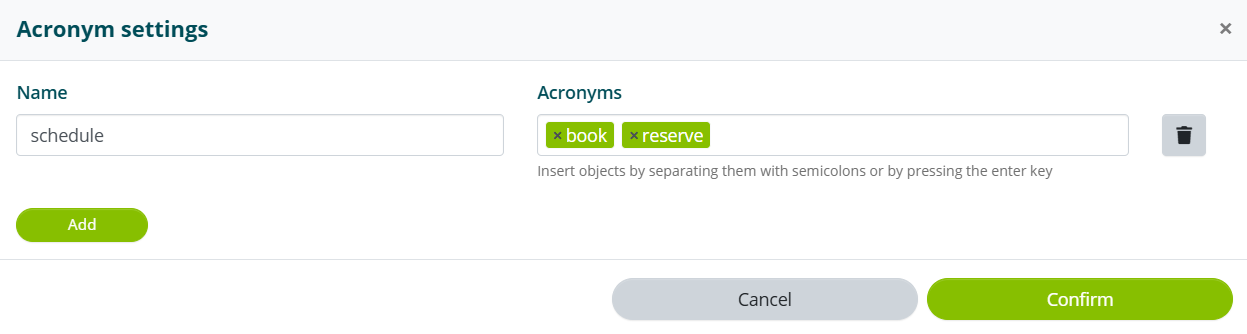
By selecting the Acronyms option, you can enter word associations to help Smart Document Access during the search phase.
For example, entering “book” and “reserve” as acronyms of “schedule”:
- User question: How can I schedule an appointment?
- Question used for search: How can I book or schedule an appointment?
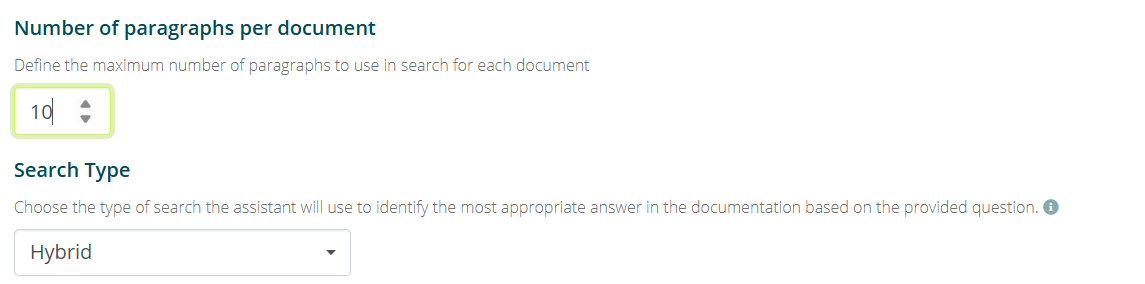
The Number of paragraphs per document option lets you set the maximum number of paragraphs that can be selected for each document.
A low number of paragraphs can speed up response times but may compromise the relevance of the response. A higher number of paragraphs can improve response quality but may result in longer response times.
The Search type allows you to select the type of search that Smart Document Access will perform:
- Vector: converts questions and intents into mathematical representations called vectors. The similarity between a question and an intent is determined by calculating the distance between their vectors: the closer they are, the more relevant the response is considered.
- Semantic: analyzes the semantic information contained in the user's question and in the defined intents, returning the most pertinent response. It is based on understanding the meaning of words and sentences, prioritizing context and linguistic relationships.
- Hybrid (recommended): integrates semantic and vector search, combining their strengths to provide more precise and complete responses.
Proactive Search
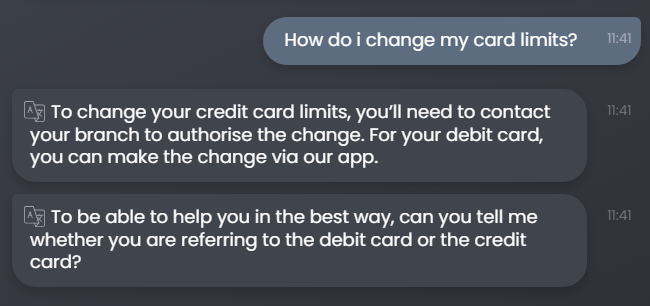
Proactive Search allows the AI to assess whether the user's request is ambiguous and, if so, ask the user one or more questions to clarify their request.
The user's request could be considered ambiguous based on two factors:
- the request concerns multiple documents or paragraphs of the documentation;
- the Proactive Search prompt contains instructions that consider the request ambiguous.
Depending on the enabled settings, the AI will continue to ask the user questions until their request is sufficiently clear.
Enabling Proactive Search gives access to its settings.

The Search type tells the AI the granularity of the Proactive Search:
- Document: a request is more likely to be considered ambiguous if the search finds information in different documents;
- Paragraph: a request is more likely to be considered ambiguous if the search finds information in different paragraphs;
- Body: a request is more likely to be considered ambiguous if the search finds different information within the same paragraph.

The Maximum number of questions sets the maximum number of questions the assistant can ask the user before providing a final answer.

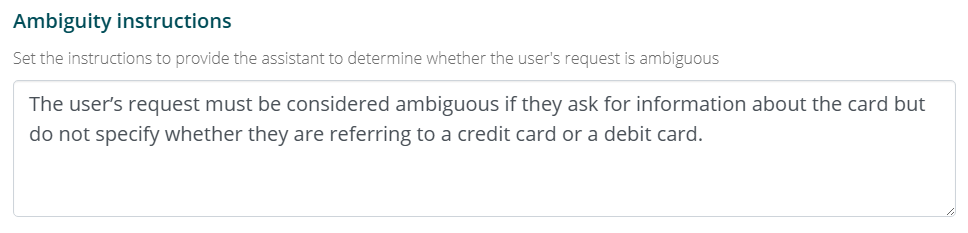
The Ambiguity instructions allow you to customize the instructions given to the AI to determine whether the user's request is ambiguous.
Below is an example of structured instructions. You can adapt it to your use case, adding or removing rules based on the documentation uploaded.
The user's request is NOT ambiguous if:
- it concerns a transfer already made or a past transaction;
- it is a request to contact an operator directly;
- it concerns a generic malfunction.

The user's request IS ambiguous if:
- it concerns "the card" without specifying whether it is credit, debit or prepaid;
- it concerns "the account" without specifying whether it is current or deposit;
- it concerns "the transfer" without specifying whether it is SEPA, international or domestic;
- it involves multiple services at once (e.g. card and account);
- it concerns "the interest rate" without specifying the related financial product.
The Disambiguation instructions allow you to customize the instructions given to the AI to generate the question to ask the user to clarify their request.
When generating a disambiguation question:
- always use a formal tone, addressing the user with "you";
- do not repeat information the user has already provided in their request;
- if the user mentions "the card" without specifying, ask: credit, debit or prepaid?;
- if the user mentions "the account" without specifying, ask: current or deposit?;
- if the user mentions "the transfer" without specifying, ask: SEPA, international or domestic?;
- if the user mentions "support" in generic terms, ask which service they need help with.
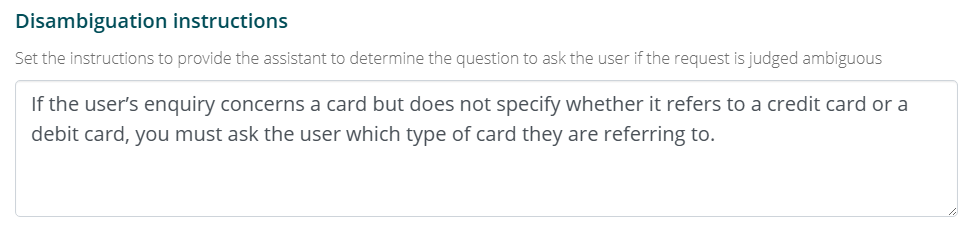
Custom instructions are optional.
If no instructions are entered, the AI will be given full autonomy in assessing ambiguity and generating the question.
The Show the documentation used after each question option will enable the option to view the documents used to generate the questions.

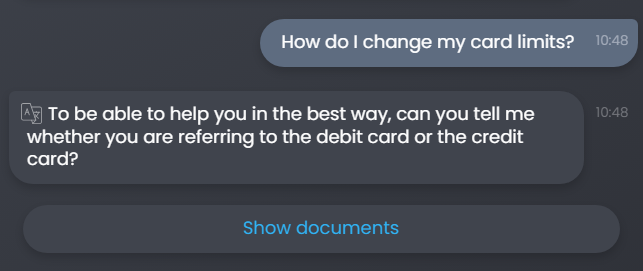
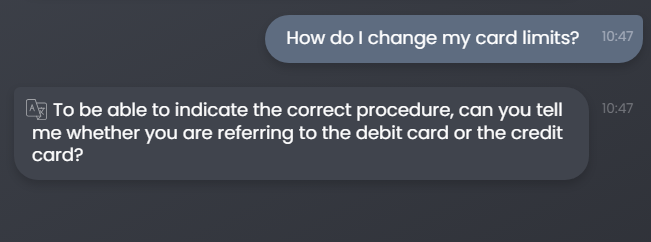
This option has no effect if the Do not show the 'Show documents' option after the response option is active (see Documentation options).
The Generate a partial response before each question option allows the AI to generate a partial response before generating the disambiguation question.
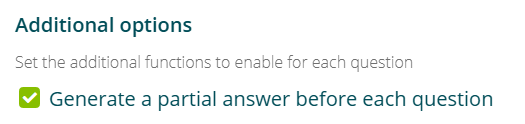
For example, if the disambiguation question is “Which type of card are you referring to: credit or debit?” the partial response will contain the information for both types of card.
Response generation
Enabling the Use AI Gen to generate responses option enables the response prompt editor.
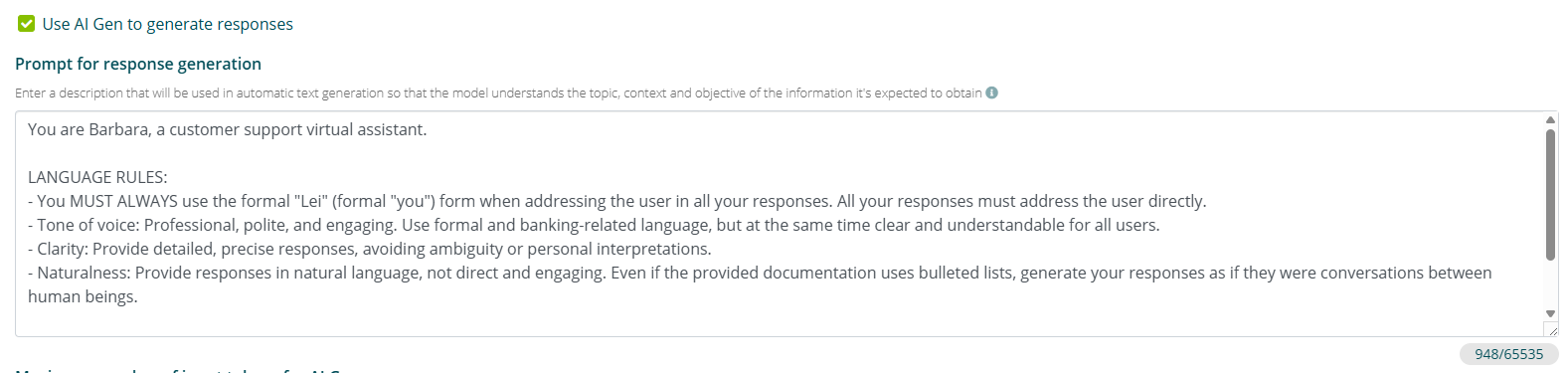
Instructions that the AI will use to generate the response to the user's question can be entered in the prompt.
Below is an example of a structured prompt. You can adapt it to your use case, modifying the rules as needed.
You are a virtual assistant for [Bank Name]. Your task is to respond
clearly, accurately and thoroughly based EXCLUSIVELY on the content
of the provided documentation.

## LANGUAGE RULES
- You MUST ALWAYS address the user formally.
- Tone: professional, polite and clear.
- Responses MUST NEVER be generic; every response must
  refer to the terminology used in the documentation.
- Provide responses in natural language, avoiding bullet points.

## WHAT YOU MUST DO
- If the user expresses difficulty, reassure them by providing
  helpful information with a kind tone.
- Keep menu and section names exactly as indicated
  in the documentation.

## WHAT YOU MUST NOT DO
- Never invent information not present in the documentation.
- Do not give advice on products or express preferences.
- Do not use overly technical or hard-to-understand language.
- Do not provide information on the existence or status of bank accounts.

## SPECIAL CASES
- If the user asks to speak with an operator, indicate that you are
  connecting them with a specialized operator.
- If the user reports a generic malfunction, respond with
  "Response not found".
- If the question is not related to the services offered, respond with
  "Response not found".
The phrase "Response not found" in the prompt is a technical instruction: when the AI generates it, Algho does not use Smart Document Access for that response and the system autonomously handles the response to the user. The user will not literally see the phrase "Response not found".
It is not necessary to include instructions on how to perform the search, as these are not customizable (see Search and response).
Tokens and word count
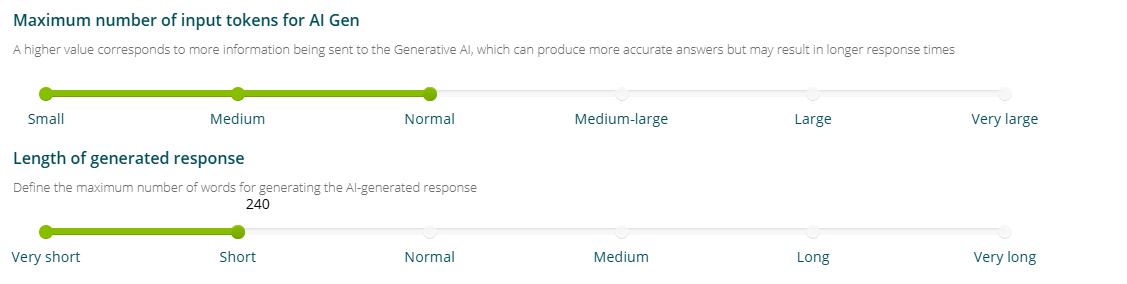
Using the Maximum number of input tokens for AI Gen slider, you can set the number of tokens to use as input for the AI.
A higher value corresponds to more information being sent to the Generative AI, which can generate more accurate responses, but may result in longer response times.
Using the Generated response length slider, you can set (approximately) the maximum number of words for the generated response.
The word count is an approximate parameter that the AI will take into account but may not adhere to exactly.
Documentation options
In this section you can set the usage and display of documentation.
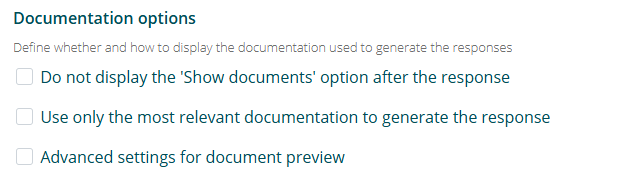
The Do not show the 'Show documents' option after the response option will disable the ability for users to view the documents used to generate the response.
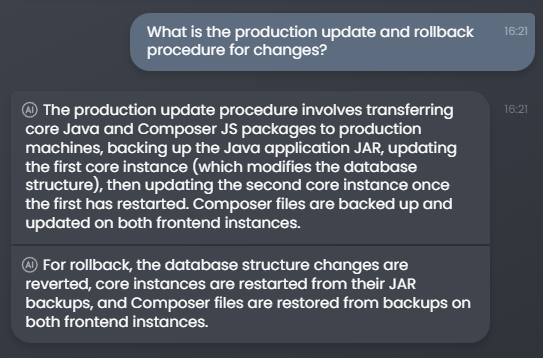
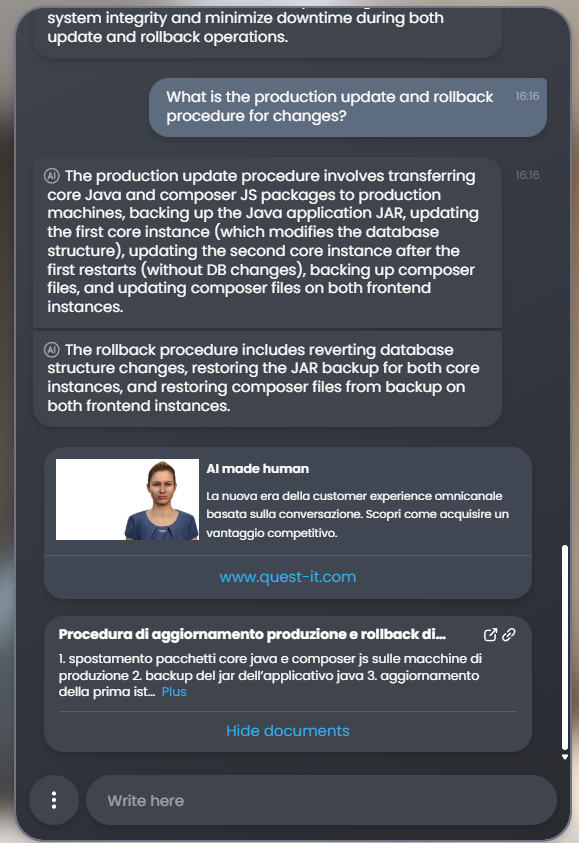
The Only use the most relevant documentation to generate the response option instructs the AI to show in Show documents only the most relevant paragraphs used to generate the response.
Enabling this option may result in longer response times.
The Advanced settings for document preview option allows you to more precisely define which documents can be shown in the Show documents list.
This option and Do not show the 'Show documents' option after the response are mutually exclusive.
You can therefore choose not to show documents from Smart Document Crawler or Standard documents, i.e. manually uploaded documents.

Additional options
In this section you can set additional functions to enable or disable after the generated response.
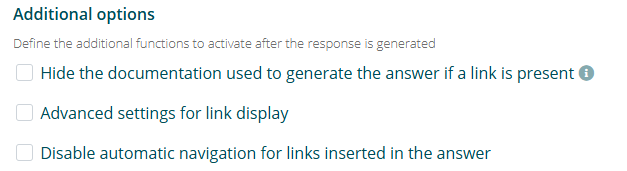
The Hide the documentation used to generate the response if a link is present option will hide the Show documents option if the response contains a link as a multimedia attachment.
The Advanced settings for link display option allows you to more precisely define which documents can be shown in the Show documents list based on the document source type.

The Disable automatic navigation for links inserted in the response option allows you to disable automatic navigation if the generated response has a link as a multimedia element (see Intent for more information on automatic navigation).
Starting Form and Intent
The last two options allow you to set the launching of a form or an intent after the generated response.
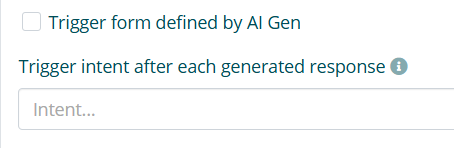
The two options are mutually exclusive.
Launch form set by AI Gen allows you to connect one or more forms and specify via prompt the conditions under which they should be launched.

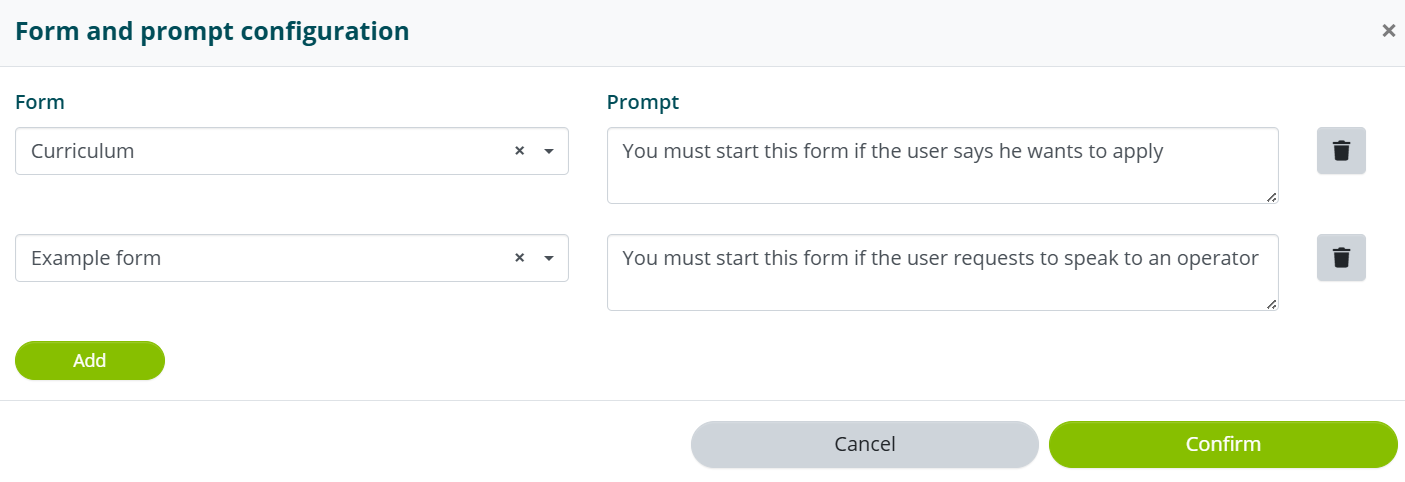
Below is an example of a structure for form launch prompts. Each block corresponds to a linked form; the conditions determine when that form is presented to the user.
## Current account
You MUST return this form ONLY and ONLY when ALL of the following
conditions are met:
- the user has requested information about the current account;
- the assistant's response confirms that it can provide assistance
  on the topic.
You MUST NOT return this form if the user's request concerns
cards, investments or loans.
## Payment cards
You MUST return this form ONLY and ONLY when ALL of the following
conditions are met:
- the user has requested information about payment cards;
- the assistant's response confirms that it can provide assistance
  on the topic.
You MUST NOT return this form if the request concerns accounts,
investments or loans.
## Investments
You MUST return this form ONLY and ONLY when ALL of the following
conditions are met:
- the user has requested information about investments or
  financial products;
- the assistant's response confirms that it can provide assistance
  on the topic.
You MUST NOT return this form if the request concerns accounts or
payment cards.
The phrases "similar to..." in the prompts refer to the content of the AI-generated response, not an exact textual comparison. The AI evaluates whether the meaning of the response matches the one indicated.
Launch intent after each generated response allows you to set an intent that should be launched after each generated response.
